
Fix a FlutterFlow Chatbot That Won't Auto-Scroll to New Messages
You wired up an AI support chat in FlutterFlow. It sends, the bot replies, the reply streams in — and then it just sits there below the fold. The user has to drag the list up by hand to read the answer. Every single time.
If you added a Scroll To → End action on send and it still doesn't work, you've hit the single most common FlutterFlow chat bug. The good news: it's not random, and the fix is about ten lines of Dart in one custom action.
Why your FlutterFlow chatbot is not scrolling to the bottom
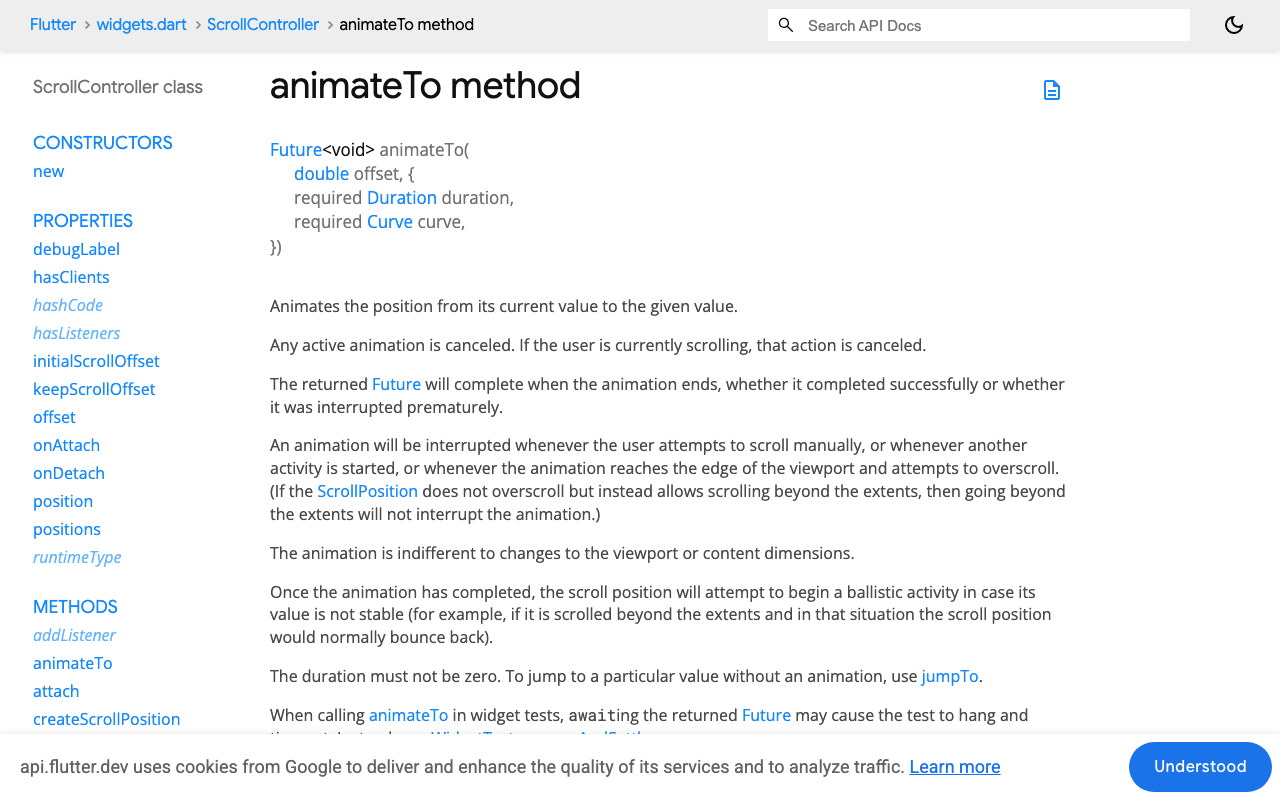
The instinct is to scroll the instant a new message arrives. So you call something like controller.animateTo(controller.position.maxScrollExtent, ...) right after appending the message to your list.
Here's the problem. maxScrollExtent is the total scrollable height of the ListView as it is currently laid out. When you append a message, Flutter doesn't grow the list synchronously — it schedules a rebuild for the next frame. Your animateTo runs this frame, before the new bubble has been measured. So you're animating to yesterday's bottom, which is now a few hundred pixels short of the real bottom.
Result: the list scrolls almost to the end, and the newest reply is stranded just below the visible area. The FlutterFlow community has documented this exact timing trap — the built-in On Data Update → Scroll To fires before the updated message actually enters the ListView, so it never lands where you want.
With a streaming AI reply the problem compounds. Each token that arrives from WidgetChat makes the last bubble taller, pushing the true bottom down again. If you only scroll on send, you fall behind the moment the bot starts typing.
The fix: wait one frame with addPostFrameCallback
WidgetsBinding.instance.addPostFrameCallback schedules a callback to run after the current frame finishes rendering. By the time it fires, the ListView has rebuilt with the new message, been laid out, and maxScrollExtent reflects the real, final height. Now animateTo lands exactly at the bottom.
Step 1 — Give the ListView a ScrollController
In FlutterFlow, select your chat ListView, open the Scroll Controller section in the properties panel, and create a new controller (or add a page-state field of type ScrollController and bind it). This is the same controller your custom action will drive.
Step 2 — Create the custom action
Go to Custom Code → Custom Actions → Add, name it scrollChatToBottom, and add one argument: controller of type ScrollController (nullable off). Paste this into the body FlutterFlow generates:
// Automatic FlutterFlow imports
import '/flutter_flow/flutter_flow_util.dart';
import '/custom_code/actions/index.dart';
import 'package:flutter/material.dart';
// Begin custom action code

Future scrollChatToBottom(ScrollController controller) async {
  // No ListView attached yet — bail out safely.
  if (!controller.hasClients) return;

  // Wait for the frame that renders the new message, THEN scroll.
  WidgetsBinding.instance.addPostFrameCallback((_) {
    if (!controller.hasClients) return;
    controller.animateTo(
      controller.position.maxScrollExtent,
      duration: const Duration(milliseconds: 250),
      curve: Curves.easeOut,
    );
  });
}
Two things worth noting:
controller.hasClientsguards against calling the controller before the ListView is mounted (e.g. on first build or an empty chat). Without it you'll getScrollController not attached to any scroll viewscrashes.- The
addPostFrameCallbackclosure re-checkshasClientsbecause a frame can pass while the user navigates away.
Step 3 — Fire it on every streamed token, not just on send
This is the part most tutorials miss. Call scrollChatToBottom in three places:
- After the user's message is appended (on the Send button's action chain).
- On each WidgetChat streamed token, inside the callback that appends/updates the bot bubble — so the view tracks the reply as it grows.
- When the stream completes, as a final catch-up scroll.
Because each call defers to the next frame, spamming it per token is cheap and keeps the newest text pinned to the bottom. If your streaming is very high-frequency, animateTo mid-flight can look busy — swap it for jumpTo(controller.position.maxScrollExtent) while streaming and use the animated version only for the final settle.
The simpler alternative: reverse: true
If you don't need messages laid out top-to-bottom in the widget tree, flip the problem on its head. Set your ListView's Reverse property to true and insert new messages at index 0 of your list.
With reverse: true, offset 0.0 is the bottom of the visual list — the newest message. Because 0 is a constant, it's never stale, so you don't fight maxScrollExtent timing at all. The list simply opens pinned to the latest message and new messages appear from the bottom with no scroll code.
The trade-offs:
- Your data source must prepend (newest first) rather than append. In FlutterFlow, add to index 0 of your app-state list.
- Scroll physics feel slightly different, and a "scroll to top" (oldest) becomes the manual gesture instead.
- Grouping/date-separator logic runs in reverse order, so double-check your headers.
For a support chatbot where you almost always want the latest reply in view, reverse: true is the most bulletproof option. Use the addPostFrameCallback action when you need normal top-down ordering or a smooth animated glide to the bottom.
Quick checklist when it still won't scroll
- Controller mismatch — the ScrollController you pass to the action must be the exact one bound to the ListView, not a fresh instance.
- Wrong scrollable — if your chat is inside a
Columnin aSingleChildScrollView, the outer scrollable ownsmaxScrollExtent, not the inner ListView. Attach the controller to whichever widget actually scrolls. shrinkWrap+ nested scroll — a shrink-wrapped ListView inside another scrollable reports a tiny extent. Give the list a bounded height or a single scrollable.- Called too early — if you scroll before
hasClientsis true, nothing happens silently. The guard above handles it.
Try WidgetChat free
WidgetChat drops a streaming AI support chatbot into your Flutter or FlutterFlow app with a single custom widget, and its streamed-token callback is the perfect hook for the scrollChatToBottom action above — so every reply lands in view without a manual drag. Try WidgetChat free and ship an autoscrolling AI chat today.
Comments
Comments are coming soon. We'd love to hear your thoughts!