
FlutterFlow Voice Input: speech_to_text for AI Chatbots
Typing a support question on a phone keyboard is friction. Adding a mic button next to your chatbot's message field removes it — but if you've tried wiring the speech_to_text package into FlutterFlow, you've probably hit at least one of three walls: the permission dialog never appears, nothing happens in web test mode, or recognition dies after about five seconds of speech on Android.
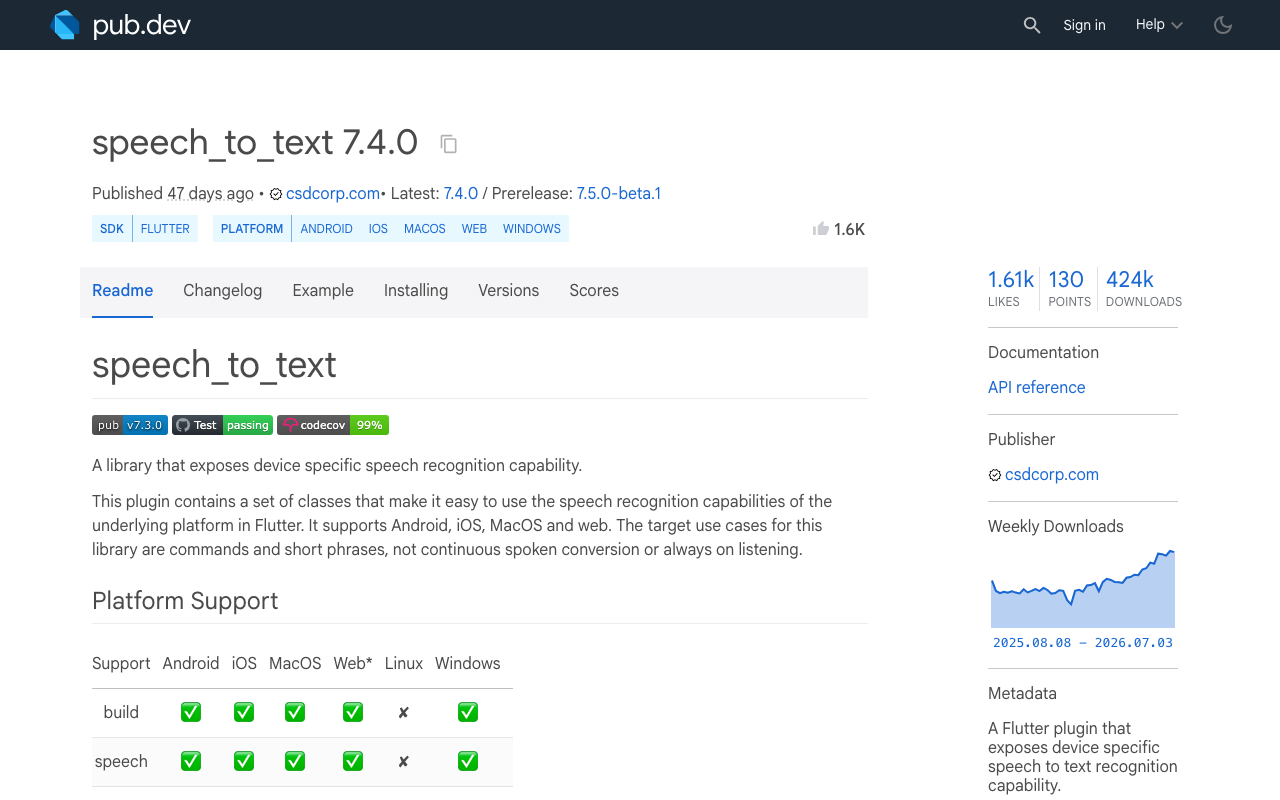
This is the full recipe: a FlutterFlow custom action that streams a live transcript into your chatbot's message field, the exact permission entries for both platforms, and working fixes for all three traps. Everything below uses speech_to_text 7.4.0, the current stable release.
What you're building
- A mic button beside the chatbot's
TextFieldthat toggles listening on and off. - A custom action (
startVoiceInput) that captures speech, writes partial results into App State so the field updates live, and returns the final transcript. - A restart loop so Android's short silence timeout doesn't cut off longer questions.
Create two App State variables first: voiceTranscript (String) and isListening (Boolean). The mic button toggles isListening; the custom action watches it as its stop signal. This matters because each FlutterFlow custom action lives in its own file — App State is the clean way for the button and the action to share state.
In the custom action editor, add the dependency in the pubspec section:
speech_to_text: ^7.4.0
Step 1: Permissions that actually work
Most "flutterflow microphone permission not working" reports come down to one of three missing entries.
iOS needs two Info.plist keys — not one. Speech recognition and microphone access are separate permissions. If either usage description is missing, iOS kills the app the moment you call initialize(), which in test builds looks like the mic "silently failing":
<key>NSMicrophoneUsageDescription</key>
<string>The microphone is used to dictate your support question.</string>
<key>NSSpeechRecognitionUsageDescription</key>
<string>Speech recognition converts your voice into a chat message.</string>
In FlutterFlow you don't edit Info.plist directly: go to Settings & Integrations → App Settings → Permissions, enable Microphone and Speech Recognition and write a real message for each. FlutterFlow injects the plist keys at build time. Then, right before your custom action runs, chain FlutterFlow's built-in Request Permissions action so the OS dialog appears at a sensible moment instead of at app launch.
Android needs the recognizer <queries> element on SDK 30+. This is the one almost every tutorial omits. RECORD_AUDIO alone isn't enough — on Android 11 and later, package visibility rules mean your app can't even see the system speech recognition service without declaring it. The symptom is initialize() returning false or an error_client with permissions seemingly granted. In AndroidManifest.xml (exported code or local run):
<uses-permission android:name="android.permission.RECORD_AUDIO" />
<uses-permission android:name="android.permission.INTERNET" />

<queries>
    <intent>
        <action android:name="android.speech.RecognitionService" />
    </intent>
</queries>
INTERNET is required because recognition is usually performed by a remote service. The package supports Android SDK 21 and up.
Step 2: The custom action
Create a custom action named startVoiceInput with return type String. The FlutterFlow boilerplate imports (FFAppState, flutter/material.dart) stay above this code:
import 'package:speech_to_text/speech_to_text.dart';

final SpeechToText _speech = SpeechToText();
String _transcript = '';

Future<String> startVoiceInput() async {
  final ready = await _speech.initialize(
    onStatus: _onStatus,
    onError: (e) => debugPrint('STT error: ${e.errorMsg}'),
  );
  if (!ready) {
    FFAppState().update(() => FFAppState().isListening = false);
    return '';
  }

  _transcript = '';
  await _listenOnce();

  // The mic button flips isListening to false when tapped again.
  while (FFAppState().isListening) {
    await Future.delayed(const Duration(milliseconds: 200));
  }
  await _speech.stop();
  return _transcript.trim();
}

Future<void> _listenOnce() async {
  String segment = '';
  await _speech.listen(
    onResult: (result) {
      segment = result.recognizedWords;
      // Live preview in the chat input while the user speaks.
      FFAppState().update(() {
        FFAppState().voiceTranscript = ('$_transcript $segment').trim();
      });
      if (result.finalResult) {
        _transcript = ('$_transcript $segment').trim();
      }
    },
    listenOptions: SpeechListenOptions(
      partialResults: true,
      listenMode: ListenMode.dictation,
      cancelOnError: true,
      pauseFor: const Duration(seconds: 5),
      listenFor: const Duration(seconds: 30),
    ),
  );
}

void _onStatus(String status) async {
  // Android ends the session (~5s of silence) with status 'done'.
  // If the user hasn't tapped stop, restart to keep capturing.
  if (status == 'done' && FFAppState().isListening) {
    await Future.delayed(const Duration(milliseconds: 150));
    await _listenOnce();
  }
}
Wire the mic button like this: On Tap → Update App State (isListening = true) → Custom Action startVoiceInput (store output as spokenText) → Set Form Field — write spokenText into the chatbot's message TextField. Bind the field's hint or an overlay Text widget to voiceTranscript so users see words appearing as they speak, which is the difference between a voice feature that feels alive and one that feels broken. Tapping the button again just sets isListening to false; the action loop notices, stops the recognizer, and returns the final flutter chatbot voice input string, ready to send to your AI backend.
Trap 1: Web test mode has no working mic
FlutterFlow's Test/Run mode executes in the browser. speech_to_text does have a web implementation, but it rides on the Web Speech API, which only some browsers support — and inside the preview environment, mic access is not reliably granted, so initialize() typically returns false without any visible error. Developers routinely burn hours "debugging" perfectly good code here.
Fix: don't test voice in web preview at all. Use Local Run with a physical device connected, or download the APK / build to TestFlight. An Android emulator can work if host microphone passthrough is enabled in the emulator's mic settings, but a real phone is the only environment that matches production.
Trap 2: Flutter speech recognition stops after 5 seconds
On Android, the OS-level recognizer ends the session after a short pause in speech — in the package maintainers' testing, never longer than about five seconds, and it varies by device and OS version. There is no supported way to raise it: pauseFor is treated as a hint that Android may cap or ignore entirely (iOS respects it much better). This is why the package docs say the target use case is commands and short phrases.
A support chatbot needs full questions, though — "my sync stopped working after the last update and I've already tried reinstalling" takes longer than one breath with pauses.
Trap 3 fix: restart the listener for longer questions
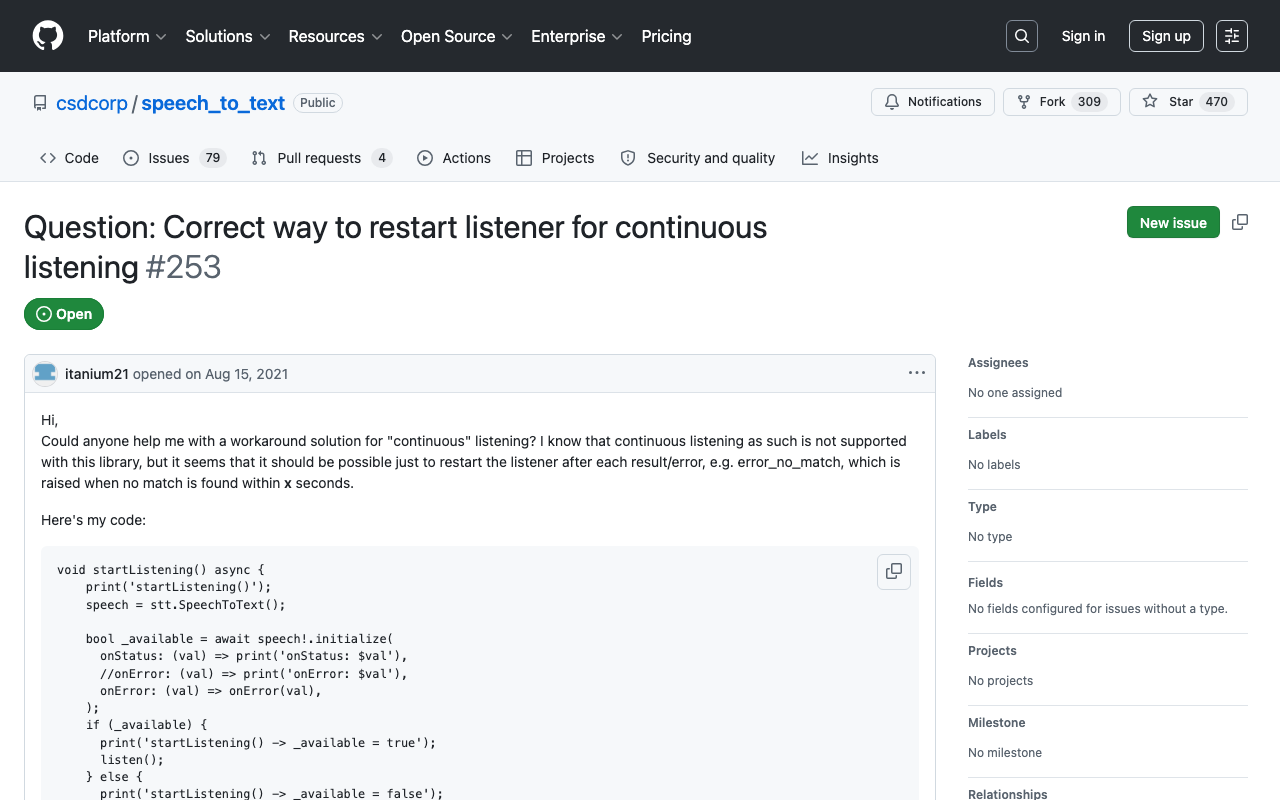
The workaround is in the code above, in _onStatus. When Android gives up, the plugin fires done. If the user hasn't tapped stop, we accumulate the finished segment into _transcript and immediately call listen() again after a ~150 ms breather (restarting instantly, before the previous session fully tears down, can throw errors on some devices). To the user it's one continuous dictation; under the hood it's a chain of 5-second-tolerant sessions. This is the same pattern the package maintainer points people to for continuous listening.
Two details that make it robust:
- Accumulate on
finalResultonly. Partial results get replaced by the recognizer as it refines its guess; appending them would duplicate words. cancelOnError: trueplus theisListeningcheck prevents an infinite restart loop when the mic is genuinely unavailable.
Quick troubleshooting table
- Dialog never appears on iOS → one of the two plist messages is missing; check both permissions are enabled in FlutterFlow's Permissions settings.
error_clientorinitialize()false on Android 11+ → missing<queries>recognizer declaration.- Works on iOS, cuts off on Android → that's the OS timeout; confirm the restart handler is attached via
onStatusininitialize(). - Nothing in test mode → expected; test on device.
Voice in, smart answers out
Voice input solves how users ask; you still need a chatbot that answers well. WidgetChat gives you a drop-in AI support chatbot for Flutter and FlutterFlow — trained on your docs, embedded with a few lines of integration code, and pairing naturally with the voice pipeline above: pipe startVoiceInput's transcript straight into the WidgetChat message send call and you have a hands-free flutterflow voice assistant without writing a backend.
Try WidgetChat free — add an AI support chatbot to your Flutter or FlutterFlow app in minutes.

Comments
Comments are coming soon. We'd love to hear your thoughts!