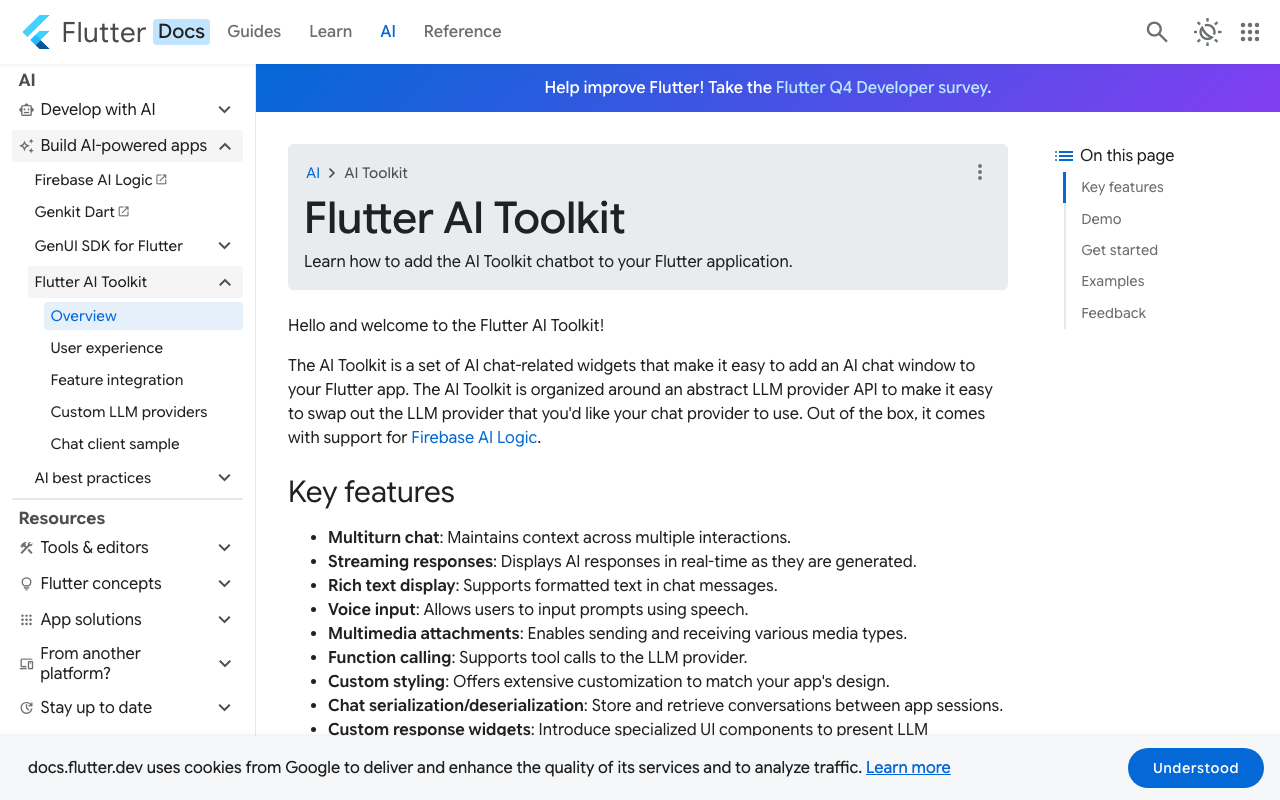
The official Flutter AI Toolkit gives you LlmChatView, a finished chat screen you can drop into an app in about twenty lines. If you want to add AI support chat to a Flutter app, it is the first thing you find, and it is good. The question is how much of a support chatbot it covers.
Short answer: it covers the chat UI and the connection to a model. Answers from your own docs, stored history, product cards and user identity are left to you. This post goes through each of those using the public docs.flutter.dev and pub.dev pages, then shows where widget_chat is the shorter path and where the toolkit is the better choice.
What LlmChatView 1.x gives you
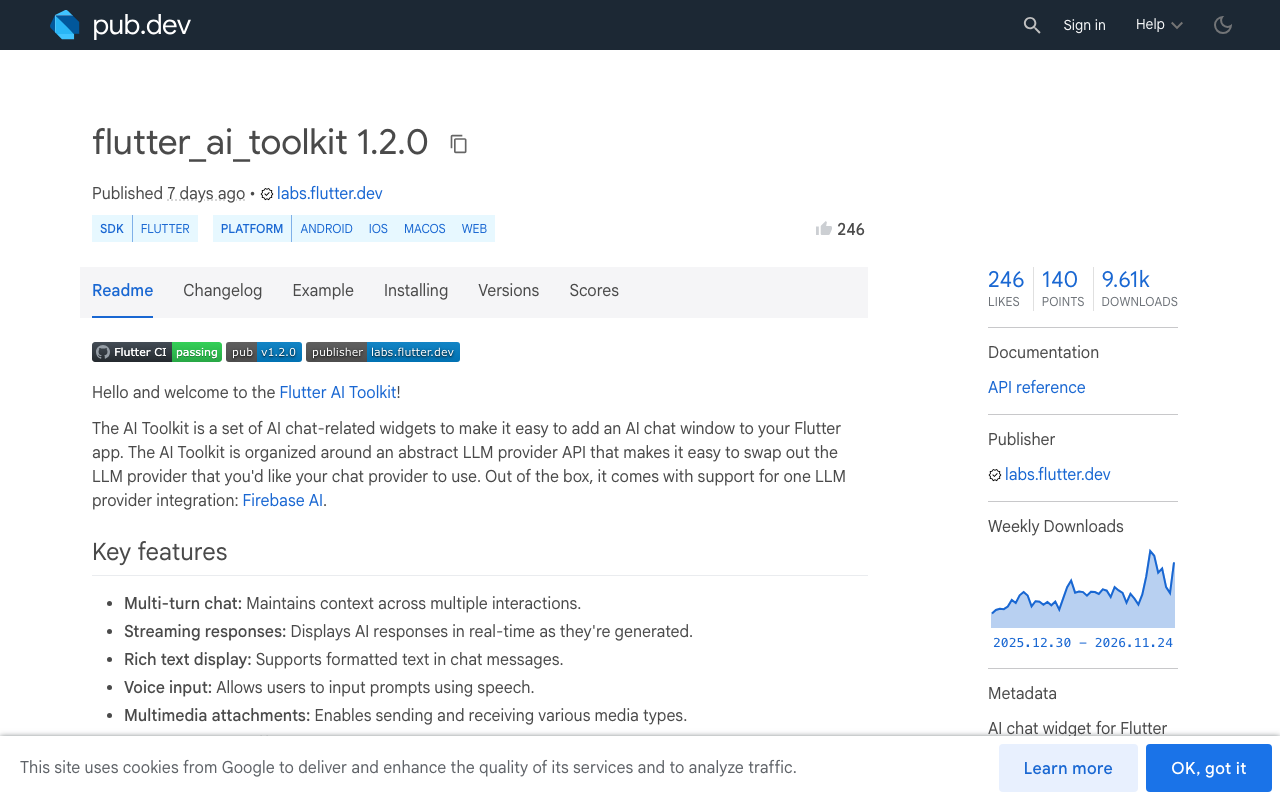
flutter_ai_toolkit is published by labs.flutter.dev. The current release on pub.dev is 1.2.0, which needs Flutter 3.47 or later. The docs list these features:
- Multi-turn chat with streaming responses
- Rich text display (markdown)
- Voice input and multimedia attachments
- Function calling
- Custom styling and custom response widgets
- Chat serialization and deserialization
- Pluggable LLM support through the
LlmProviderinterface - Android, iOS, web and macOS
That is a real chat screen: welcome message, suggestions, attachments, a mic button. For a flutter ai chat widget package it is hard to beat on UI per line of code.
The flutter ai toolkit firebase_ai setup
One thing changed that older tutorials miss. Version 0.9.0 migrated the toolkit to firebase_ai. The changelog calls it a breaking change: GeminiProvider and VertexProvider were removed and replaced with FirebaseProvider, and the online demo was removed because bring-your-own-API-key was no longer possible. So the built-in provider now needs a Firebase project.
- Create a Firebase projectCreate one in the Firebase console and enable Firebase AI Logic with a Gemini API provider.
- Run flutterfire configureThe FlutterFire CLI generates firebase_options.dart for your app.
- Add the packagesflutter pub add flutter_ai_toolkit firebase_ai firebase_core
- Initialize FirebaseCall Firebase.initializeApp before runApp.
- Set up App CheckFirebase's get-started guide calls App Check critical when the app calls the Gemini API directly.
Then the chat screen itself. This is assembled from the two snippets on docs.flutter.dev (Firebase init, then the chat page):
import 'package:firebase_ai/firebase_ai.dart';
import 'package:firebase_core/firebase_core.dart';
import 'package:flutter/material.dart';
import 'package:flutter_ai_toolkit/flutter_ai_toolkit.dart';

import 'firebase_options.dart'; // generated by flutterfire configure

void main() async {
  WidgetsFlutterBinding.ensureInitialized();
  await Firebase.initializeApp(
    options: DefaultFirebaseOptions.currentPlatform,
  );
  runApp(const MaterialApp(home: ChatPage()));
}

class ChatPage extends StatelessWidget {
  const ChatPage({super.key});

  @override
  Widget build(BuildContext context) => Scaffold(
        appBar: AppBar(title: const Text('Support')),
        body: LlmChatView(
          welcomeMessage: 'Hi! Ask me anything about the app.',
          provider: FirebaseProvider(
            model: FirebaseAI.googleAI().generativeModel(
              model: 'gemini-2.5-flash',
            ),
          ),
        ),
      );
}
The docs use FirebaseAI.googleAI() for prototyping and FirebaseAI.agentPlatform() for production. Check Firebase's model list for the current model name before you ship.
Run this and you have a working general assistant. It knows nothing about your product yet.
What you still have to build for support
The first row ships with the toolkit. The other two rows are yours.
Answers from your own docs
An LlmChatView customer support chatbot has to answer from your help center, and the model has never read it. The toolkit gives you two hooks. You can pass a systemInstruction when you create the model, which works for a few pages of content. Or you can use function calling: FirebaseProvider runs the call, execute, return loop for you, but the tool that searches your docs, and the index behind it, is something you write and host.
History storage
The feature-integration docs say every provider exposes history, and that persisting it means serializing each message with ChatMessage.toJson() and restoring with ChatMessage.fromJson(). Where the JSON lives (local file, Firestore, your API), per-user separation and pagination for long threads are your code.
Product cards
LlmChatView has a responseBuilder for custom response widgets. The documented pattern is to ask the model for JSON and render your own widget from it. The docs also warn that a streamed response may not be complete when you parse it, so you handle partial JSON. Cards, carousels and tap actions are widgets you design.
Signed user identity
The toolkit's documented API has no user concept. LlmChatView takes a provider, and that is it. App Check tells Firebase the request comes from your real app, which is a different thing from telling a support agent which customer is asking. If answers depend on the account (orders, plan, tickets), you add auth and pass identity to your tools yourself.
A custom backend means your own LlmProvider
If you do not want a Firebase project, or you want the model key on your own server, you implement LlmProvider. The custom-providers page lists what a provider must do: accept configuration, manage history and notify listeners when it changes, translate messages and attachments, and call the model. A minimal version, modelled on the docs' EchoProvider example and pointed at your own endpoint:
import 'dart:convert';

import 'package:flutter/foundation.dart';
import 'package:flutter_ai_toolkit/flutter_ai_toolkit.dart';
import 'package:http/http.dart' as http;

class MyBackendProvider extends LlmProvider with ChangeNotifier {
  final List<ChatMessage> _history = [];

  @override
  Stream<String> generateStream(
    String prompt, {
    Iterable<Attachment> attachments = const [],
  }) async* {
    final request = http.Request(
      'POST',
      Uri.parse('https://api.example.com/support/chat'),
    )..body = jsonEncode({'prompt': prompt});
    final response = await request.send();
    yield* response.stream.transform(utf8.decoder);
  }

  @override
  Stream<String> sendMessageStream(
    String prompt, {
    Iterable<Attachment> attachments = const [],
  }) async* {
    final userMessage = ChatMessage.user(prompt, attachments);
    final llmMessage = ChatMessage.llm();
    _history.addAll([userMessage, llmMessage]);

    await for (final chunk in generateStream(prompt)) {
      llmMessage.append(chunk);
      yield chunk;
    }
    notifyListeners();
  }

  @override
  Iterable<ChatMessage> get history => _history;

  @override
  set history(Iterable<ChatMessage> history) {
    _history
      ..clear()
      ..addAll(history);
    notifyListeners();
  }
}
That is the client half. The endpoint behind api.example.com (auth, retrieval, the model call, streaming) is a backend you build and run.
Flutter AI Toolkit vs widget_chat: who builds what
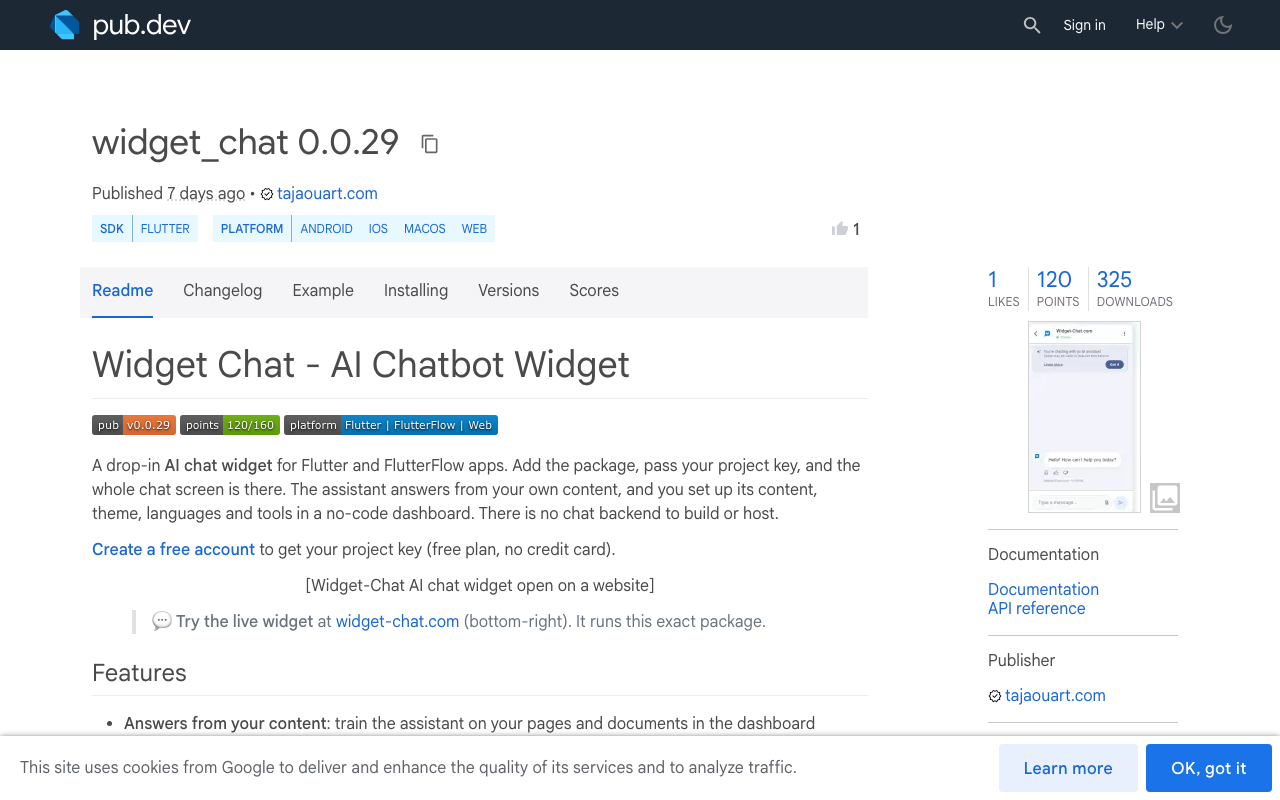
Widget-Chat is a support chat widget for Flutter and FlutterFlow apps. You add the widget_chat package, pass a project key, and configure the assistant in a dashboard. Here is the same list, side by side.
| Piece | Flutter AI Toolkit | widget_chat |
|---|---|---|
| Chat UI, streaming, markdown | Included | Included |
| Model access | Firebase project with firebase_ai, or your own LlmProvider |
Included, provider key stays server-side |
| Answers from your docs | You build it (system instruction, tool or backend) | Included, content set up in the dashboard |
| History storage | You serialize and store it | Included, with pagination |
| Product cards | You build them with responseBuilder |
Image cards, carousels, product lists, button groups |
| User identity | You build it | HMAC-signed user identity |
| Calling your APIs | Function calling in Dart code | Custom HTTP tools and action callbacks into the app |
| Model and prompt control | Full, in your code | Dashboard settings, less low-level control |
| Languages | Whatever you build | UI in 46 locales, replies in 100+ languages |
Support chat on the toolkit
- Firebase project, flutterfire configure, App Check
- Write retrieval over your docs
- Serialize and store history per user
- Design card widgets and parse streamed JSON
- Add auth and pass identity to tools
Support chat with widget_chat
- flutter pub add widget_chat
- Add your content in the dashboard
- History with pagination is built in
- Rich messages are built in
- Pass a userID, sign it with HMAC
When the toolkit is the better choice
Pick the Flutter AI Toolkit when:
- You are building a general assistant or a feature specific to your app (a recipe helper, a writing aid), where there is no help center to answer from.
- You want full control of the model, the prompts, the tools and the response widgets, in Dart, in your repo.
- You already run Firebase and want everything in one Google project.
- You want an open source, BSD-licensed UI you can fork.
- You have a backend team and a custom
LlmProvideris a small job for them.
Pick a finished support widget when the goal is a support chatbot specifically, the team is small, and nobody wants to own retrieval, storage and identity code for the next two years.
The shorter path: ChatWidget
If you looked for a flutter_ai_toolkit alternative because you want support chat without a backend, this is the whole integration:
flutter pub add widget_chat
import 'package:widget_chat/widget_chat.dart';

ChatWidget(
  configuration: BotConfiguration(
    projectSecretKey: 'your-project-secret-key',
    userID: 'user-123',
  ),
)
The package ships the finished chat screen. It answers from your own content, keeps history, renders product cards and carousels, supports light, dark and system themes, and works on iOS, Android, web and desktop through Flutter. There is no chat backend to build or host. The same package also works in FlutterFlow as a custom widget.
- No Firebase project needed for the chat
- Answers from your own content
- Chat history with pagination
- Rich messages and product cards
- HMAC-signed user identity
- Free plan, no credit card
Create a project and get your key here: https://app.widget-chat.com/#/register. The package page is pub.dev/packages/widget_chat.