A streaming AI chat looks great and often sounds terrible. As tokens arrive over SSE, the bot's bubble rebuilds many times a second. Depending on how the bubble is wired, a screen reader either tries to read every partial sentence or says nothing at all, and the user never learns that a reply arrived.
Most guidance on this is written for the web and aria-live. This post is the Flutter version, written against a hand-built chat with its own streaming endpoint (POST /v1/chat/stream on your backend, token-by-token data: events). The fix is the same idea on every platform: the growing text stays quiet, and the screen reader gets two short status messages.
If you would rather not build the chat screen yourself, Widget-Chat ships it as a drop-in package. Otherwise, here is the fix.
Why this lands on your desk now
The European Accessibility Act has applied since 28 June 2025, and audits against it lean on EN 301 549 and WCAG 2.1 AA. On the web, the rule for this situation is WCAG 4.1.3 Status Messages: tell assistive tech about a change without moving focus. Mobile auditors expect the same behaviour from a chat screen, and users who rely on TalkBack or VoiceOver will report it long before an auditor does.
Live region on the growing bubble
- Every token changes the label, so every token can trigger an announcement
- Announcements cut each other off, the user hears fragments
- Or the reader is busy and stays silent for the whole reply
- Nobody knows when the answer is complete
One status channel, two messages
- The bubble is hidden from the screen reader while it streams
- The user hears: Assistant is replying
- On stream close, the full reply is announced once
- Afterwards the bubble is a normal, swipeable message
The two announcement tools in Flutter
Flutter gives you two ways to make a screen reader speak without moving focus.
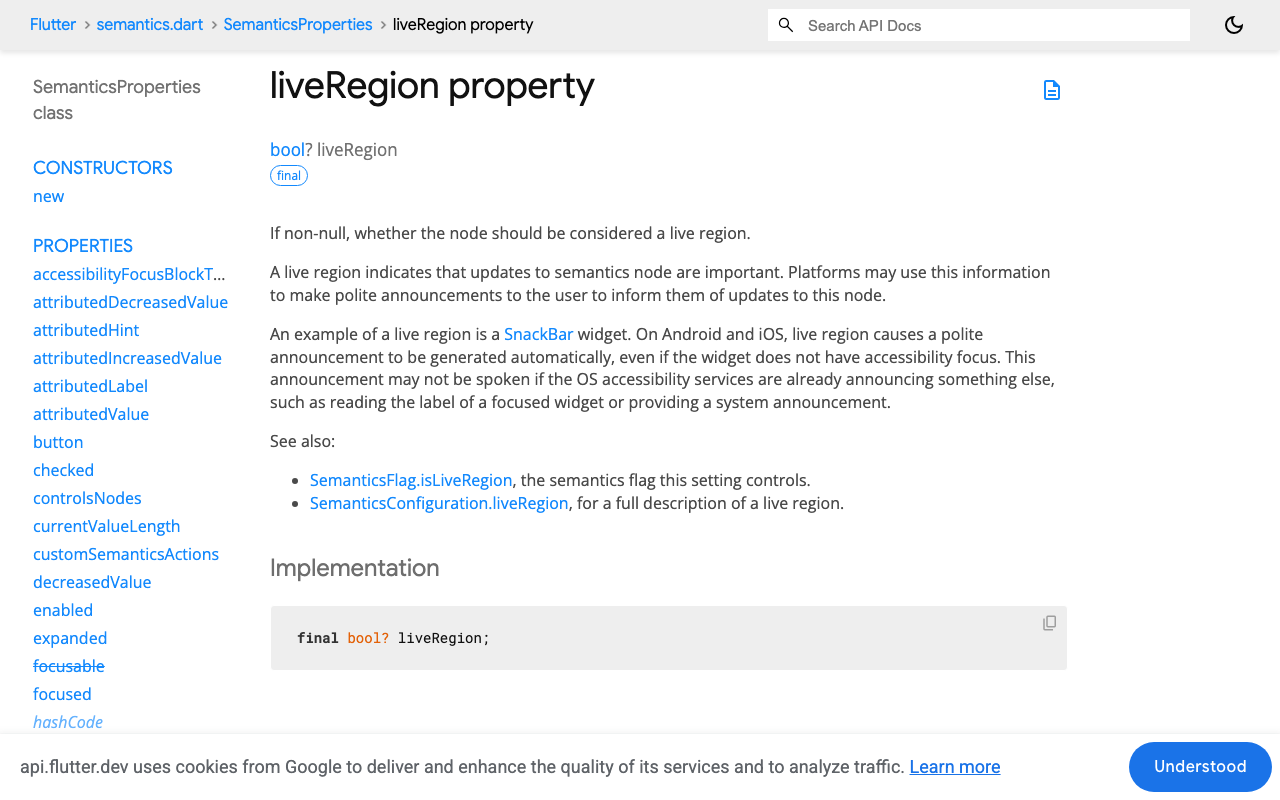
Semantics(liveRegion: true). The Flutter docs say that on Android and iOS a live region "causes a polite announcement to be generated automatically, even if the widget does not have accessibility focus". They also warn that the announcement "may not be spoken if the OS accessibility services are already announcing something else".
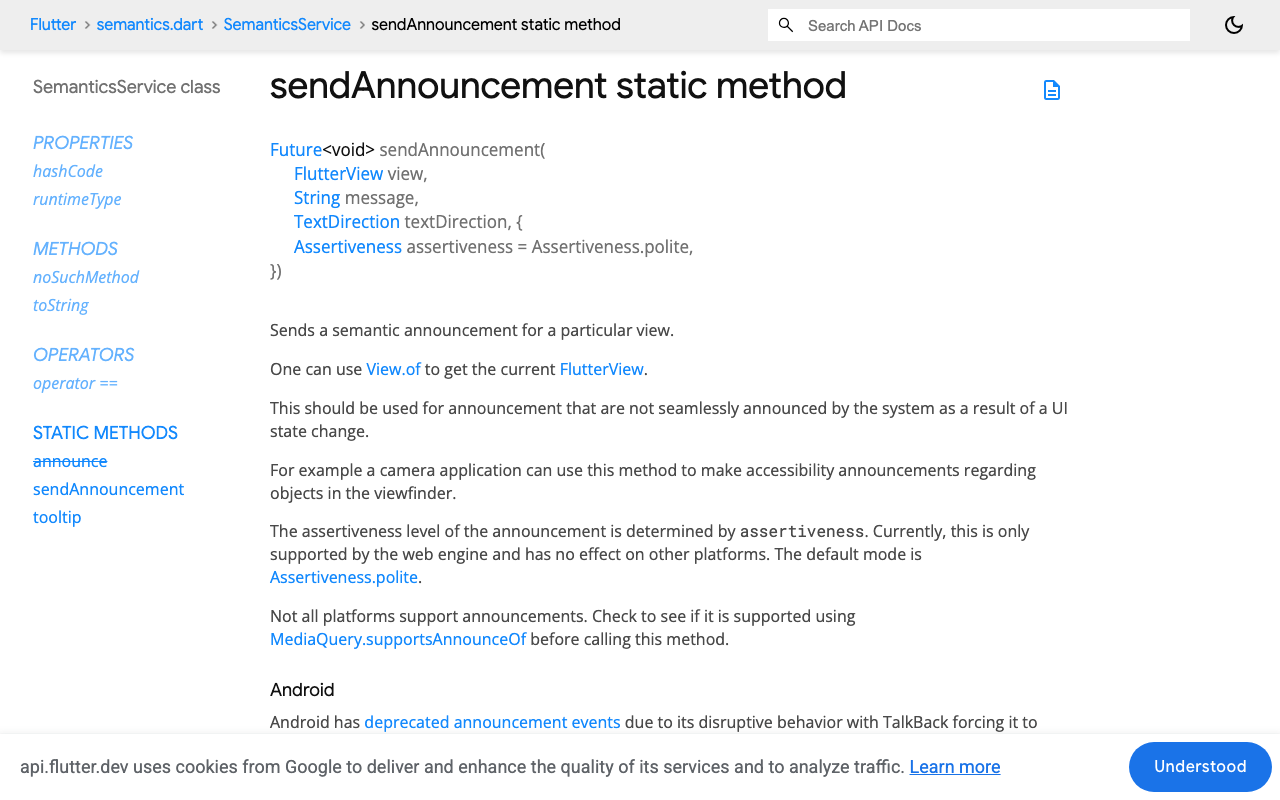
SemanticsService.sendAnnouncement. This sends an explicit announcement to a view. It replaces SemanticsService.announce, which was deprecated after Flutter 3.35 because it cannot work with multiple windows. If you are searching for "flutter SemanticsService announce", sendAnnouncement(View.of(context), message, textDirection) is the call to use today.
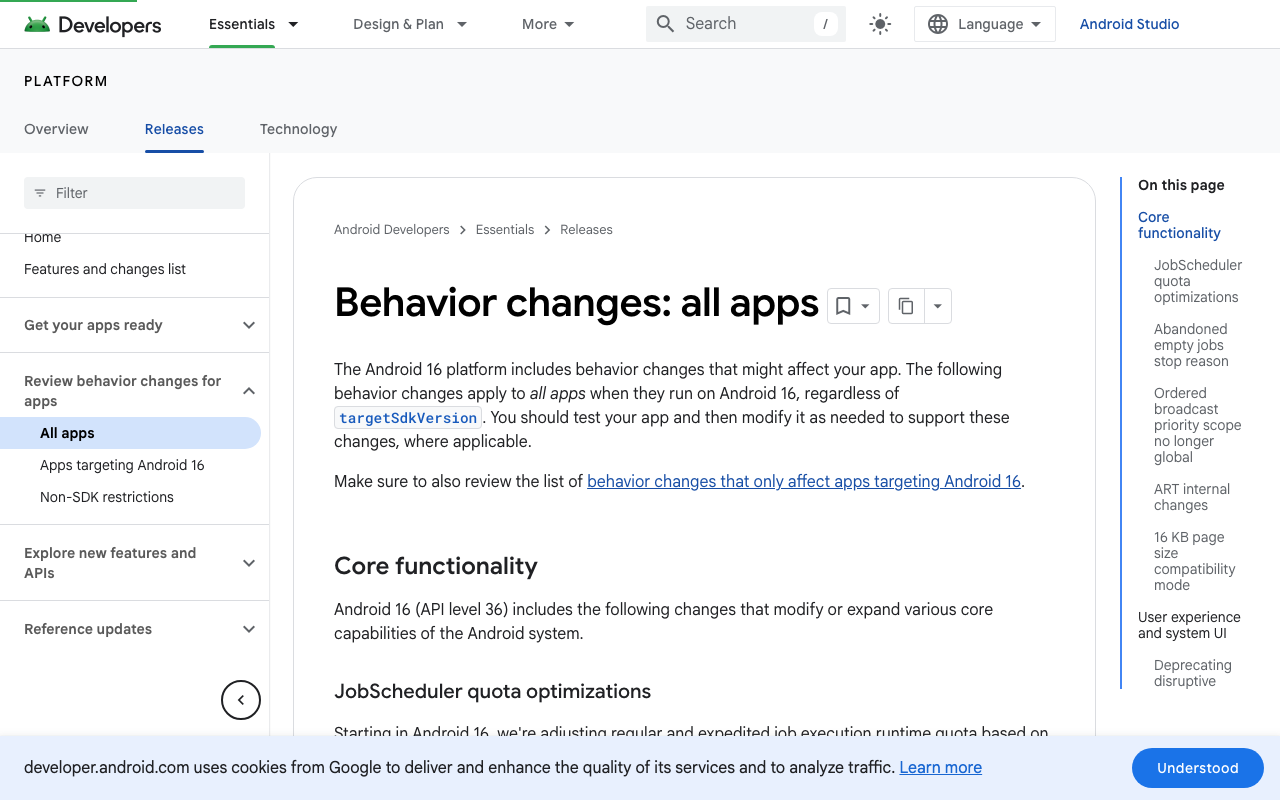
The catch is Android. Android 16 deprecated accessibility announcements (announceForAccessibility and TYPE_ANNOUNCEMENT events) because they are disruptive for TalkBack users. Flutter's docs repeat the warning: TalkBack is forced to clear its speech queue, and you should "use mechanisms like Semantics to implicitly trigger announcements" instead. Flutter exposes this as MediaQuery.supportsAnnounceOf(context), which returns false on platforms where announcements are deprecated or unsupported.
| Behaviour | TalkBack (Android) | VoiceOver (iOS) |
|---|---|---|
liveRegion label change |
Polite announcement, no focus needed | Documented as a polite announcement. Some older tutorials report it being ignored, so test on a device |
sendAnnouncement |
Discouraged. The platform deprecated announcement events in Android 16 | Supported |
supportsAnnounceOf |
Can return false |
Returns true |
assertiveness parameter |
No effect (web only) | No effect (web only) |
| Reader already speaking | Announcement may be skipped | Announcement may be skipped or cut off |
So the rule is simple: ask supportsAnnounceOf. If it is true, send an explicit announcement. If it is false, change the label of a live region.
What the screen reader should hear
Step 1: one announcer widget for both platforms
This widget listens to a status string and speaks it through whichever channel the platform supports. It also waits 700 ms before speaking and cancels any pending message when a new one arrives.
import 'dart:async';

import 'package:flutter/foundation.dart';
import 'package:flutter/material.dart';
import 'package:flutter/semantics.dart';

class StatusAnnouncer extends StatefulWidget {
  const StatusAnnouncer({super.key, required this.status});

  final ValueListenable<String> status;

  @override
  State<StatusAnnouncer> createState() => _StatusAnnouncerState();
}

class _StatusAnnouncerState extends State<StatusAnnouncer> {
  Timer? _pending;
  String _spoken = '';

  @override
  void initState() {
    super.initState();
    widget.status.addListener(_schedule);
  }

  void _schedule() {
    _pending?.cancel();
    _pending = Timer(const Duration(milliseconds: 700), _speak);
  }

  void _speak() {
    if (!mounted) return;
    final message = widget.status.value;
    if (MediaQuery.supportsAnnounceOf(context)) {
      SemanticsService.sendAnnouncement(
        View.of(context),
        message,
        Directionality.of(context),
      );
    } else {
      setState(() => _spoken = message);
    }
  }

  @override
  void dispose() {
    widget.status.removeListener(_schedule);
    _pending?.cancel();
    super.dispose();
  }

  @override
  Widget build(BuildContext context) {
    return Semantics(
      liveRegion: true,
      label: _spoken,
      child: const SizedBox(width: 1, height: 1),
    );
  }
}
The delay matters. Rapid announcements drop each other, and a tap on Send is usually followed by the reader speaking something of its own. Flutter's own ExpansionTile had this problem on iOS and fixed it the same way, with a one second cancellable timer before its announcement. A side benefit: if the reply finishes within 700 ms, "Assistant is replying" is cancelled and the user only hears the answer.
Step 2: drive the status from your stream
The controller below reads the SSE stream with the http package. Tokens update the visible reply. The status only changes three times: at the start, at stream close, and on stop or failure.
import 'dart:convert';

import 'package:flutter/foundation.dart';
import 'package:http/http.dart' as http;

class ChatStreamController {
  final reply = ValueNotifier<String>('');
  final status = ValueNotifier<String>('');
  final streaming = ValueNotifier<bool>(false);
  bool _stopped = false;

  Future<void> send(Map<String, String> headers, Object body) async {
    final client = http.Client();
    final buffer = StringBuffer();
    _stopped = false;
    reply.value = '';
    streaming.value = true;
    status.value = 'Assistant is replying';
    try {
      final request = http.Request(
        'POST',
        Uri.parse('https://api.example.com/v1/chat/stream'),
      )
        ..headers.addAll(headers)
        ..body = jsonEncode(body);
      final response = await client.send(request);
      final lines = response.stream
          .transform(utf8.decoder)
          .transform(const LineSplitter());
      await for (final line in lines) {
        if (_stopped) break;
        if (!line.startsWith('data:')) continue;
        buffer.write(tokenFrom(line.substring(5)));
        reply.value = buffer.toString();
      }
      status.value = _stopped ? 'Reply stopped' : 'Assistant said: $buffer';
    } catch (_) {
      status.value = 'The reply failed. Try again.';
    } finally {
      streaming.value = false;
      client.close();
    }
  }

  void stop() => _stopped = true;
}

// Adapt this to the event payload your backend returns.
String tokenFrom(String data) =>
    data.startsWith(' ') ? data.substring(1) : data;
Pass in the headers and request body your backend expects. tokenFrom is the one place that knows the payload shape: here it treats each data: line as plain text, so change it if your events carry JSON. Breaking out of the await for loop cancels the HTTP stream, which is all Stop needs to do.
Step 3: keep the growing bubble quiet
While the reply streams, hide its text from the semantics tree and show a fixed label. When streaming ends, the exclusion lifts and the bubble becomes an ordinary message.
Semantics(
  label: isStreaming ? 'Assistant is replying' : null,
  child: ExcludeSemantics(
    excluding: isStreaming,
    child: Text(replyText),
  ),
)
Do not put liveRegion: true on this bubble. That is the token flood. Flutter live regions announce when the label changes, and this label changes on every token.
Step 4: label Send and Stop
An icon-only button with no label is read as just "button". IconButton uses its tooltip as the semantic label, so one line fixes both states:
ValueListenableBuilder<bool>(
  valueListenable: chat.streaming,
  builder: (context, streaming, _) => IconButton(
    tooltip: streaming ? 'Stop reply' : 'Send message',
    icon: Icon(streaming ? Icons.stop : Icons.send),
    onPressed: streaming ? chat.stop : onSend,
  ),
)
The Stop button matters more for screen reader users than for anyone else. Without it, a long answer is something they have to sit through.
Test it on real devices
- Turn on TalkBackSend a message and check you hear the status once, then the full reply once, with no fragments in between.
- Repeat with VoiceOverRun the same test on an iPhone, since announcement timing differs from Android.
- Try a very short replyConfirm the reply is still spoken when the stream closes almost immediately.
- Press Stop mid-streamYou should hear Reply stopped, and focus should stay on the button.
- Swipe through the historyEvery finished bubble should read as a full message, and both buttons should speak their names.
Summary
- No liveRegion on the streaming bubble
- Bubble text excluded from semantics until the stream closes
- One status channel: sendAnnouncement where supportsAnnounceOf is true, live region label elsewhere
- A short delay so announcements do not cancel each other
- Full reply announced once, on stream close
- Send and Stop buttons have labels
This works the same whether you render the chat with Flutter widgets or wrap the stream in a FlutterFlow custom action and custom widget: the status string is the only thing the screen reader needs.
Or skip the plumbing
Screen reader announcements are one of many things a hand-built AI chat has to get right, next to streaming, stop and retry, and a UI that works in every language you ship. Widget-Chat is a drop-in AI chat widget for Flutter and FlutterFlow. Add the widget_chat package, pass your project key, and the whole chat screen is there: answers from your own content, UI in 46 locales and replies in 100+ languages, and light, dark and system themes.
ChatWidget(
  configuration: BotConfiguration(
    projectSecretKey: 'your-project-secret-key',
    userID: 'user-123',
  ),
)
Create a free Widget-Chat account and have it running in your app today.