
Add a Real-Time Voice AI Assistant to Your FlutterFlow App
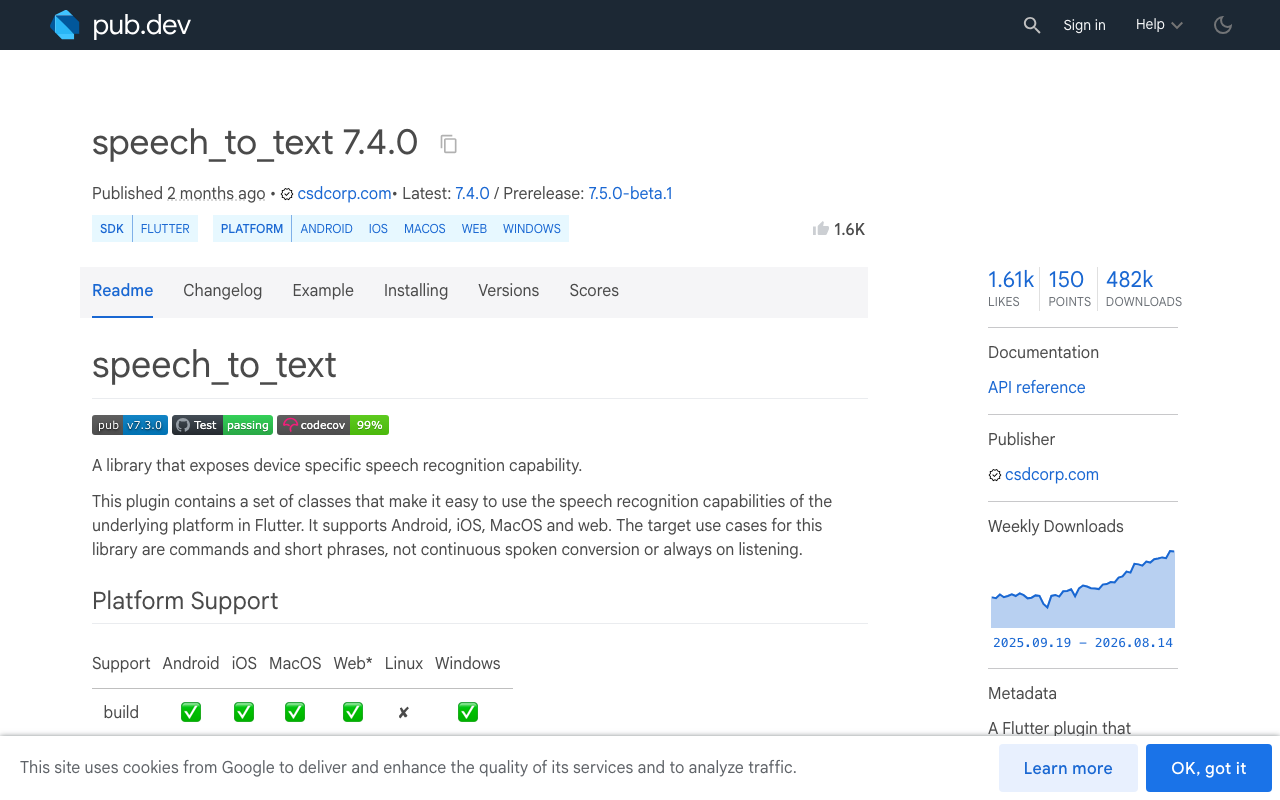
Search for a FlutterFlow voice assistant today and you mostly find ElevenLabs library showcases, Siri-clone YouTube tutorials, and DIY guides built on the same pattern: speech_to_text to capture a transcript, one chat-completion call, then flutter_tts to read the answer aloud. It demos fine. In real users' hands it behaves like a walkie-talkie — talk, wait, listen, repeat — and it collapses the moment someone interrupts.
This post covers both routes: why the DIY pipeline lags and breaks, and how to ship a real speech-to-speech AI voice agent in a FlutterFlow app — with barge-in, live captions, and on-screen product cards — by embedding the same WidgetChat widget you'd use for text support chat and switching Voice on in the dashboard.
Why the DIY pipeline feels like a walkie-talkie
The classic three-package stack looks deceptively simple:
final speech = SpeechToText(); // package: speech_to_text
final tts = FlutterTts();      // package: flutter_tts

Future<void> askByVoice() async {
  await speech.initialize();
  await speech.listen(
    pauseFor: const Duration(seconds: 3),
    onResult: (result) async {
      if (result.finalResult) {
        final reply = await callChatApi(result.recognizedWords);
        await tts.speak(reply);
      }
    },
  );
}
Three problems show up the first time you test a real conversation.
1. Latency stacks in series
Every stage waits for the previous one to finish completely. speech_to_text waits out pauseFor seconds of silence before it commits a final transcript. Then your chat API generates the entire answer. Only then does flutter_tts start speaking from character zero. Stack the stages and a quick question routinely gets 5–10 seconds of dead air. Production voice agents overlap these stages — streaming recognition, streaming generation, incremental synthesis — which is exactly what three independent plugins glued together in Dart can't do.
2. Sessions die, especially on Android
speech_to_text wraps each platform's built-in recognizer, and its maintainers are explicit that continuous listening is not a supported use case: the OS recognizer times out and you must restart it, leaving a gap where the mic hears nothing. Android throws error_speech_timeout after silence, OEM builds vary, and every restart risks clipping the user's first word. The package's issue tracker has years of threads on "the correct way to restart the listener" — because there isn't a clean one.
3. Barge-in is the feature you can't build with these packages
Natural voice UX means the user can interrupt — "Actually, the blue one—" — and the assistant stops talking and listens. That's Flutter voice AI barge-in, and it needs two hard things at once:
- An open mic while TTS is playing. But then the mic hears the assistant's own voice, and your recognizer starts transcribing the bot talking to itself. Fixing that requires acoustic echo cancellation (AEC) tuned against the exact audio being played — telephony-grade signal processing, not a pub.dev afternoon.
- Instant playback cutoff when genuine human speech is detected, plus rewinding conversation state so the model knows it was cut off mid-sentence.
The common workaround — muting the mic while the assistant speaks — is precisely what creates the walkie-talkie feel: the user's interruption lands on a dead mic and is lost.
And you still have the boring problems
Your speech and LLM provider keys end up compiled into the app binary unless you build and host a proxy. iOS needs microphone and speech-recognition usage descriptions, web speech APIs behave differently again, and you now operate a real-time audio pipeline instead of shipping your product.
The shortcut: the chat widget you already embed can talk
WidgetChat is an embeddable AI support chatbot for Flutter and FlutterFlow apps that answers users from your own content. Its live voice mode turns that same widget into a real-time voice call: the user taps the mic and the assistant listens and replies out loud in a natural voice, supports barge-in mid-sentence, shows live captions during the call, and can put rich product cards on screen while it speaks. It's the same widget, the same conversation, and the same dashboard as text chat — across iOS, Android, and web from one FlutterFlow project. Provider API keys stay server-side, never shipped in your app.
So the integration is two steps: embed the chat widget once, then enable Voice.
Step 1: Embed WidgetChat in your FlutterFlow app
There's no proprietary SDK to install — WidgetChat integrates through a custom action and a plain HTTP client. The streaming endpoint is POST https://api.widgetchat.app/v1/chat/stream, which returns token-by-token Server-Sent Events, so replies render as they're generated instead of after.
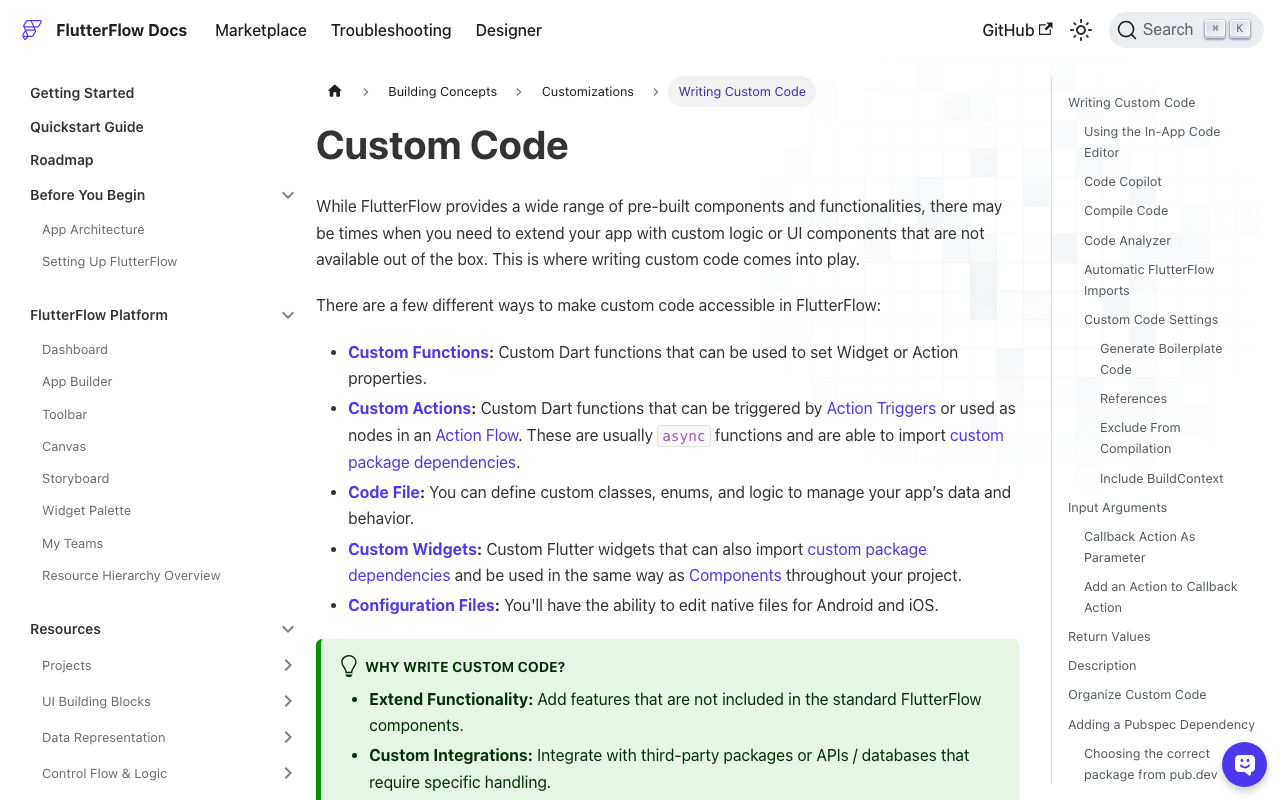
In FlutterFlow, open Custom Code → Custom Actions, create an action, and add http under Pubspec Dependencies:
import 'dart:convert';
import 'package:http/http.dart' as http;

// FlutterFlow Custom Action.
// Pubspec dependency: http (latest from pub.dev)
Future<void> streamWidgetChatReply(
  String message,
  Future Function(String partialReply) onUpdate,
) async {
  final request = http.Request(
    'POST',
    Uri.parse('https://api.widgetchat.app/v1/chat/stream'),
  )
    ..headers['Content-Type'] = 'application/json'
    // Match the request fields to the embed snippet
    // shown in your WidgetChat dashboard.
    ..body = jsonEncode({'message': message});

  final response = await http.Client().send(request);
  final buffer = StringBuffer();

  await response.stream
      .transform(utf8.decoder)
      .transform(const LineSplitter())
      .forEach((line) {
    if (line.startsWith('data: ')) {
      buffer.write(line.substring(6));
      onUpdate(buffer.toString()); // push into page state → UI streams in
    }
  });
}
Bind onUpdate to a page-state variable behind your chat UI and the assistant's reply streams in token by token. This is the standard way to add voice chat to a FlutterFlow app later without re-architecting anything, because voice rides on the same widget and conversation.
One platform note: since voice uses the microphone, make sure your FlutterFlow project's iOS permission settings include a microphone usage description — iOS requires one for any mic access.
Step 2: Flip on Voice in the dashboard
In the WidgetChat dashboard, open your project's Voice section. There you can:
- Enable or disable voice for the project
- Pick the voice name the assistant speaks with
- Set a max session length so a forgotten open call can't run forever
- Choose whether captions are on by default
No app update, no new packages, no pipeline code. The mic entry point appears in the widget you already embedded, and your FlutterFlow AI agent's voice behavior is managed from the dashboard from then on.
Voice usage is plan-gated by a monthly pool of voice minutes, so you can predict cost instead of watching a per-request speech API bill — and the max-session-length setting is your guardrail on the pool.
What the call feels like for users
Compared with the DIY loop, the differences users actually notice:
DIY speech_to_text + flutter_tts |
WidgetChat voice | |
|---|---|---|
| Turn-taking | Push-to-talk rhythm, seconds of dead air | Real-time speech-to-speech call |
| Interruptions | Lost while TTS plays | Barge-in: talk over it, it stops and listens |
| Accessibility | Audio only | Live captions during the call |
| Visuals | None | Product cards on screen while it speaks |
| Keys | In the app or your own proxy | Server-side |
| Platforms | Per-platform quirks | iOS, Android, and web from one project |
When DIY still makes sense
Be honest with yourself here. If you're building a voice product — your own wake words, custom audio models, offline recognition — you'll eventually need to own the pipeline, and packages like speech_to_text and flutter_tts are good building blocks for learning it. But if what you want is an AI voice agent in your FlutterFlow app that answers support and product questions out loud, building Flutter speech-to-speech AI infrastructure from scratch is months of audio engineering for a worse result than flipping one dashboard toggle.
Try WidgetChat free
Embed the widget once, get text chat with streaming answers from your own content, then turn on Voice when you're ready — same conversation, same dashboard, barge-in included. There's a free tier to start: Try WidgetChat free.

Comments
Comments are coming soon. We'd love to hear your thoughts!