
FlutterFlow Voice Assistant: Fix Lag and Add Barge-In
You followed the popular tutorial. A mic button starts speech_to_text, the transcript goes to a Cloud Function, the Cloud Function calls an LLM, and flutter_tts reads the answer out loud. It works. It also feels like a walkie-talkie: you talk, you wait, the bot talks, and you can't cut in until it finishes.
This post explains why that stack behaves this way no matter how much you tune it, and how to replace it with WidgetChat's live voice inside the chat widget your app already embeds.
The three-step stack, and where the seconds go
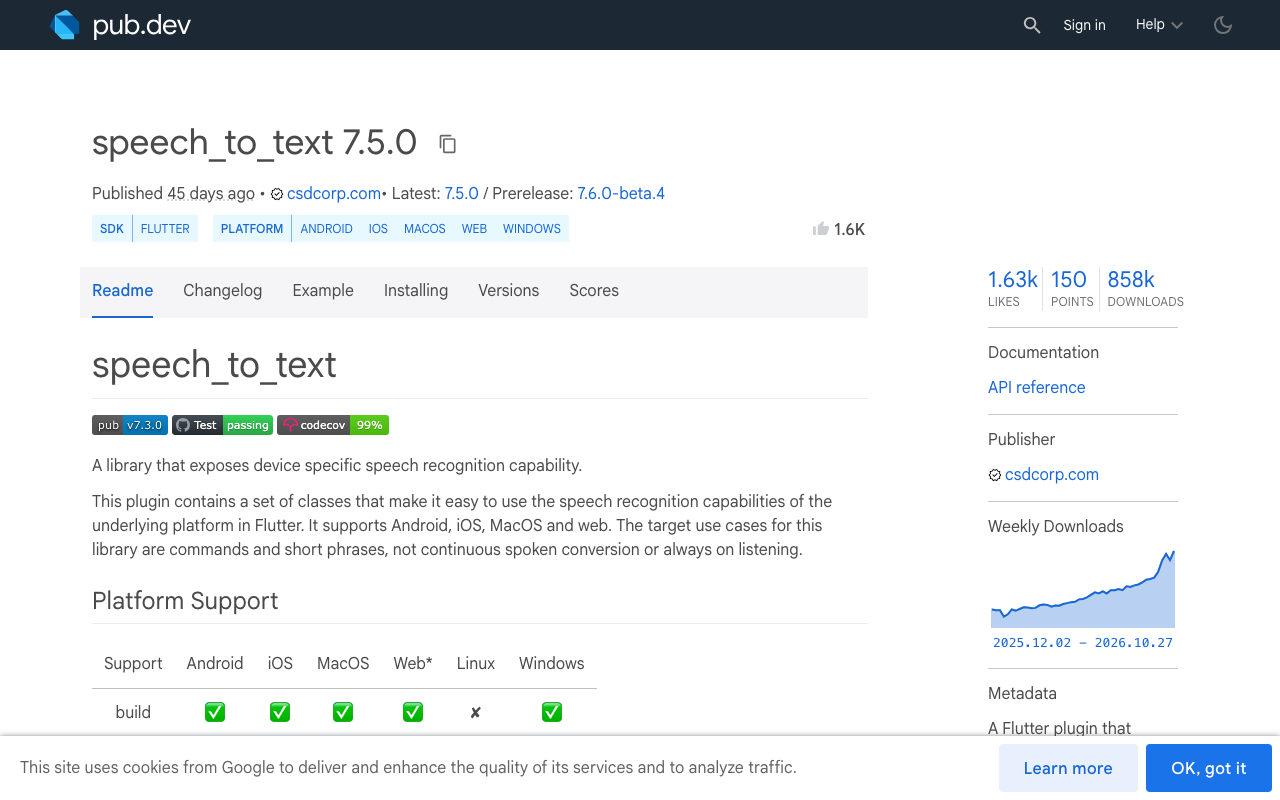
Here is the core of almost every flutter_tts speech_to_text AI chatbot tutorial, cleaned up:
import 'dart:convert';
import 'package:flutter_tts/flutter_tts.dart';
import 'package:http/http.dart' as http;
import 'package:speech_to_text/speech_to_text.dart';

final _stt = SpeechToText();
final _tts = FlutterTts();

Future<void> askByVoice(Uri cloudFunctionUrl) async {
  final ready = await _stt.initialize();
  if (!ready) return;

  await _tts.awaitSpeakCompletion(true);

  // Step 1: record until the user stops talking.
  await _stt.listen(
    listenFor: const Duration(seconds: 30),
    pauseFor: const Duration(seconds: 3),
    onResult: (result) async {
      if (!result.finalResult) return;

      // Step 2: send the full transcript, wait for the full reply.
      final res = await http.post(
        cloudFunctionUrl,
        headers: {'Content-Type': 'application/json'},
        body: jsonEncode({'message': result.recognizedWords}),
      );
      final reply = jsonDecode(res.body)['reply'] as String;

      // Step 3: speak the whole thing. The mic is off the entire time.
      await _tts.speak(reply);
    },
  );
}
Each step blocks the next one:
- End-of-speech detection.
speech_to_textonly produces a final result after a silence window (pauseFor). Set it short and users get cut off mid-sentence. Set it long and every turn starts with dead air. - The round trip. The Cloud Function waits for the complete LLM response before it returns, so a long answer means a long wait before the first word.
- Text to speech.
flutter_ttsgets the entire reply as one string and reads it start to finish.
Add those up and a single turn can take several seconds before the user hears anything.
Why you can't bolt barge-in onto it
Barge-in means the user starts talking while the assistant is speaking, and the assistant stops and listens. To do that you need the microphone open while audio is playing, plus something that can tell the user's voice apart from the bot's own voice coming out of the speaker.
The usual stack fights you on every part of that:
- The
speech_to_textdocs say the plugin is meant for short, intermittent use like a voice command or a single answer, and that continuous recognition is not supported on Android or iOS. - On Android, the docs note that the pause timeout is short and can't be changed by the app (no tested device went past about 5 seconds).
- On iOS, Apple's guidance quoted in the plugin docs plans for a one-minute limit on audio duration per recognition task, plus per-device and per-app daily limits.
- If you restart listening while
flutter_ttsis speaking, the recognizer usually picks up the bot's own voice from the speaker and transcribes it as user input.
You can hack around some of this by polling stop() on the TTS when a sound level spikes, but you end up writing your own echo handling and turn detection on top of plugins that weren't designed for it. That is the job of a real-time speech-to-speech pipeline, not a record-then-speak one.
What real-time speech-to-speech changes
In a live voice session, audio streams in both directions at once. The assistant starts answering as soon as it has something to say, and because the mic stays open, the user can talk over it. That is what flutter real-time voice AI barge-in actually needs.
WidgetChat ships this as live voice chat inside the same widget you already use for text support. What it does today:
- Speech-to-speech: it listens and replies out loud in a natural voice.
- Barge-in: the user can interrupt while the assistant is speaking.
- Live captions during the call, and it can show rich product cards on screen while it speaks.
- Same widget, same conversation and same dashboard as text chat, on iOS, Android and web Flutter apps.
- Provider API keys stay server-side, so nothing secret ships in your app binary.
That last point also fixes a quiet problem with many tutorial builds, where an LLM key ends up in a FlutterFlow app state variable or a custom action.
Migrating a FlutterFlow voice assistant to WidgetChat live voice
1. Keep (or fix) the microphone permission
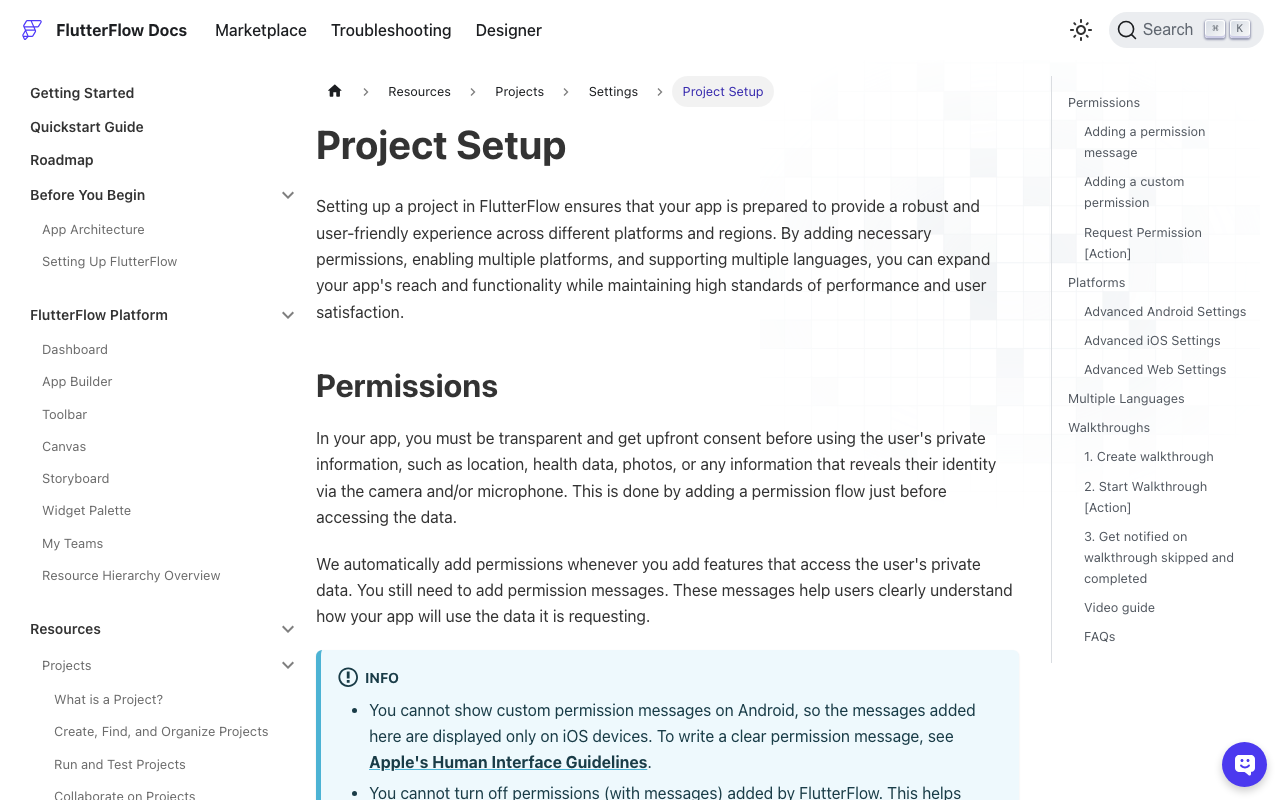
Voice still needs the OS mic permission. In FlutterFlow, open Settings & Integrations > Project Setup > Permissions. Make sure Microphone is enabled and give it a clear message, for example "Used so you can talk to our support assistant." According to FlutterFlow's docs, the custom message only shows on iOS, since Android doesn't display one.
Under the hood this maps to:
- iOS:
NSMicrophoneUsageDescriptionin Info.plist. Watch the exact key: a FlutterFlow community thread shows people losing time to a misspelledNSMicrophonePermissionUsageDescription, and App Store Connect rejects builds without a valid purpose string (ITMS-90683). - Android:
android.permission.RECORD_AUDIO.
Once speech_to_text is gone, you can drop NSSpeechRecognitionUsageDescription, the Bluetooth permissions and the RecognitionService <queries> block that the plugin asked for. Only remove them if nothing else in the app uses them.
It's good UX to ask for the mic before the user taps into a call, so the first tap isn't interrupted by a system dialog. FlutterFlow's built-in Request Permissions action (Microphone) does this. If you'd rather use a custom action with clearer handling of a permanent denial, here is one using permission_handler:
// Custom action: ensureMicPermission
// Add permission_handler as a dependency in the custom action settings.
import 'package:permission_handler/permission_handler.dart';

Future<bool> ensureMicPermission() async {
  var status = await Permission.microphone.status;
  if (status.isGranted) return true;

  status = await Permission.microphone.request();
  if (status.isGranted) return true;

  if (status.isPermanentlyDenied) {
    // The OS won't show the dialog again; send the user to Settings.
    await openAppSettings();
  }
  return false;
}
Run it from the button that opens your support screen and branch on the returned bool: if it's false, show a short note that voice needs the mic and text chat still works.
2. Turn on Voice in the WidgetChat dashboard
Open your project in the WidgetChat dashboard and go to the Voice section. You'll find:
- Enable/disable for live voice on this project.
- Voice name, which picks the voice the assistant answers with.
- Max session length, which caps how long a single call can run.
- Captions default, which sets whether live captions are on when a call starts.
Voice usage comes from a monthly voice-minute pool on your plan, so max session length is your main lever for keeping usage predictable. A support call that runs past a few minutes is usually a sign the user should be handed a link or a ticket anyway.
3. Delete the old pipeline
Now remove the walkie-talkie parts:
- The custom action that wraps
speech_to_text.listen. - The Cloud Function that took a transcript and returned a full LLM reply.
- The
flutter_ttsaction and its app state flags (isSpeaking,isListening). - Any LLM key stored in app state, constants or environment values shipped to the client. Rotate it if it was ever in a build.
Users now tap the mic inside the WidgetChat widget to start a live voice call. No new screen or custom widget is needed for voice itself.
4. One conversation for text and voice
Because voice runs in the same widget and the same conversation, a user can type a question, switch to voice to explain something messy, and see it all in one thread. The dashboard shows the same conversation too, so your support team isn't stitching together a chat log and a separate voice log.
If you already stream text answers through POST https://api.widgetchat.app/v1/chat/stream (Server-Sent Events, token by token) in a custom action, that keeps working for text. Voice is the mic in the widget, not a second integration you have to build.
Testing barge-in properly
A quick checklist on real hardware, since simulators handle audio poorly:
- Ask something with a long answer, then interrupt halfway with a follow-up. The assistant should stop and answer the new question.
- Test on a phone speaker, not just headphones. Speaker playback is where homemade barge-in breaks.
- Turn captions off in the dashboard, start a call, and confirm the default applies.
- Deny the mic permission once, then confirm your fallback message shows and text chat still works.
- Let a call hit your max session length and check the experience is acceptable.
When the old stack is still fine
If all you need is a one-shot voice command ("search for red shoes"), speech_to_text on its own is the right tool and it's free. The three-step stack only becomes a problem when you want a conversation: quick back-and-forth, interruptions, and answers that start while the user is still listening. That's the case for a FlutterFlow AI voice chat support assistant.
Try WidgetChat free
If your FlutterFlow voice assistant is still waiting for silence and reading whole paragraphs, swap it for live voice in the widget you already ship. Enable Voice in the dashboard, keep your mic permission, and delete the Cloud Function. Try WidgetChat free.

Comments
Comments are coming soon. We'd love to hear your thoughts!