
FlutterFlow Streaming Shows One Token? Append, Don't Set
You toggled Process Streaming Response on your API call, hooked up onMessage, hit send, and the chat bubble shows a single word. Or it flickers through tokens and ends on the last one. Or it stays blank until the whole reply has arrived and then nothing shows at all.
All three symptoms come from two causes. The first is that your onMessage action sets page state instead of appending to it. The second is that the backend you are calling is not actually sending Server-Sent Events, so FlutterFlow's parser has nothing to hand you. This post walks through the native-action recipe against the WidgetChat streaming endpoint and shows how to tell the two problems apart. No custom Dart, no custom widget.
What FlutterFlow actually gives you in onMessage
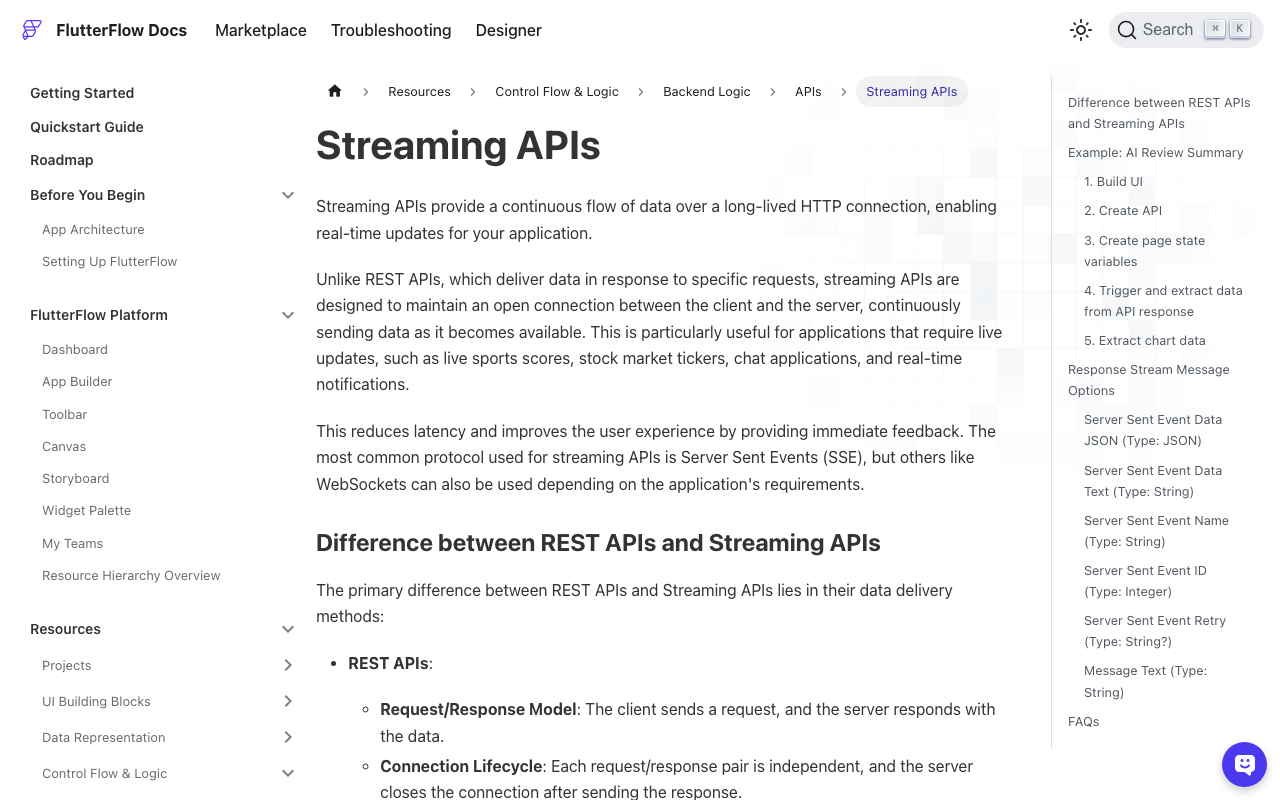
When Process Streaming Response is on (it lives under Advanced Settings on the API call), FlutterFlow stops waiting for a complete body. Instead the action flow exposes three triggers: onMessage, onError and onClose. onMessage fires once per SSE message, and onClose fires when the server ends the stream.
Inside onMessage you pick a value from Action Parameters > OnMessageInput. The options are:
- Server Sent Event Data Text: the raw string in the
data:field. If a message has severaldata:lines they are joined with newlines. - Server Sent Event Data JSON: the
data:field parsed as JSON. Returnsnullif the payload is not JSON. - Server Sent Event Name, ID and Retry: the other SSE fields.
- Message Text: the whole raw SSE message, every field included.
The important word in that list is per message. Each onMessage call hands you one token (or one small chunk), not the accumulated reply. Whatever you do with it has to add to what you already have.
Step 1: configure the API call
Create a new API call in API Calls:
- Method:
POST - URL:
https://api.widgetchat.app/v1/chat/stream - Headers: copy the auth and content-type headers from your WidgetChat dashboard for the project. Add
Accept: text/event-streamso the server knows you want a stream. - Body: JSON with the user's message. Bind the message text to a variable so you can pass it from the page.
- Advanced Settings: toggle Process Streaming Response on.
Before you touch any actions, confirm the raw stream looks like SSE. Run this from a terminal (fill in your headers):
curl -N -X POST https://api.widgetchat.app/v1/chat/stream \
  -H "Content-Type: application/json" \
  -H "Accept: text/event-stream" \
  -H "<your WidgetChat auth header>" \
  -d '{"message": "How do I reset my password?"}'
You should see lines arriving one at a time, each starting with data:, with a blank line between events:
data: You

data:  can

data:  reset

data:  it
The -N flag disables curl's buffering so you see tokens as they land. If the output looks like this, FlutterFlow can parse it. If it looks like one JSON object per line with no data: prefix, skip to the JSONL section below, because no amount of action wiring will fix it.
Step 2: create the page state
On your chat page add two page state fields:
streamingReply(String, default empty). This holds the reply bubble that grows while the stream runs.isTyping(Boolean, default false). This drives the typing indicator.
If you keep chat history in a list of messages, keep that list as a third field. You will push the finished reply into it in onClose, not in onMessage.
Step 3: the send button
On the send button, chain these actions:
- Update Page State:
isTyping→ Set Value →true. - Update Page State:
streamingReply→ Set Value → empty string. This clears the bubble from the previous turn. Without it, the new reply appends onto the old one, which is the mirror image of the one-token bug. - API Call: your streaming call, with the text field value bound to the message body.
Order matters here. Clear the bubble before the call starts, because onMessage can fire within milliseconds of the request leaving the device.
Step 4: onMessage, the part everyone gets wrong
Open the API call action, switch to the onMessage tab and add one Update Page State action:
- Field:
streamingReply - Update Type: Set Value
- Value source: Combine Text
- Combine Text parts: first part is Page State > streamingReply, second part is Action Parameters > OnMessageInput > Server Sent Event Data Text.
That is the whole trick. FlutterFlow's Update Page State has Set Value, Increment (numbers only) and Add Item / Remove Item (lists only). There is no string append type, so people reasonably pick Set Value and bind it straight to the Data Text. The result is that every token replaces the last one, and the bubble shows a single word that keeps changing.
Using Combine Text with the existing state as the first part turns Set Value into an append. Each onMessage call reads the current streamingReply, glues the new token to the end, and writes it back.
Two details to check in the Combine Text editor:
- Do not put any literal text between the two parts. FlutterFlow's editor makes it easy to leave a space or newline in there, which puts a gap between every token.
- Leave Rebuild Current Page enabled. If you set No Rebuild to save frames, the bubble will only redraw when something else triggers a rebuild, which looks exactly like "blank until the end".
If the stream carries JSON in the data: field instead of plain text, use Server Sent Event Data JSON with a JSON path pointing at the token field, and bind that as the second Combine Text part. FlutterFlow's own docs show a JSON path like $['choices'][0]['delta']['content'] for an OpenAI-shaped stream. Pick whichever matches what your curl output showed. If you choose Data JSON but the payload is plain text, you get null on every message, and your bubble stays empty.
Step 5: onClose, flip the typing indicator
On the onClose tab:
- Update Page State:
isTyping→ Set Value →false. - If you keep a message list, Update Page State on that list with Add Item, adding
streamingReplyas the assistant's message. - Optionally, Update Page State
streamingReply→ Set Value → empty, if your list now owns the finished message and you do not want it drawn twice.
On the onError tab, set isTyping to false as well and show a snackbar. If you skip this, a dropped connection leaves the three dots bouncing forever.
onClose only fires when the server ends the stream. There is no native action to cancel from the client side today, so do not plan a "stop generating" button around onClose.
Why you still see one token: the JSONL trap
If you did everything above and the bubble is still blank or stuck on a single chunk, go back to the curl output. A lot of AI backends, n8n's AI Agent webhook among them, stream JSONL: one JSON object per line, no data: prefix, no blank line separators, and a content type that is not text/event-stream.
FlutterFlow's Process Streaming Response only parses SSE. Feed it JSONL and one of two things happens: the whole body arrives as a single message when the connection closes (so you see the last chunk, or a wall of JSON), or the parser finds no data: field and Data Text is empty. Either way the toggle silently does nothing useful, and there is an open FlutterFlow feature request to support JSONL for exactly this reason.
The no-code answer is to call an endpoint that speaks SSE. WidgetChat's /v1/chat/stream returns token-by-token data: events, which is why the recipe above needs no proxy and no custom code. If you are tied to a JSONL backend, you need a small proxy that rewrites each line into a data: event, and at that point you are writing code anyway.
Checklist when the bubble misbehaves
- Only the latest token shows: onMessage uses Set Value bound directly to Data Text. Switch the value source to Combine Text with the current page state as the first part.
- Reply keeps growing across turns: the send button never clears
streamingReply. Add a Set Value to empty before the API Call. - Blank until the end, then everything: either Rebuild is off on the Update Page State action, or the backend is JSONL and FlutterFlow delivered the body as one message on close.
- Blank forever, typing indicator stuck: you picked Data JSON on a plain-text stream (every message is
null), or onError fired and nothing resetisTyping. - Spaces between every letter: a stray literal space between the two Combine Text parts.
Related fixes in this cluster
If your stream arrives but the bubble is still empty, the backend side is covered in the Blank Reply post. If the assistant forgets the previous turn, see Chat History Lost, which covers sending prior messages in the request body. If it answers the same thing twice, the Chatbot Repeats Itself post covers duplicate sends from double-firing actions.
Try WidgetChat free
WidgetChat is an AI support chatbot for Flutter and FlutterFlow apps that answers users from your own content, with streaming over Server-Sent Events built in, so the native FlutterFlow actions above are all you need. The free tier is enough to wire up the recipe end to end. Try WidgetChat free.
Comments
Comments are coming soon. We'd love to hear your thoughts!