
Fix FlutterFlow Voice: The iOS Mic Permission Trap
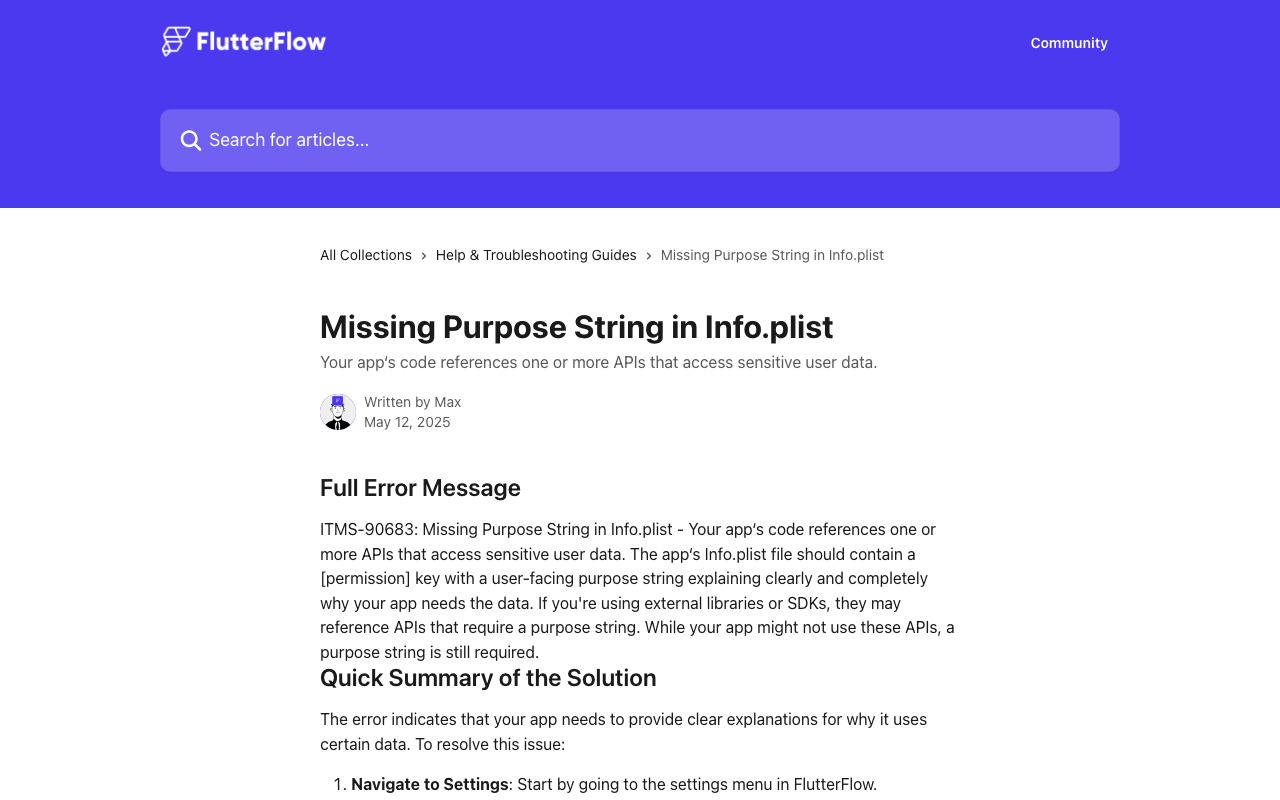
You embedded a tap-to-talk AI voice assistant in your FlutterFlow app. On the desk it looked perfect. Then you tapped the mic on a real iPhone and… nothing. No prompt, no error, no audio. Or worse — everything worked in your build, you shipped it, and App Store Connect bounced it with ITMS-90683: Missing purpose string in Info.plist for NSMicrophoneUsageDescription.
This is the single most common reason a FlutterFlow voice chatbot is not working on iPhone, and it's almost never a bug in your voice code. It's two separate iOS-specific traps that hit in a specific order. Let's fix both so WidgetChat's live voice call actually opens the mic on iOS, Android, and web from the same embedded widget.
Why the mic goes dead on iOS specifically
iOS refuses to hand any app the microphone unless two things are true:
- Your app binary declares why it wants the mic, via a purpose string called
NSMicrophoneUsageDescriptioninInfo.plist. - The user has been shown that string in a system prompt and tapped Allow.
If the purpose string is missing, iOS doesn't show a friendly warning — it kills the process the instant your code touches audio capture, or the App Store static analyzer rejects the build before it ever runs. Android is more forgiving (it prompts at runtime from the manifest), and web asks the browser's own permission dialog, which is why the same widget "works everywhere except iPhone." The mic isn't broken. iOS is doing exactly what it's designed to do when the purpose string is absent.
Trap #1: the missing purpose string
In a hand-written Flutter project you'd add the key directly to ios/Runner/Info.plist:
<key>NSMicrophoneUsageDescription</key>
<string>We use your microphone so you can talk to our in-app assistant during a live voice call.</string>
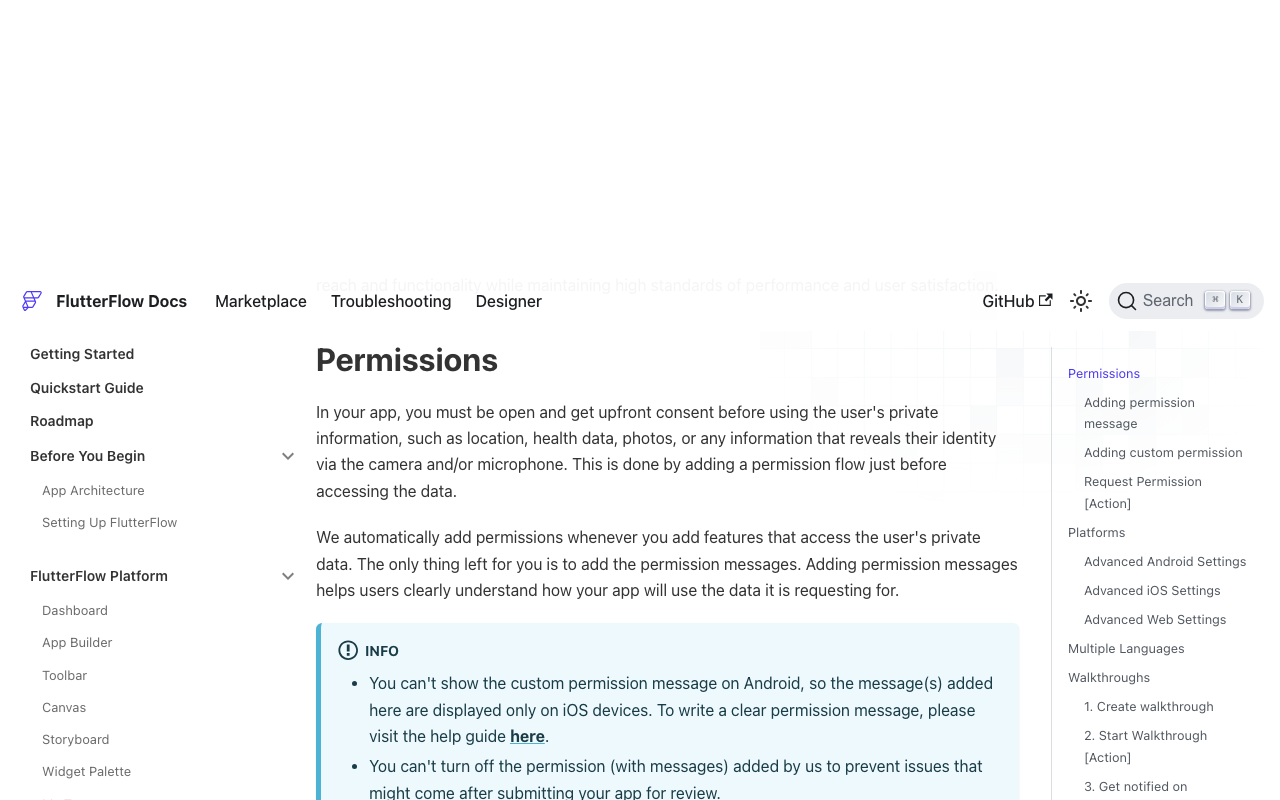
But in FlutterFlow you don't edit Info.plist by hand — a fresh export would overwrite it. FlutterFlow generates the plist for you from a settings panel, and if you never toggle the microphone permission on, the key is simply never written. That's the root cause of most silent failures.
The FlutterFlow fix (do this first)
- Open your project and go to Settings & Integrations → App Settings → Permissions.
- Find Microphone and enable the toggle.
- Turn on the custom-message toggle and write a real, user-facing sentence. Apple's reviewers read this. "Microphone access" is a rejection; describe the actual feature:
"WidgetChat uses your microphone so you can speak to our support assistant during a live voice call and get answers out loud."
- Rebuild. FlutterFlow now emits the
NSMicrophoneUsageDescriptionkey into the generatedInfo.plistwith your string, and the App Store analyzer stops flagging ITMS-90683.
A vague or empty purpose string is a real rejection reason — Apple's guideline requires you to "explain clearly and completely why your app needs the data." Tie the sentence to the visible action (talking to the assistant), not to a technology.
If you use a custom action to trigger voice
If your tap-to-talk button runs a custom action that requests the mic itself, use the permission_handler package that FlutterFlow already bundles, and request before you start capture:
import 'package:permission_handler/permission_handler.dart';

Future<bool> ensureMicReady() async {
  var status = await Permission.microphone.status;

  if (status.isDenied) {
    status = await Permission.microphone.request();
  }

  // On iOS a hard denial is sticky — you can't re-prompt.
  // Send the user to Settings instead of failing silently.
  if (status.isPermanentlyDenied) {
    await openAppSettings();
    return false;
  }

  return status.isGranted;
}
One iOS quirk worth knowing: permission_handler compiles microphone support in via a preprocessor macro. If you've customized your Podfile's GCC_PREPROCESSOR_DEFINITIONS, make sure you have not set PERMISSION_MICROPHONE=0 — that flag strips the mic handler out entirely, so request() returns permanentlyDenied no matter what the user does. For a stock FlutterFlow export you don't need to touch this; it only bites people who hand-tuned pods to trim binary size.
Trap #2: the test-mode permission gotcha
Here's the one that burns hours. You add the purpose string, you run the app in FlutterFlow's Test Mode or Run Mode, you tap the mic — and it still does nothing, or it behaves as if permission was granted but no audio flows. You conclude the fix didn't work and start rewriting your voice logic. Don't.
Permission requests do not function in FlutterFlow's Test and Run modes. This is a documented limitation, not a bug in your project. When a permission-gated action fires in Test/Run mode, FlutterFlow acts as if authorization was already granted — it never shows the iOS system prompt and never actually holds the permission. So the mic capture underneath quietly fails. It's a false negative created entirely by the preview environment.
How to actually test iOS voice
To verify the microphone on iOS you must run a real build on a real device (or a full local build via Xcode), not the in-browser preview:
- Use Test Mode → Download / local run, or deploy a TestFlight build, and open it on a physical iPhone.
- On first mic tap you should see the iOS system dialog containing the exact purpose string you wrote. Tap Allow.
- Then trigger WidgetChat's voice call. The mic opens, live captions appear, and the assistant replies out loud.
If you only ever test in the preview iframe, you will never see the permission prompt and you'll keep chasing a phantom bug. Deploy to a device and the two traps resolve together.
Wiring WidgetChat voice so it opens the mic everywhere
WidgetChat is embedded as a widget in your Flutter/FlutterFlow app — the same widget that powers text chat also powers the live voice call. Tapping the mic starts a real-time speech-to-speech call: it listens, replies in a natural voice, supports barge-in so the user can interrupt mid-sentence, and shows live captions (and rich product cards) on screen while it speaks. The provider API keys stay server-side, so nothing sensitive ships inside your app.
Because the widget is one component, your platform checklist is short:
- iOS — the
NSMicrophoneUsageDescriptionpurpose string (Trap #1), tested on a real device (Trap #2). - Android — FlutterFlow writes
RECORD_AUDIOinto the manifest when you enable the Microphone permission in the same panel; the runtime prompt appears automatically. - Web — the browser handles the mic prompt on first use; nothing extra to configure.
On the WidgetChat side, enable voice in the dashboard's Voice section per project: toggle voice on, pick the voice name, set the max session length, and choose whether captions are on by default. Voice runs on a monthly voice-minute pool defined by your plan. Once the iOS purpose string is in place and you've tested on a device, the same tap-to-talk button lights up the mic on all three platforms with no per-platform voice code of your own.
The 30-second recap
- Mic silently dead or ITMS-90683 rejection? You're missing
NSMicrophoneUsageDescription. Add it via Settings → App Settings → Permissions → Microphone with a real, feature-specific message. - Still dead after adding it? You're in Test/Run mode, where permissions never actually request. Build to a physical device and tap Allow on the real system prompt.
- Custom action? Call
Permission.microphone.request()before capture and routepermanentlyDeniedtoopenAppSettings().
Fix those two traps and your FlutterFlow voice assistant opens the mic on iOS, Android, and web — from one embedded widget.
Try WidgetChat free
Drop a talking, tap-to-talk AI assistant into your Flutter or FlutterFlow app — text and live voice from the same widget. Try WidgetChat free and turn on voice in the dashboard's Voice section.

Comments
Comments are coming soon. We'd love to hear your thoughts!