
Fix a FlutterFlow Chatbot That Forgets Past Messages
You built a support chatbot in FlutterFlow. A user asks, "Does the Pro plan include team seats?" The bot answers perfectly. Then they type, "How much is it?" — and the bot replies, "How much is what?"
If your FlutterFlow AI chatbot forgets previous messages, nothing is broken in your app. You've hit the single most common misunderstanding about LLM APIs: they have no memory. Each request starts from a blank slate. The fix isn't a smarter model or a special "memory" setting — it's assembling the conversation yourself and resending it on every call, capped with a sliding window so your token bill doesn't spiral.
This post shows exactly how, with a copy-paste WidgetChat custom action.
Why your FlutterFlow AI chatbot has no memory
The OpenAI Chat Completions API — and every comparable LLM endpoint — is stateless. Each request is processed independently, with no built-in retention of prior interactions. The model literally cannot see what was said one turn ago. If your custom action sends only the latest user message, the model answers that message in isolation. That's the whole bug.
The API's own design tells you the fix. A request doesn't take a single string — it takes a messages array: an ordered list of {role, content} objects. To simulate a multi-turn conversation, you include the full history in that array on every call:
{
  "model": "gpt-4o-mini",
  "messages": [
    {"role": "system",    "content": "You are WidgetChat, a support assistant for the Acme app."},
    {"role": "user",      "content": "Does the Pro plan include team seats?"},
    {"role": "assistant", "content": "Yes — Pro includes 5 team seats."},
    {"role": "user",      "content": "How much is it?"}
  ]
}
Because the previous turns are right there in the array, the model now knows "it" means the Pro plan. You own the conversation history and pass it with every request. FlutterFlow doesn't do this for you unless you build it.
The catch: history grows, and so does the bill
The naive fix is "just send everything." That works for five turns and quietly becomes expensive. Since you re-send the entire history on each call, message history grows linearly with the conversation, but your billed input tokens grow quadratically — every turn re-pays for all prior turns. A long support chat can re-send thousands of tokens per message, and eventually you'll blow past the model's context window entirely and get an error.
The standard defense is a sliding window: keep only the N most recent turns. This caps context cost at a known maximum and keeps the most relevant recent messages. For a support bot, users almost never need the model to recall something from 30 turns ago, so dropping ancient history is a safe trade. A window of the last 8–10 turns (16–20 messages) is a good default.
Step 1 — Store messages in App State
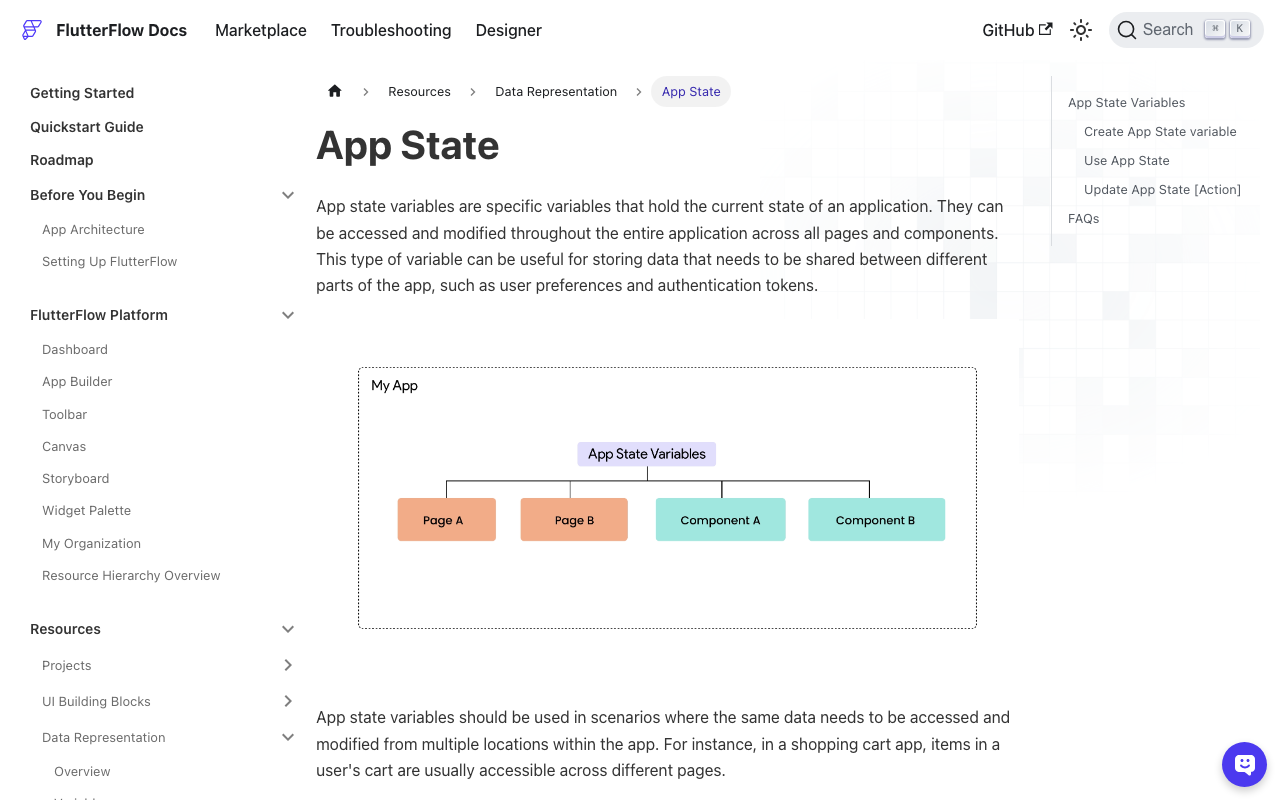
In FlutterFlow, create an App State variable to hold the running conversation:
- Name:
chatHistory - Type:
List<String>(each entry is one JSON-encoded message) - Toggle Persisted on if you want history to survive app restarts.
FFAppState is a singleton, so any custom action can read and update this list, and changes propagate across your pages. We'll store each message as a small JSON string like {"role":"user","content":"..."} so the action can rebuild the API array directly.
Step 2 — The WidgetChat custom action
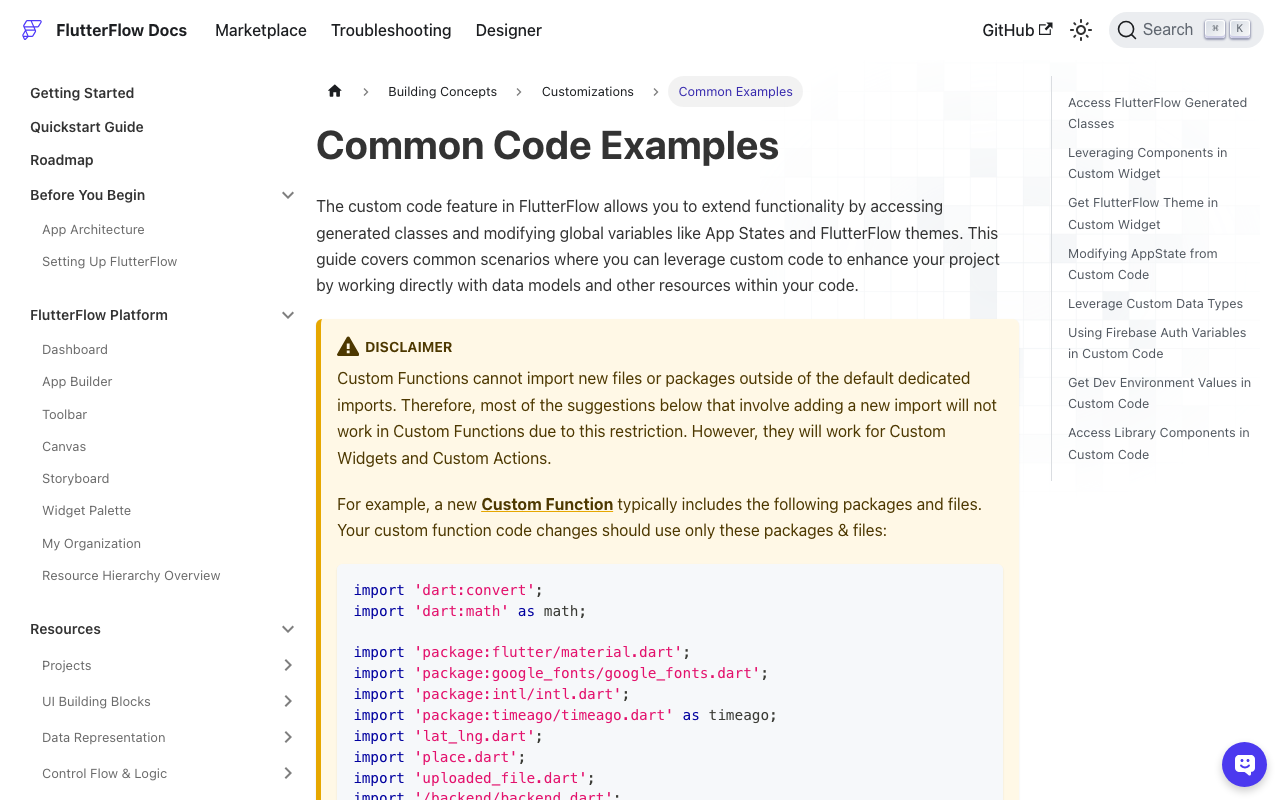
Create a custom action named sendChatMessage. Custom actions in FlutterFlow always return a Future, which is exactly what an async network call needs. Add the http package as a pub dependency in the action's settings.
The action takes the new user message, appends it to chatHistory, sends a capped sliding window to the LLM, stores the reply, trims safely, and returns the assistant's text for your UI to display.
// Automatic FlutterFlow imports
import '/flutter_flow/flutter_flow_util.dart';
import '/custom_code/actions/index.dart';
import 'package:flutter/material.dart';
// Begin custom action code
import 'dart:convert';
import 'package:http/http.dart' as http;

/// Sends [userMessage] to the LLM with a capped sliding window of history.
/// Returns the assistant's reply. Reads/writes FFAppState().chatHistory.
Future<String> sendChatMessage(String userMessage, String apiKey) async {
  const int maxMessages = 20; // ~10 turns kept in the window
  const String systemPrompt =
      'You are WidgetChat, a friendly support assistant for the Acme app. '
      'Answer using earlier messages in this conversation for context.';

  // 1. Append the new user turn to persistent history.
  FFAppState().addToChatHistory(
    jsonEncode({'role': 'user', 'content': userMessage}),
  );

  // 2. Build the sliding window: system prompt + last N stored messages.
  final List<String> stored = FFAppState().chatHistory;
  final List<String> window =
      stored.length > maxMessages ? stored.sublist(stored.length - maxMessages) : stored;

  final List<Map<String, String>> messages = [
    {'role': 'system', 'content': systemPrompt},
    ...window.map((m) {
      final decoded = jsonDecode(m) as Map<String, dynamic>;
      return {
        'role': decoded['role'] as String,
        'content': decoded['content'] as String,
      };
    }),
  ];

  // 3. Call the stateless Chat Completions endpoint.
  final response = await http.post(
    Uri.parse('https://api.openai.com/v1/chat/completions'),
    headers: {
      'Content-Type': 'application/json',
      'Authorization': 'Bearer $apiKey',
    },
    body: jsonEncode({
      'model': 'gpt-4o-mini',
      'messages': messages,
      'temperature': 0.3,
    }),
  );

  if (response.statusCode != 200) {
    return 'Sorry, I hit an error (${response.statusCode}). Please try again.';
  }

  final data = jsonDecode(response.body) as Map<String, dynamic>;
  final reply =
      (data['choices'][0]['message']['content'] as String).trim();

  // 4. Store the assistant turn so the NEXT call remembers this answer.
  FFAppState().addToChatHistory(
    jsonEncode({'role': 'assistant', 'content': reply}),
  );

  // 5. Trim safely so App State never grows unbounded.
  final List<String> updated = FFAppState().chatHistory;
  if (updated.length > maxMessages) {
    FFAppState().update(() {
      FFAppState().chatHistory =
          updated.sublist(updated.length - maxMessages);
    });
  }

  return reply;
}
addToChatHistory is the auto-generated list helper FlutterFlow creates for a List<String> App State variable — you don't write it. Wrapping the trim in FFAppState().update(() {...}) ensures the change is reflected across your pages.
Step 3 — Wire it to your chat UI
On your send button's action flow:
- Add the user's typed text to your on-screen ListView (optimistic UI).
- Call
sendChatMessage(textFieldValue, yourApiKey). - Append the returned reply to the ListView.
Because both the user message and the assistant reply are written to chatHistory, the very next call already includes them in the window. That's what makes the bot appear to "remember."
Two safety details that matter
- Trim on message boundaries, not mid-turn. A window of 20 keeps 10 clean user/assistant pairs. Slicing to an odd number can strand an assistant message with no matching user message, which some APIs reject. Keeping an even
maxMessagesavoids this. - Never ship your API key in the client. The
apiKeyparameter above is for a quick prototype. For production, proxy the call through a Firebase Cloud Function or your own backend so the key never lives in the app bundle.
Want to keep older context without the cost?
A plain sliding window forgets everything past the cutoff. If a user references something from 40 turns ago, it's gone. When that matters, upgrade to a summary buffer: keep the last N turns verbatim, and periodically ask the model to compress older turns into a one-paragraph summary stored as a single system message. You keep long-term context while still capping tokens. Start with the sliding window — it solves the "forgets previous messages" bug for the vast majority of support chats.
Try WidgetChat free
Stop shipping a bot that answers every message in a vacuum. WidgetChat gives your Flutter and FlutterFlow app a memory-aware AI support chatbot — conversation history, sliding-window context, and secure key handling built in — so you can drop it in instead of wiring it by hand. Try WidgetChat free and give your app a chatbot that actually follows the conversation.

Comments
Comments are coming soon. We'd love to hear your thoughts!