
FlutterFlow Chat: Fix the Keyboard Covering Your Input
You built the AI support page. It streams tokens. Then you run it on a real Pixel, tap the text field, and the send button is under the keyboard — or the send box is fine but the assistant's last three lines are gone. On a page with a NavBar it gets worse: a keyboard-sized dead band appears under your input row.
This isn't a FlutterFlow bug, and it isn't your chat backend. It's a specific interaction between Scaffold.resizeToAvoidBottomInset, an Expanded ListView inside a Column, and a scroll offset that means the opposite of what you think it means. Here's the diagnosis, then the layout that holds up on device.
What resizeToAvoidBottomInset actually does
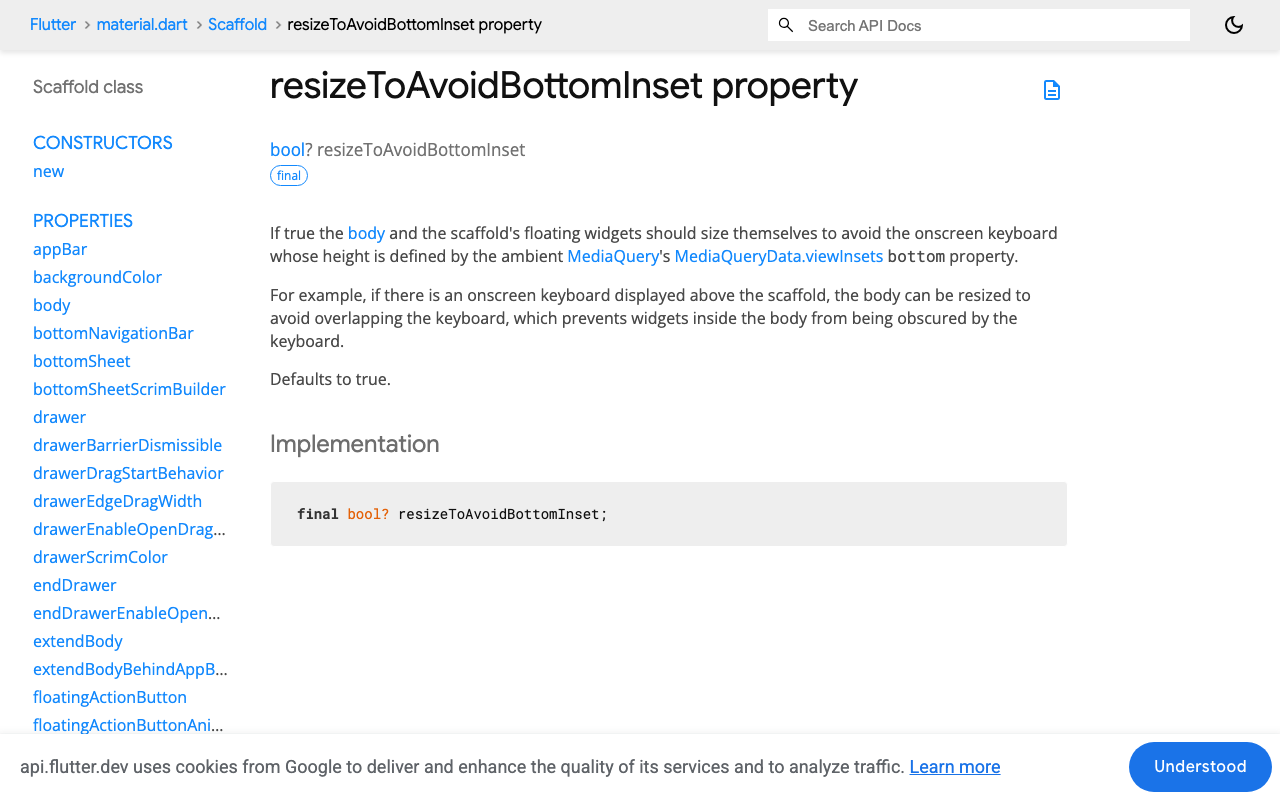
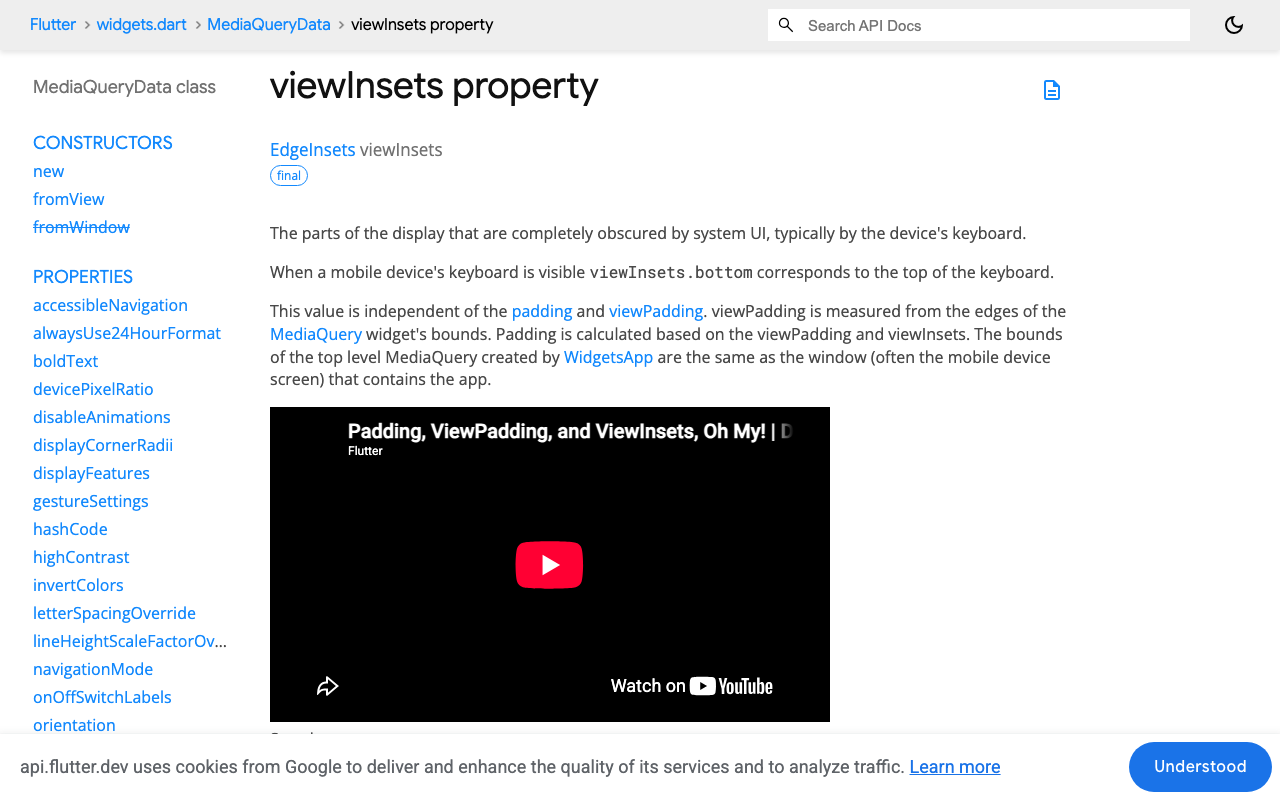
Scaffold.resizeToAvoidBottomInset defaults to true. When the keyboard opens, the Scaffold reads the ambient MediaQuery's viewInsets.bottom and shrinks the body's layout height by that amount.
Two consequences trip up nearly everyone hitting flutterflow keyboard covers text field:
1. The body shrinks, but the MediaQuery doesn't. Scaffold reduces the body's constraints. It does not strip viewInsets.bottom from the MediaQuery it hands down to the body. So inside your chat page, MediaQuery.viewInsetsOf(context).bottom still reports the full keyboard height even though you have already been inset by it. Add that value as bottom padding and you have counted the keyboard twice — that's your mystery gap. This is the single most common bad fix copied from Stack Overflow.
2. Shrinking a viewport does not move its content. This is why the last message vanishes.
Why the standard chat layout loses the last message
The default FlutterFlow chat structure is a Column with an Expanded ListView on top and a send row underneath. When the keyboard opens, resizeToAvoidBottomInset does exactly what it promises: the Column gets shorter, so the Expanded ListView's viewport goes from roughly 700 px to 400 px. Your input row is correctly pushed above the keyboard.
But a ListView preserves its scroll offset, measured from the leading edge. In a normal top-down chat list the leading edge is the top, so offset stays exactly where it was — and the 300 px of viewport that just disappeared came off the bottom. The newest message is now below the fold. resizeToAvoidBottomInset worked, and you still can't read the answer. That's flutter chat keyboard hides last message in one sentence.
The usual patch — animateTo(_scroll.position.maxScrollExtent) in a post-frame callback — half works and then falls apart during streaming. maxScrollExtent is derived from the last completed layout. Every token you append grows the bubble, so your scroll target is stale by one frame, permanently. You end up chasing the text a line behind it.
The NavBar makes it worse
Flutter does not lift bottomNavigationBar above the keyboard — it stays pinned to the physical bottom and gets covered (flutter#91374). Scaffold's layout gives the body a bottom edge at max(keyboardInset, bottomWidgetsHeight), so with a 300 px keyboard and a 56 px nav bar, the keyboard wins and the nav bar is simply hidden behind it.
That's fine — until you've hand-added SizedBox(height: 56) or EdgeInsets.only(bottom: 56) to clear the nav bar. That padding doesn't know the nav bar is gone, so it survives as a dead strip between your send box and the keyboard. Delete it; let the Scaffold do the arithmetic.
The structure that works
Flip the list. With reverse: true and the newest message at index 0:
- Offset
0.0is now the bottom of the list, not the top. - Shrinking the viewport trims from the trailing edge — the old messages — so the newest bubble stays glued to the bottom when the keyboard opens. No scroll call needed.
- Appending a message doesn't move you, because it's inserted at the anchored end.
- Streaming tokens into
_messages[0]grows that bubble upward from a fixed bottom edge, so the newest token is always the visible one. You never needmaxScrollExtentagain.
And leave resizeToAvoidBottomInset alone. Inside a FlutterFlow page Scaffold you're in "Scaffold handles it" mode: read viewInsets only as a signal (keyboard > 0), never as padding.
// FlutterFlow custom widget. `http` already ships in every generated
// project (it backs API Calls), so no extra pubspec dependency needed.
import 'dart:convert';
import 'package:flutter/material.dart';
import 'package:http/http.dart' as http;

class _Msg {
  _Msg(this.isUser, this.text);
  final bool isUser;
  String text;
}

class WidgetChatPanel extends StatefulWidget {
  const WidgetChatPanel({
    super.key,
    this.width,
    this.height,
    required this.apiKey,
  });

  final double? width;
  final double? height;
  final String apiKey;

  @override
  State<WidgetChatPanel> createState() => _WidgetChatPanelState();
}

class _WidgetChatPanelState extends State<WidgetChatPanel> {
  final _messages = <_Msg>[];        // NEWEST FIRST — pairs with reverse: true
  final _input = TextEditingController();
  final _scroll = ScrollController();
  bool _streaming = false;

  @override
  Widget build(BuildContext context) {
    // viewInsetsOf only rebuilds this context when the insets change,
    // unlike MediaQuery.of(context).viewInsets which rebuilds on any change.
    final keyboardOpen = MediaQuery.viewInsetsOf(context).bottom > 0;

    // NOTE: do NOT add viewInsets.bottom as padding here. The page Scaffold
    // has already shrunk this body by exactly that much.
    return SizedBox(
      width: widget.width,
      height: widget.height,
      child: Column(
        children: [
          Expanded(
            child: ListView.builder(
              controller: _scroll,
              reverse: true,                 // bottom-anchored: the whole fix
              padding: const EdgeInsets.symmetric(horizontal: 12, vertical: 8),
              keyboardDismissBehavior:
                  ScrollViewKeyboardDismissBehavior.onDrag,
              itemCount: _messages.length,
              itemBuilder: (context, i) => _Bubble(_messages[i]),
            ),
          ),
          SafeArea(
            top: false,
            // When the keyboard is up, MediaQueryData.padding is derived from
            // viewPadding and viewInsets, so the home-indicator inset has
            // already collapsed — SafeArea correctly contributes nothing.
            bottom: !keyboardOpen,
            child: Padding(
              padding: const EdgeInsets.fromLTRB(12, 8, 12, 8),
              child: Row(
                children: [
                  Expanded(
                    child: TextField(
                      controller: _input,
                      textInputAction: TextInputAction.send,
                      onSubmitted: (_) => _send(),
                      decoration: const InputDecoration(
                        hintText: 'Ask a question…',
                        border: OutlineInputBorder(),
                        isDense: true,
                      ),
                    ),
                  ),
                  IconButton(
                    icon: const Icon(Icons.send),
                    onPressed: _streaming ? null : _send,
                  ),
                ],
              ),
            ),
          ),
        ],
      ),
    );
  }
}
Streaming without fighting the scroll position
Now wire it to WidgetChat's SSE endpoint. Use http.Client().send() — not http.post() — so you get a StreamedResponse you can decode as it arrives.
extension on _WidgetChatPanelState {
  Future<void> _send() async {
    final text = _input.text.trim();
    if (text.isEmpty || _streaming) return;
    _input.clear();

    setState(() {
      _messages.insert(0, _Msg(true, text));   // user
      _messages.insert(0, _Msg(false, ''));    // assistant placeholder
      _streaming = true;
    });

    // Only needed if the user had scrolled up to read history.
    // reverse: true means 0.0 is the bottom — never maxScrollExtent.
    if (_scroll.hasClients && _scroll.offset > 0) _scroll.jumpTo(0.0);

    final client = http.Client();
    final req = http.Request(
      'POST',
      Uri.parse('https://api.widgetchat.app/v1/chat/stream'),
    )
      ..headers.addAll({
        'Authorization': 'Bearer ${widget.apiKey}',
        'Content-Type': 'application/json',
        'Accept': 'text/event-stream',
      })
      ..body = jsonEncode({'message': text});

    try {
      final res = await client.send(req);
      final lines = res.stream
          .transform(utf8.decoder)
          .transform(const LineSplitter());

      await for (final line in lines) {
        if (!line.startsWith('data:')) continue;      // skip ':' comments, blanks
        final payload = line.substring(5).trim();
        if (payload.isEmpty || payload == '[DONE]') continue;

        final token = _tokenOf(payload);
        if (token.isEmpty) continue;

        // No scroll call here. The bubble grows upward from a pinned
        // bottom edge, so the newest token is always on screen.
        setState(() => _messages.first.text += token);
      }
    } finally {
      client.close();
      if (mounted) setState(() => _streaming = false);
    }
  }

  // Handles both raw-text and JSON data: frames. Check the exact payload
  // shape for your project in the WidgetChat dashboard before trimming this.
  String _tokenOf(String payload) {
    if (!payload.startsWith('{')) return payload;
    try {
      final obj = jsonDecode(payload);
      if (obj is Map) {
        for (final k in const ['delta', 'text', 'content', 'token']) {
          final v = obj[k];
          if (v is String) return v;
        }
      }
    } catch (_) {/* partial or non-JSON frame */}
    return '';
  }
}
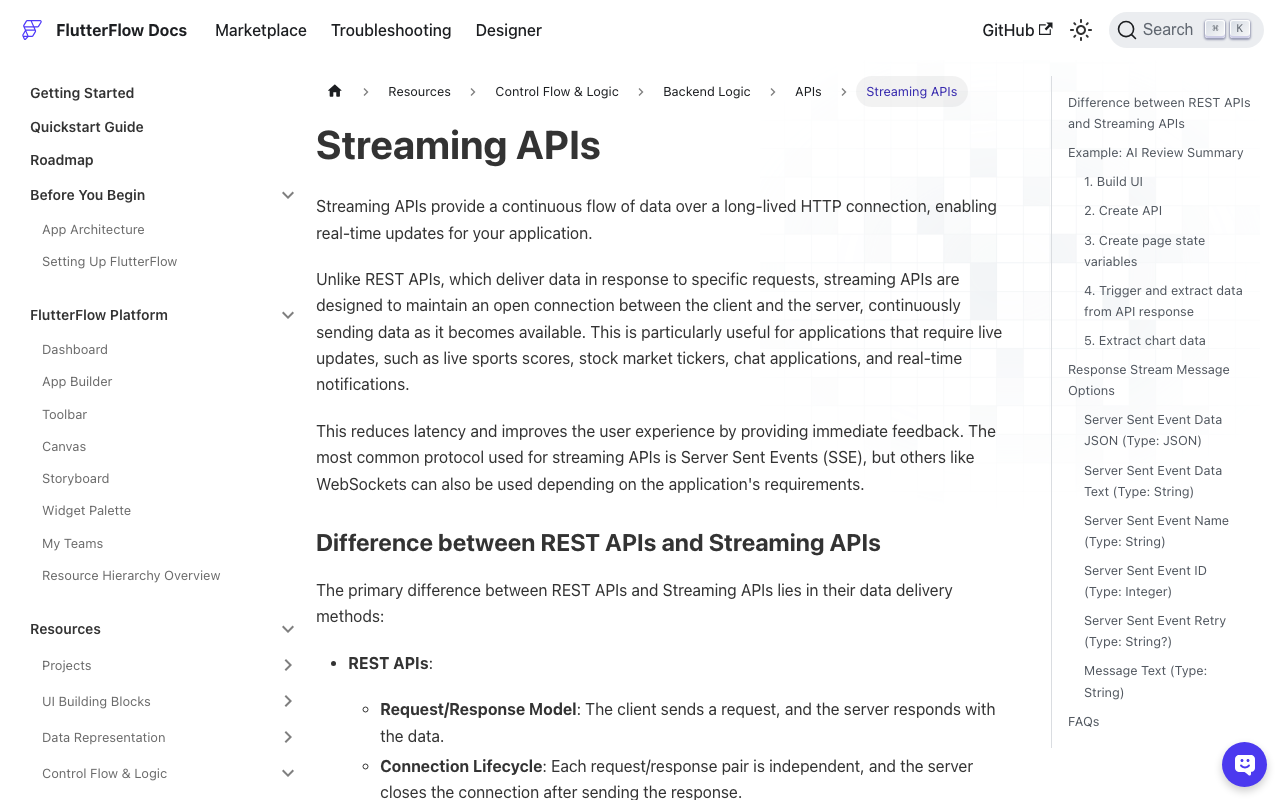
If you'd rather stay no-code, FlutterFlow supports this natively: on the API Call, enable Process Streaming Response in Advanced Settings, then use the onMessage action with Server Sent Event Stream Data JSON to append each chunk to a page-state string. The layout rules above are identical either way.
The one time you still need an explicit scroll
If you genuinely can't reverse the list — say a pinned banner or a sticky date header forces top-down order — you need to wait for the keyboard animation, not just the next frame. A single addPostFrameCallback fires roughly when the inset animation starts, so you scroll to a target that's still 250 ms out of date. Hook didChangeMetrics, which fires repeatedly as the insets animate:
class _ChatState extends State<Chat> with WidgetsBindingObserver {
  @override
  void initState() {
    super.initState();
    WidgetsBinding.instance.addObserver(this);
  }

  @override
  void dispose() {
    WidgetsBinding.instance.removeObserver(this);
    super.dispose();
  }

  @override
  void didChangeMetrics() {
    // Fires on every frame of the keyboard animation, not just the first.
    WidgetsBinding.instance.addPostFrameCallback((_) {
      if (!_scroll.hasClients) return;
      _scroll.jumpTo(_scroll.position.maxScrollExtent);
    });
  }
}
It works, but it's strictly worse: it re-reads maxScrollExtent every frame and it still stutters while tokens stream. reverse: true gets you the same result with zero scroll code.
The rule to remember
Pick one mode and commit to it:
- Scaffold mode (use this in FlutterFlow):
resizeToAvoidBottomInset: true. Never addviewInsets.bottomas padding — only test it for> 0. - Manual mode (only in a custom widget with its own Scaffold):
resizeToAvoidBottomInset: false, then wrap the input row inAnimatedPadding(padding: EdgeInsets.only(bottom: MediaQuery.viewInsetsOf(context).bottom), duration: ...).
Doing both is the flutterflow chat input keyboard overflow bug in a nutshell. And in either mode, reverse: true is what keeps the last streamed token on screen.
Skip the keyboard entirely
Worth noting: WidgetChat's live voice chat is the same widget you've already embedded. Tap the mic and the user gets a real-time speech-to-speech call — it replies out loud, supports barge-in so users can interrupt mid-sentence, shows live captions, and can display product cards on screen while it speaks. Same conversation, same dashboard, across iOS, Android, and web. Provider API keys stay server-side. You enable it per project in the dashboard's Voice section (voice name, max session length, captions default), and it draws from your plan's monthly voice-minute pool.
No keyboard, no viewInsets, no scroll offset to defend.
Try WidgetChat free — drop a streaming AI support chat into your Flutter or FlutterFlow app with a custom action and one HTTP call.

Comments
Comments are coming soon. We'd love to hear your thoughts!