
Add Image Upload to Your FlutterFlow AI Chatbot
A support chatbot that can only read text is half-blind. Your users want to send a screenshot of the error, a photo of the broken product, or a picture of the form they're stuck on — and have the AI actually look at it. FlutterFlow's native AI Agent widget can attach files, but it hides the wiring, so you can't point those images at your own backend or control how they're sent.
This walkthrough shows the real path: a FlutterFlow custom action that opens image_picker, converts the chosen file to Base64, attaches it to a WidgetChat vision message, and renders the user's thumbnail in the chat bubble. No black boxes — every line is yours.
Why Base64 instead of a file URL?
Vision models accept images two ways: a public URL or an inline Base64 string. In a chat flow, Base64 wins for three reasons:
- No upload round-trip. You don't need Firebase Storage or a signed URL before the AI can see the image — the bytes travel inside the same request as the text.
- No public exposure. A user's screenshot of their banking app shouldn't sit at a guessable URL.
- Simpler state. One string is easy to stash in an App State variable and drop into the chat history.
The trade-off: Base64 inflates the payload by about 33%, so you must compress before encoding. We handle that in the picker call itself.
Step 1 — Add the image_picker dependency
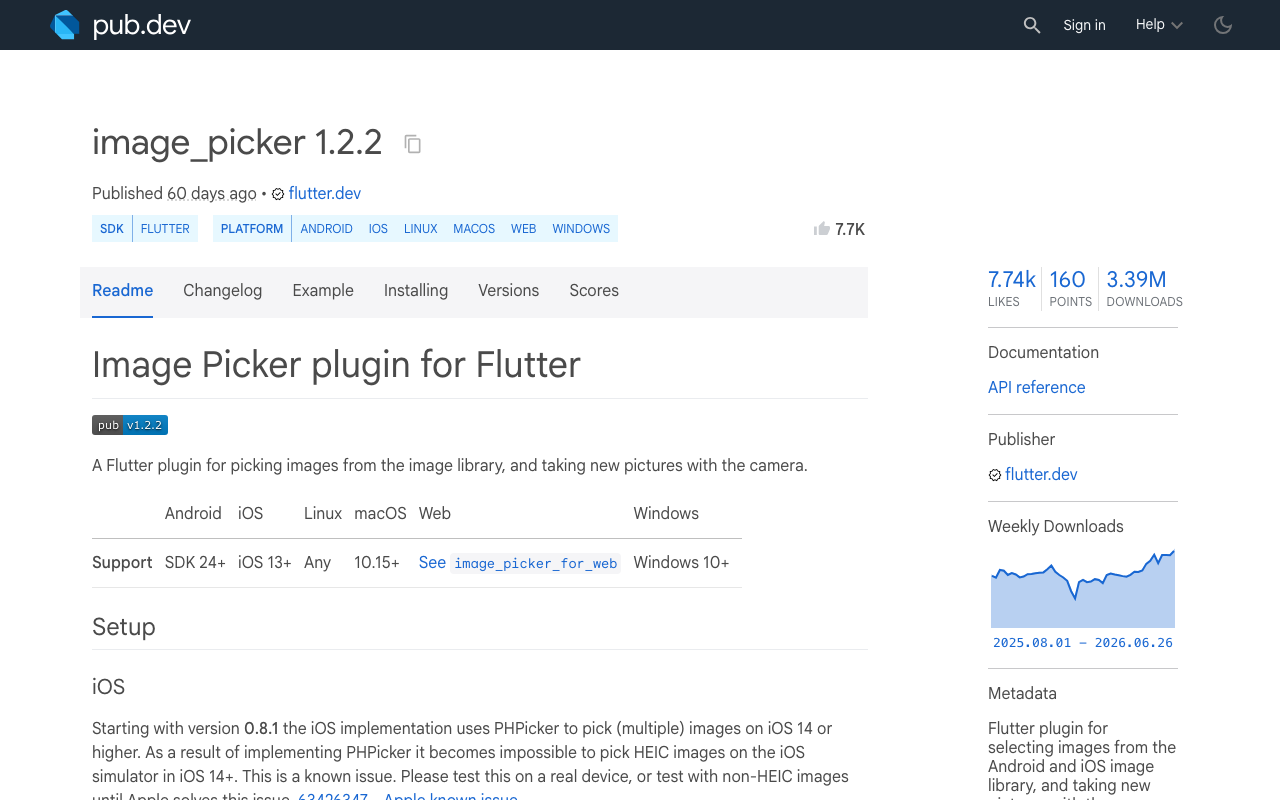
In FlutterFlow, go to Custom Code → Custom Actions → Add. In the right-hand panel under Pubspec Dependencies, add:
image_picker: ^1.1.2
image_picker 1.x is the current line on pub.dev. On iOS 14+ it uses the native PHPicker; on Android 13+ it uses the system Photo Picker, so you get the OS-native sheet for free. Add the iOS usage strings to Settings → App Settings → Permissions (NSPhotoLibraryUsageDescription and NSCameraUsageDescription) or the picker will crash on a real device.
Step 2 — The custom action: pick, compress, encode
Create a custom action named pickImageAsBase64. Set the Return Value to String and mark it nullable (the user can cancel). The whole job — open the sheet, downscale, read bytes, Base64-encode — fits in one action:
import 'dart:convert';
import 'dart:typed_data';
import 'package:image_picker/image_picker.dart';

Future<String?> pickImageAsBase64() async {
  final picker = ImagePicker();

  // maxWidth + imageQuality keep the Base64 payload small.
  final XFile? file = await picker.pickImage(
    source: ImageSource.gallery, // or ImageSource.camera
    maxWidth: 1280,
    imageQuality: 80,
  );

  if (file == null) return null; // user backed out

  // XFile.readAsBytes() works on mobile AND web — no dart:io needed.
  final Uint8List bytes = await file.readAsBytes();

  // Prefix the data URI with the media type so the bubble can render it
  // and the backend can read the MIME type in one string.
  final String mime =
      file.mimeType ?? (file.name.endsWith('.png') ? 'image/png' : 'image/jpeg');
  final String base64 = base64Encode(bytes);

  return 'data:$mime;base64,$base64';
}
Two details that save you grief:
- Use
XFile.readAsBytes(), notFile(file.path).readAsBytes(). Thedart:ioFiledoesn't exist on Flutter web, and a lot of FlutterFlow apps run a web preview.XFilereads bytes on every platform. maxWidth: 1280+imageQuality: 80typically drops a 4 MB phone photo to ~150 KB. Claude and other vision models downscale large images internally anyway, so you lose nothing by sending a sane size — and you avoid timeouts.
Return a full data: URI rather than a bare string. The MIME type is now baked in, which makes both the chat bubble and the backend trivial.
Step 3 — Attach the image to a WidgetChat vision message
WidgetChat sends your chat turns to a vision-capable model. The supported inline media types are image/jpeg, image/png, image/gif, and image/webp — exactly what the vision content-block spec expects. A message with an attachment is just your normal text payload plus an attachments array:
{
  "session_id": "ff-user-8842",
  "message": "Why does my checkout screen show this error?",
  "attachments": [
    {
      "type": "image",
      "media_type": "image/jpeg",
      "data": "<base64-without-the-data:-prefix>"
    }
  ]
}
WidgetChat unpacks that into a vision content block on the server, so you never hand-build the model request. In FlutterFlow, call this from an API Call (Add → API Call, POST to your WidgetChat message endpoint with your project key in the header). Map the body fields from page state: message from the text field, and the attachment data from the App State string your custom action returned.
Since the action returns a data: URI, strip the prefix before sending. A tiny custom action keeps the API Call body clean:
String stripDataPrefix(String dataUri) {
  final idx = dataUri.indexOf('base64,');
  return idx == -1 ? dataUri : dataUri.substring(idx + 7);
}
Wire it as: text field + attachment → pickImageAsBase64 stores the URI in App State → on Send, the API Call posts message plus the stripped Base64 → WidgetChat replies with the AI's analysis of the screenshot.
Step 4 — Render the user's thumbnail in the chat bubble
The user should see what they sent. Because you kept the data: URI in App State, you can decode it straight back to bytes and show it with Image.memory — no network fetch, no flicker. Drop this into a custom widget for the outgoing bubble, or use it in a small custom action that feeds a FlutterFlow Image widget:
import 'dart:convert';
import 'dart:typed_data';
import 'package:flutter/material.dart';

Widget chatImageThumb(String dataUri, {double size = 140}) {
  final base64 = dataUri.split('base64,').last;
  final Uint8List bytes = base64Decode(base64);

  return ClipRRect(
    borderRadius: BorderRadius.circular(12),
    child: Image.memory(
      bytes,
      width: size,
      height: size,
      fit: BoxFit.cover,
    ),
  );
}
Now the message bubble shows the screenshot the moment it's sent, and the AI's reply lands underneath referencing exactly what's in the picture.
Common gotchas
- Huge payloads / 413 errors. If you skip
maxWidthandimageQuality, a full-resolution photo can exceed request limits. Always compress in the picker call. - Web preview shows a blank thumbnail. That's the
dart:io Filetrap — make sure you usedXFile.readAsBytes(). - Permission denied on iOS. Add the usage-description strings; the gallery sheet silently fails without them.
- Wrong MIME type. PNG screenshots sent as
image/jpegcan confuse strict decoders. Readfile.mimeTypeinstead of assuming JPEG.
That's the entire flow: image_picker → Base64 → WidgetChat vision message → rendered thumbnail. You control every byte, on web and mobile, with zero hidden FlutterFlow magic.
Try WidgetChat free
Want a vision-ready support chatbot in your FlutterFlow app without building the model plumbing yourself? Try WidgetChat free — drop in the chat widget, point your custom action at the message endpoint, and let your users send screenshots the AI can actually read.

Comments
Comments are coming soon. We'd love to hear your thoughts!