
Fix Flutter Voice AI That Interrupts Itself on Speaker
Your voice assistant works perfectly with headphones on. Then a user taps speaker, and it falls apart: the assistant starts a sentence, hears something, stops, restarts, stops again. On Android it's worse. In a car on Bluetooth it's unusable.
That is almost never a broken barge-in implementation. Barge-in is working exactly as designed — the "user" it's hearing is your own text-to-speech, leaking out of the loudspeaker and straight back into the microphone. Your VAD sees speech energy the instant playback starts, flags it as an interruption, and kills the response. The next response does the same thing. On a bad day it loops.
Here's how to prove that's what's happening, and then fix it in Flutter.
Step 1: Confirm it's echo, not a real barge-in
Three tests, in order. Each takes a minute, and together they're conclusive.
Wired headphones. Not Bluetooth — wired. This physically removes the acoustic path from speaker to mic. If the assistant suddenly finishes every sentence, you have an echo problem, full stop.
Earpiece vs. speaker. Hold the phone to your ear so audio routes to the receiver, and run the same conversation. The earpiece is quiet and points away from the mic. Clean on earpiece, broken on speaker is the signature of flutter voice ai interrupts itself caused by echo, not by an over-eager VAD threshold.
Volume sweep. Set output volume to 20%, then 100%. If the cut-off rate scales with volume, the mic is hearing the speaker. A genuine barge-in doesn't care how loud the assistant is.
Then instrument it. The tell is when the interrupt fires relative to playback:
DateTime? _ttsStartedAt;

void onAssistantSpeechStart() => _ttsStartedAt = DateTime.now();
void onAssistantSpeechEnd() => _ttsStartedAt = null;

void onVadInterrupt() {
  final startedAt = _ttsStartedAt;
  if (startedAt == null) {
    debugPrint('BARGE-IN: user spoke while assistant was silent — genuine.');
    return;
  }
  final ms = DateTime.now().difference(startedAt).inMilliseconds;
  debugPrint('BARGE-IN: fired ${ms}ms after playback started');
}
Real users interrupt at wildly varying offsets, and usually not on every single turn. If your log shows the interrupt landing 80–350 ms after playback starts, turn after turn after turn, that's the assistant hearing its own first syllable.
Step 2: Why the platform AEC isn't running
Both iOS and Android ship a hardware/DSP acoustic echo canceller. It subtracts the known playback signal from the mic signal, so the capture stream contains the user and not the assistant. But it only engages when you tell the OS that this is a voice call, not media playback.
Most Flutter voice apps fail one of these:
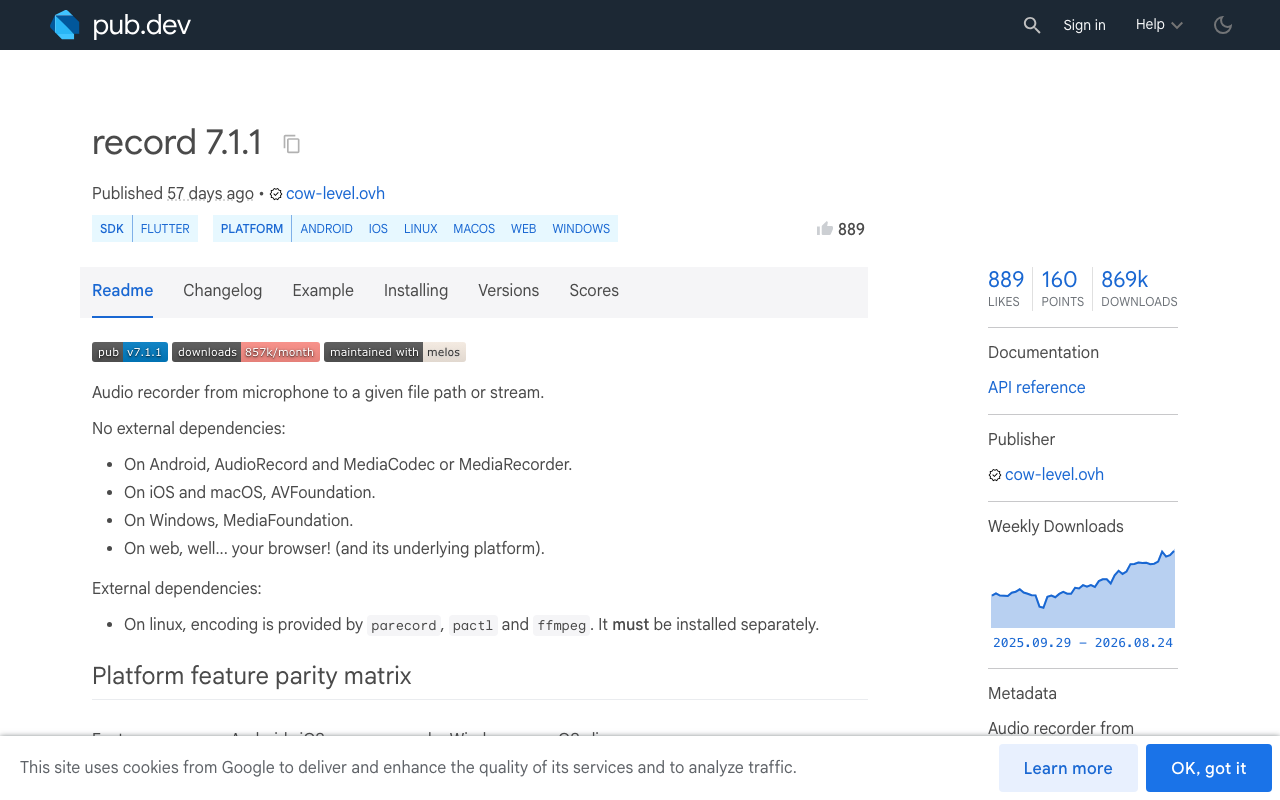
- The recorder was opened with default settings, so no AEC/NS/AGC was requested.
- Android is in
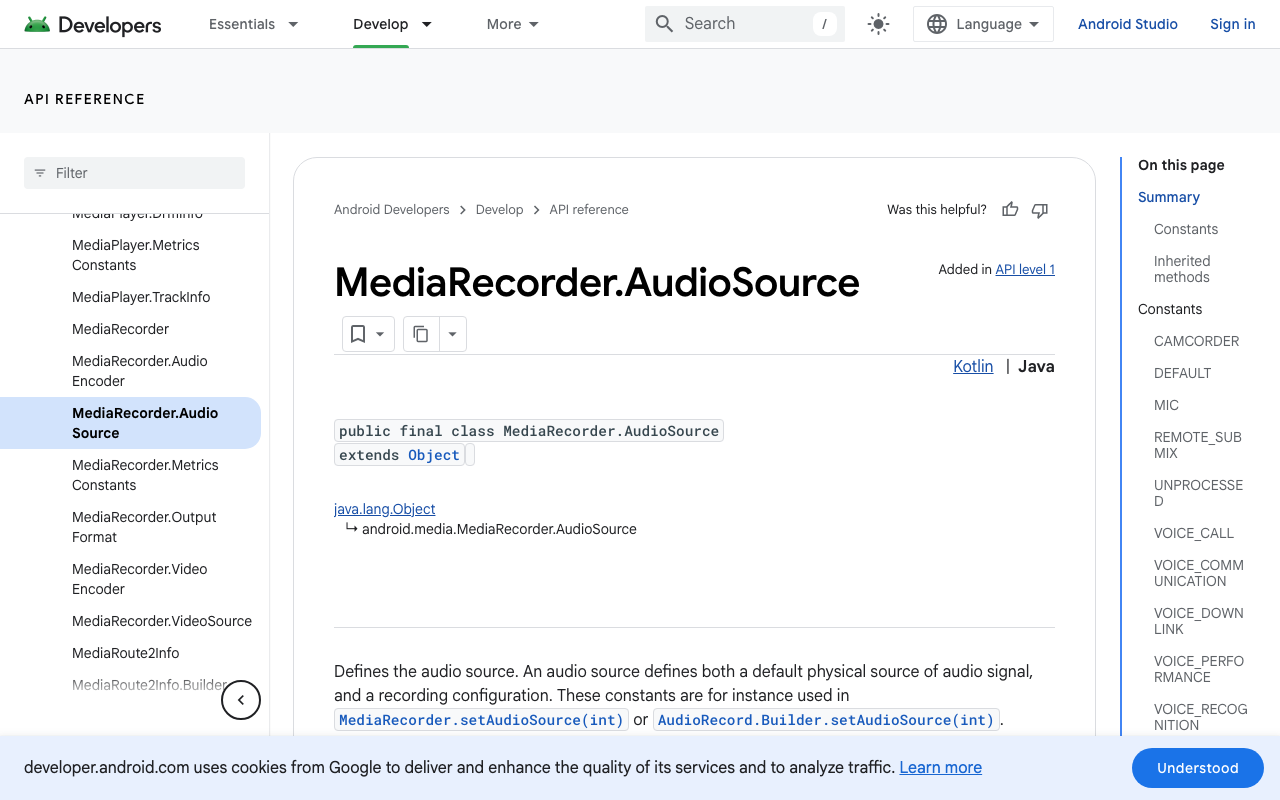
MODE_NORMALwith amicorunprocessedaudio source, so the framework never inserts the preprocessing chain. (unprocessedexplicitly means give me the raw signal — the opposite of what you want.) - iOS is in
.playbackorplayAndRecordwith the default mode instead of.voiceChat, so the voice-processing path is off. - Someone "fixed" quiet audio by forcing raw loudspeaker routing with media attributes, which knocked the whole session out of communication mode.
AEC needs a reference signal — it must know what's going out of the speaker to subtract it from what's coming into the mic. Configuring the session for voice communication is what wires that reference up.
Step 3: Turn on AEC, NS and AGC on the capture stream
With the record package (7.1.1 at time of writing), the three flags live on RecordConfig, and the Android specifics live on AndroidRecordConfig:
import 'dart:typed_data';
import 'package:record/record.dart';

final _recorder = AudioRecorder();

Future<Stream<Uint8List>> startVoiceCapture() {
  return _recorder.startStream(
    const RecordConfig(
      encoder: AudioEncoder.pcm16bits,
      sampleRate: 16000,
      numChannels: 1,
      // The three that actually decide whether barge-in works on speaker.
      echoCancel: true,
      noiseSuppress: true,
      autoGain: true,
      androidConfig: AndroidRecordConfig(
        audioSource: AndroidAudioSource.voiceCommunication,
        audioManagerMode: AudioManagerMode.modeInCommunication,
        speakerphone: true,
        manageBluetooth: true,
      ),
      iosConfig: IosRecordConfig(
        // Note: the package default also includes allowBluetoothA2DP.
        // Drop it — A2DP is an output-only profile (see step 5).
        categoryOptions: [
          IosAudioCategoryOption.defaultToSpeaker,
          IosAudioCategoryOption.allowBluetooth,
        ],
      ),
    ),
  );
}
AndroidAudioSource.voiceCommunication is the important one: Android inserts AEC and noise suppression into the capture path based on the audio source you request, and voice_communication is the one the HAL preprocesses. Pairing it with AudioManager.MODE_IN_COMMUNICATION is what makes it stick on real devices — Samsung handsets in particular behave very differently between MODE_NORMAL and MODE_IN_COMMUNICATION.
Setting the audio manager mode and speakerphone requires an extra permission in android/app/src/main/AndroidManifest.xml:
<uses-permission android:name="android.permission.RECORD_AUDIO" />
<uses-permission android:name="android.permission.MODIFY_AUDIO_SETTINGS" />
Miss MODIFY_AUDIO_SETTINGS and the mode change silently no-ops on some OEM builds — which is exactly the "works on my Pixel, echoes on my Galaxy" bug report.
Step 4: Configure the session for a call, not a podcast
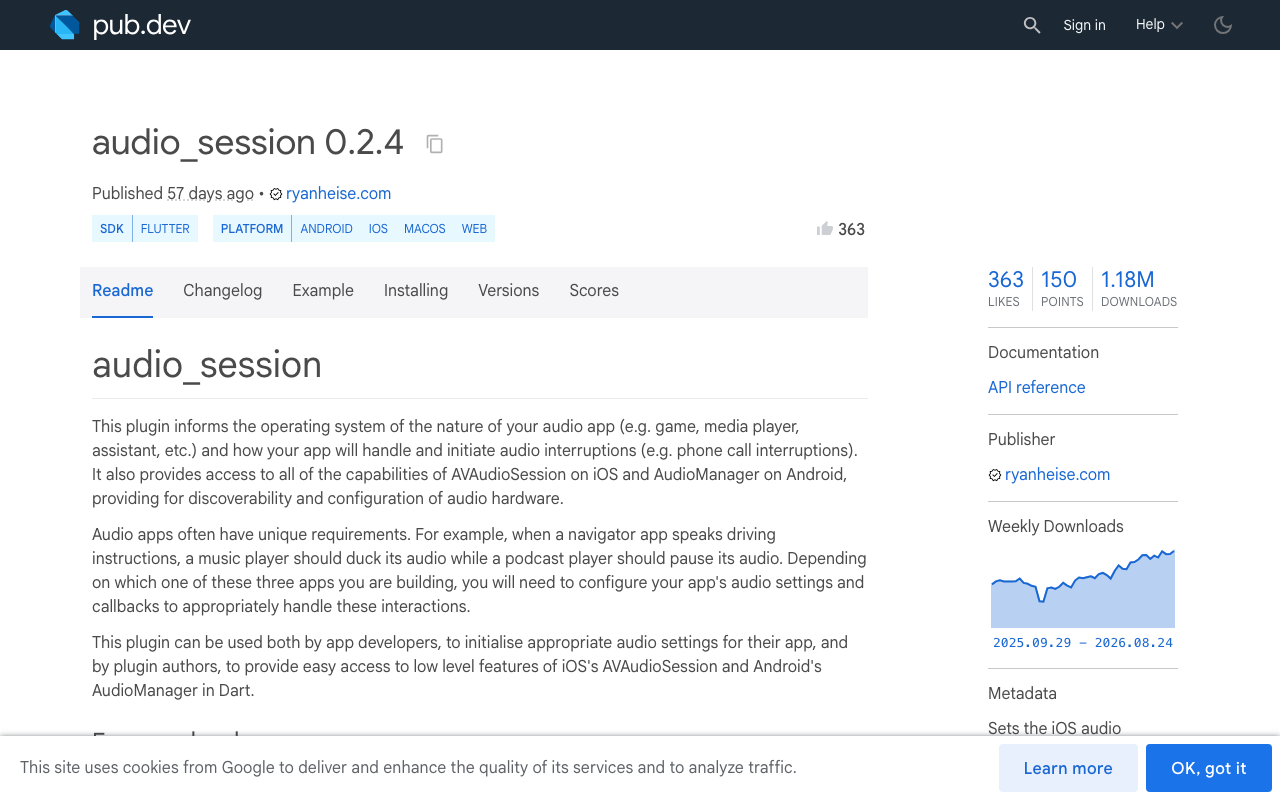
Before you start the call, set the session up with audio_session (0.2.4):
import 'package:audio_session/audio_session.dart';

Future<void> configureForVoiceCall() async {
  final session = await AudioSession.instance;
  await session.configure(AudioSessionConfiguration(
    // iOS: playAndRecord + voiceChat is what enables the platform AEC.
    avAudioSessionCategory: AVAudioSessionCategory.playAndRecord,
    avAudioSessionCategoryOptions:
        AVAudioSessionCategoryOptions.defaultToSpeaker |
        AVAudioSessionCategoryOptions.allowBluetooth,
    avAudioSessionMode: AVAudioSessionMode.voiceChat,
    // Android: declare this as voice communication, not media.
    androidAudioAttributes: const AndroidAudioAttributes(
      contentType: AndroidAudioContentType.speech,
      usage: AndroidAudioUsage.voiceCommunication,
      flags: AndroidAudioFlags.none,
    ),
    androidAudioFocusGainType: AndroidAudioFocusGainType.gainTransient,
    androidWillPauseWhenDucked: false,
  ));
  await session.setActive(true);
}
The single highest-impact line here is avAudioSessionMode: AVAudioSessionMode.voiceChat. Without it you get full-duplex audio with no echo cancellation, which is precisely the flutter voice assistant hears itself speakerphone failure.
One wrinkle: .voiceChat biases routing toward the earpiece. If you want real speakerphone and AEC, don't reach for a media category — override the output port while staying in .voiceChat. That needs a few lines of Swift:
// ios/Runner/AppDelegate.swift
import AVFoundation

let channel = FlutterMethodChannel(name: "app/voice_audio",
                                   binaryMessenger: controller.binaryMessenger)
channel.setMethodCallHandler { call, result in
  let session = AVAudioSession.sharedInstance()
  do {
    switch call.method {
    case "speakerOn":
      // Keep .voiceChat — this is what preserves echo cancellation.
      try session.setCategory(.playAndRecord, mode: .voiceChat,
                              options: [.allowBluetooth])
      try session.setActive(true)
      try session.overrideOutputAudioPort(.speaker)
      result(true)
    case "speakerOff":
      try session.overrideOutputAudioPort(.none)
      result(true)
    default:
      result(FlutterMethodNotImplemented)
    }
  } catch {
    result(FlutterError(code: "audio", message: "\(error)", details: nil))
  }
}
If you're building against the iOS 26 SDK, note that .allowBluetooth is now deprecated in favour of .allowBluetoothHFP — same behaviour, new name. Flutter plugins that still expose allowBluetooth map to the same underlying constant, so you don't need to change your Dart.
Step 5: Stop the "fixes" that defeat AEC
Four things people add while debugging that make echo worse:
allowBluetoothA2DPon a two-way call. A2DP is a playback-only profile. If output goes out over A2DP while the mic stays on the built-in array, the echo canceller's reference signal and the acoustic path no longer line up, and it can't cancel. Use HFP for voice.- Cranking
autoGainwhile AEC is off. AGC amplifies the residual echo along with the user. - Switching to
AndroidAudioUsage.mediafor loudness. That drops you out of communication mode. You get a louder assistant and a permanently self-interrupting one. - Muting the mic while the assistant speaks. It stops the false triggers, but you've deleted barge-in — the exact feature users notice. Half-duplex is a downgrade, not a fix.
Step 6: Flutter web
On web the browser does this for you, but only if the TTS audio actually plays through the browser. getUserMedia enables all three by default; be explicit anyway:
navigator.mediaDevices.getUserMedia({
  audio: {
    echoCancellation: true,
    noiseSuppression: true,
    autoGainControl: true,
  },
});
The catch: browser AEC cancels audio the browser rendered. If you're playing assistant audio through a path the browser's audio graph doesn't own, there's no reference signal and the flutterflow voice chat echo loop returns. Keep playback inside the same page context.
Step 7: Add a software gate as the second layer
AEC is very good, not perfect — expect a few dB of residual echo, especially in the first ~200 ms while the filter converges. Rather than dropping barge-in, raise the bar for what counts as one while the assistant is talking:
bool shouldTreatAsBargeIn({
  required bool assistantIsSpeaking,
  required Duration sincePlaybackStart,
  required double rmsDb,
  required Duration voicedFor,
}) {
  if (!assistantIsSpeaking) {
    return voicedFor >= const Duration(milliseconds: 120);
  }
  // Give the echo canceller a moment to converge on the new playback signal.
  if (sincePlaybackStart < const Duration(milliseconds: 250)) return false;
  // Residual echo is quiet and bursty. A real interruption is loud and sustained.
  return rmsDb > -34 && voicedFor >= const Duration(milliseconds: 300);
}
Tune rmsDb against your own logs on a speakerphone device. The goal is a gate that rejects leftover echo without adding perceptible latency to a genuine barge-in false trigger flutter case.
The working baseline: WidgetChat's voice call
If you'd rather not own this stack, WidgetChat's live voice chat is the same widget you already embed in your Flutter or FlutterFlow app. Users tap the mic for a real-time speech-to-speech call — it listens and replies out loud in a natural voice, supports barge-in so users can cut in mid-answer, shows live captions, and can put rich product cards on screen while it speaks. It runs on iOS, Android and web Flutter apps, in the same conversation and the same dashboard as your text chat, and provider API keys stay server-side rather than shipping in your bundle.
The dashboard's Voice section is where you tune the session: enable or disable voice per project, pick the voice name, set the max session length, and set whether captions default on. Captions are genuinely useful while debugging audio — if the transcript fills with the assistant's own last sentence, you're looking at echo, not a user.
Voice is plan-gated by a monthly voice-minute pool, which is another reason to set a sensible max session length before you ship.
For the text side, streaming still comes over SSE from POST https://api.widgetchat.app/v1/chat/stream, token by token — no proprietary SDK required, so a FlutterFlow custom action with an HTTP client is enough.
In FlutterFlow, add RECORD_AUDIO and MODIFY_AUDIO_SETTINGS to the Android manifest, NSMicrophoneUsageDescription to Info.plist, and call your configureForVoiceCall() custom action before opening the voice call.
Try WidgetChat free
Get a talking assistant with working barge-in into your Flutter or FlutterFlow app without hand-tuning audio sessions per device. Try WidgetChat free — free tier, same widget, voice and text in one conversation.

Comments
Comments are coming soon. We'd love to hear your thoughts!