
Flutter Voice AI Kills Spotify? Duck Music With audio_session
Two bug reports arrive about the same feature. One user says tapping the mic in your app killed their Spotify and it never came back. Another says the assistant's voice was buried under a podcast and they could not hear a word. Both have one cause: your Flutter app never told the OS what kind of audio session a voice call is.
This post shows the exact audio_session configuration for a WidgetChat live voice call, when to activate and deactivate it around the mic tap, and how to handle the interruption stream so barge-in keeps working while music is ducked.
Why the defaults break both ways
On iOS every app has one AVAudioSession. A playback or playAndRecord category is non-mixable by default, so the moment you activate it the system interrupts whatever else is playing. Apple's docs are explicit: clearing mixWithOthers and then activating your session interrupts other audio sessions. Spotify gets an interruption, pauses, and only some apps resume afterwards. If you never deactivate the session, nothing ever tells them to.
If your plugin went the other way and set mixWithOthers without ducking, you get the second bug. Music keeps playing at full volume on top of the assistant's voice.
On Android it is audio focus. Requesting AUDIOFOCUS_GAIN tells the previous holder to stop for good. Requesting AUDIOFOCUS_GAIN_TRANSIENT_MAY_DUCK tells it to keep going quietly. Since Android 8.0 the system ducks the other app for you, then restores it when you abandon focus. If you grab full focus and never abandon it, music dies and stays dead.
So the fix is the same on both platforms: declare a short, mixable, ducking session, activate it when the call starts, and deactivate it when the call ends.
The config for a WidgetChat voice call
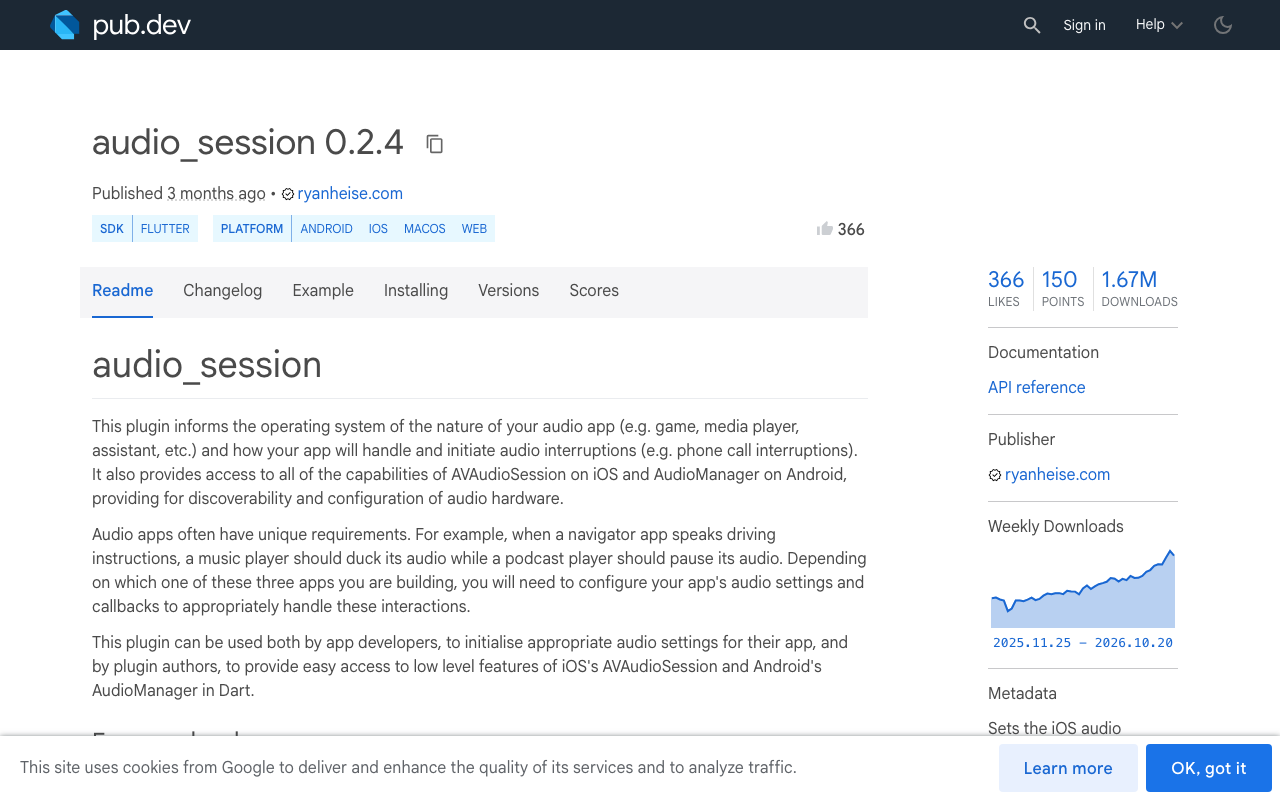
Add audio_session (0.2.4 at the time of writing). Configure it once at startup, before the user can tap the mic:
import 'package:audio_session/audio_session.dart';

Future<void> configureVoiceCallSession() async {
  final session = await AudioSession.instance;
  await session.configure(const AudioSessionConfiguration(
    avAudioSessionCategory: AVAudioSessionCategory.playAndRecord,
    avAudioSessionCategoryOptions:
        AVAudioSessionCategoryOptions.duckOthers |
        AVAudioSessionCategoryOptions.allowBluetooth |
        AVAudioSessionCategoryOptions.defaultToSpeaker,
    avAudioSessionMode: AVAudioSessionMode.voiceChat,
    avAudioSessionSetActiveOptions:
        AVAudioSessionSetActiveOptions.notifyOthersOnDeactivation,
    androidAudioAttributes: AndroidAudioAttributes(
      contentType: AndroidAudioContentType.speech,
      usage: AndroidAudioUsage.voiceCommunication,
    ),
    androidAudioFocusGainType: AndroidAudioFocusGainType.gainTransientMayDuck,
    androidWillPauseWhenDucked: false,
  ));
}
What each line buys you:
playAndRecordis the only category that lets the mic and the speaker run at once, which a speech-to-speech call needs.duckOtherslowers other apps' audio while your session is active. Apple notes that setting it implicitly setsmixWithOthers, so you do not add that flag yourself. Apple also says ducking begins when you activate the session and ends when you deactivate it. That sentence is the whole restore story on iOS.notifyOthersOnDeactivationis sent withsetActive(false). It tells Music, Podcasts and friends they may come back to full volume or resume.gainTransientMayDuckmaps toAUDIOFOCUS_GAIN_TRANSIENT_MAY_DUCK. Android ducks the music app automatically and restores it when you abandon focus.voiceCommunicationusage andspeechcontent type describe the stream honestly to Android, which matters for routing and for the Android 12+ fade-out rule that exempts speech.
Do not copy AudioSessionConfiguration.speech() for this. That preset is for podcast apps: playback category, no mic, full gain focus, and androidWillPauseWhenDucked: true. It is the configuration that causes the bug.
Should spoken audio pause instead of duck?
A ducked podcast is still a voice talking under your assistant's voice. Apple offers interruptSpokenAudioAndMixWithOthers for exactly this: it mixes with music but pauses other sessions that use the spokenAudio mode, and the system resumes them once your session deactivates. Apple's docs allow it for playAndRecord, playback and multiRoute, so it is fine on a recording session, and they recommend pairing it with duckOthers. Add it to the options if your users report podcast overlap:
avAudioSessionCategoryOptions:
    AVAudioSessionCategoryOptions.duckOthers |
    AVAudioSessionCategoryOptions.interruptSpokenAudioAndMixWithOthers |
    AVAudioSessionCategoryOptions.allowBluetooth |
    AVAudioSessionCategoryOptions.defaultToSpeaker,
Android already behaves this way. Automatic ducking is not applied to apps playing CONTENT_TYPE_SPEECH; they get the focus callback instead and typically pause.
If the product decision really is to stop music when recording, swap gainTransientMayDuck for gainTransient on Android and drop duckOthers on iOS. You still deactivate at the end, which is what lets the music come back.
Activate on the mic tap, deactivate on hang-up
The config above is inert until you activate it. Activate right before the call starts and deactivate as soon as it ends, not when the widget is disposed and not when the app backgrounds. Apple warns that duckOthers is for a few seconds at a time, and a stuck active session is how a user's music stays quiet for the rest of their commute.
WidgetChat's voice call starts from the mic button in the widget you already embed. Wrap whatever starts and stops that call in your app with these two functions:
class VoiceSessionController {
  AudioSession? _session;
  StreamSubscription<AudioInterruptionEvent>? _interruptions;

  Future<bool> beginCall() async {
    _session ??= await AudioSession.instance;
    final granted = await _session!.setActive(true);
    if (!granted) {
      // Focus denied (for example, Android 15+ when the app is not on top).
      return false;
    }
    _interruptions ??= _session!.interruptionEventStream.listen(_onInterruption);
    return true;
  }

  Future<void> endCall() async {
    // Releases focus on Android and sends notifyOthersOnDeactivation on iOS.
    await _session?.setActive(false);
  }
}
setActive(true) returns false if the request was denied. Treat that as a reason not to open the mic, and show the user why. On Android 15 and newer the system only grants focus to the top app or a foreground service, which a mic tap in the foreground satisfies.
In FlutterFlow this lives in a custom action. Create one action that calls beginCall() and one that calls endCall(), and chain them before and after the action that opens the WidgetChat voice call.
One call, one activation. Do not toggle the session between turns. The user speaks, the assistant answers, the user interrupts, and the whole time the session stays active with the mic live. That is what makes barge-in possible: because the category is playAndRecord and the session is never dropped mid-call, the microphone keeps capturing while the assistant is talking.
Handle the interruption stream without breaking barge-in
Ducking other apps does not fire an interruption on your own session. The stream fires when something happens to you: a phone call, Siri, another app taking focus. On Android a duck event means another app asked you to go quiet. You keep the mic open and lower the assistant's playback volume. A pause or unknown event means you lost the session and should end the call cleanly.
void _onInterruption(AudioInterruptionEvent event) {
  if (event.begin) {
    switch (event.type) {
      case AudioInterruptionType.duck:
        assistantPlayer.setVolume(0.3); // keep listening, talk quieter
        break;
      case AudioInterruptionType.pause:
      case AudioInterruptionType.unknown:
        hangUpVoiceCall(reason: 'interrupted');
        break;
    }
  } else {
    switch (event.type) {
      case AudioInterruptionType.duck:
        assistantPlayer.setVolume(1.0);
        break;
      case AudioInterruptionType.pause:
        // Safe to offer a one-tap resume of the voice call.
        showResumeBanner();
        break;
      case AudioInterruptionType.unknown:
        // Interruption ended but the OS says not to resume.
        break;
    }
  }
}
The pause branch is where a real phone call lands. What to do after the call ends, and what AirPods disconnecting during it looks like, is covered in Flutter Voice AI Dies on a Phone Call? Resume It Cleanly.
The allowBluetooth option in the config forces the Bluetooth route to HFP so the AirPods mic works, which is also why the music sounds tinny for a moment when the call starts. That trade-off and the route change events are in Flutter Voice AI Goes Tinny on AirPods? Handle HFP Switch.
Verify it on a device
The simulator does not run a real audio session. Test on hardware, with Spotify and a podcast app, and tick these off:
- Start music. Tap the mic. Music drops to a duck level, not to silence, and the assistant is clearly audible over it.
- Interrupt the assistant mid-sentence. It stops and listens, music stays ducked.
- Hang up. Music returns to full volume within a second. If it does not,
endCall()is not being reached on that path, usually because the widget closed without firing your stop callback. - Start a podcast instead of music. On Android it pauses rather than ducks. On iOS it ducks unless you added
interruptSpokenAudioAndMixWithOthers, in which case it pauses and resumes after hang-up. - Receive a phone call during the voice call. Your
pausebranch runs and the app does not crash or leave the session active.
Note that whether a third-party app resumes after notifyOthersOnDeactivation is up to that app. Apple Music and Podcasts resume. Some apps only restore volume. That is the OS contract and it is the best any app can do.
Ship it
WidgetChat's live voice chat runs inside the same widget and the same conversation as your text chat, with speech-to-speech replies, barge-in, live captions and product cards on screen while it speaks. Provider keys stay on the server, and voice minutes, voice name, max session length and captions are configured per project in the dashboard's Voice section. The audio session above is the one piece the OS leaves to you.
Try WidgetChat free and add a voice assistant to your Flutter or FlutterFlow app that plays nicely with the user's music.

Comments
Comments are coming soon. We'd love to hear your thoughts!