

Flutter Mic Permission Not Showing on iOS: Fix It
Your talking AI assistant works on Android. On the iPhone, the user taps the mic and nothing happens. There's no system prompt and no error on screen. If you log the permission status, it already says permanentlyDenied, even though the user was never asked.
This is the most common iOS-only voice bug in Flutter. It comes down to two missing lines, one in Info.plist and one in the Podfile. Below are the exact fixes, then a Dart permission gate that handles every status, then a fallback that keeps the user chatting by text when the mic is off.
If you're chasing the Android side of the same feature, read the companion posts on the Android 14 mic foreground service crash and on voice replies coming out of the iPhone earpiece.
Why the same code fails only on iOS
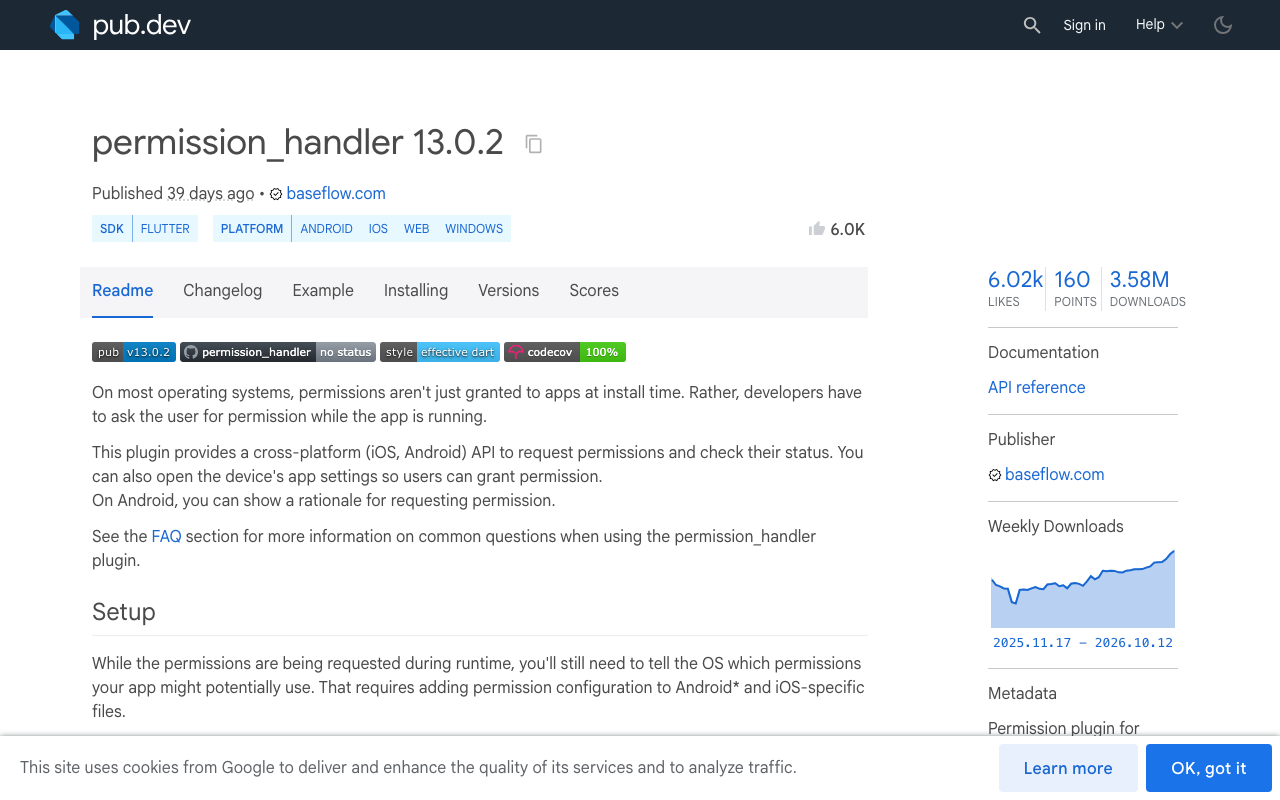
On Android, permission_handler reads the permissions from your manifest at runtime. On iOS it works differently. When you build with CocoaPods, every permission is compiled out by default. This keeps Apple's static analysis from flagging APIs your app never uses. You opt in to each one with a preprocessor macro.
Without PERMISSION_MICROPHONE=1, the plugin never calls the real iOS microphone API. Permission.microphone.request() returns straight away with permanentlyDenied and no dialog is shown. Your voice button sees a denial and quietly gives up.
The second trap is NSMicrophoneUsageDescription. If that key is missing and some code reaches the microphone anyway, iOS doesn't show a prompt. It terminates the app for accessing privacy-sensitive data without a usage description. That's the "mic tap crashes the app" version of the same bug.
Fix 1: add NSMicrophoneUsageDescription to Info.plist
Open ios/Runner/Info.plist and add the key inside the top-level <dict>:
<key>NSMicrophoneUsageDescription</key>
<string>Lets you talk to our support assistant instead of typing.</string>
The string appears in the system dialog, so write it for the user. App Review rejects vague text like "needs microphone", so say what the mic is for.
Your voice layer may also use Apple's on-device speech recognition through a plugin such as speech_to_text. In that case you need NSSpeechRecognitionUsageDescription and PERMISSION_SPEECH_RECOGNIZER=1 as well. A server-side speech-to-speech call only needs the microphone.
Fix 2: enable the permission_handler PERMISSION_MICROPHONE Podfile macro
In ios/Podfile, extend the post_install block Flutter generated. Keep flutter_additional_ios_build_settings(target) and add the definitions:
post_install do |installer|
  installer.pods_project.targets.each do |target|
    flutter_additional_ios_build_settings(target)

    target.build_configurations.each do |config|
      config.build_settings['GCC_PREPROCESSOR_DEFINITIONS'] ||= [
        '$(inherited)',
        'PERMISSION_MICROPHONE=1',
      ]
    end
  end
end
Only list the permissions you actually use. Every macro you turn on needs a matching usage description in Info.plist.
Then do a real clean rebuild. A hot restart won't pick up a Podfile change:
flutter clean
cd ios && pod install && cd ..
flutter run
If your project uses Swift Package Manager
permission_handler 13.x also supports Swift Package Manager (Flutter 3.24+, Xcode 15+). On that path there's no Podfile macro. The plugin turns a permission on when it finds the matching usage key in Info.plist. So under SPM, Fix 1 alone enables the microphone. After you add or change keys, clear Xcode's package cache once so Package.swift is re-evaluated:
rm -rf ~/Library/Developer/Xcode/DerivedData
Reset the test device
iOS only shows the mic prompt once per install. If you tested before the fix, your device may have stored a real denial. Delete the app, reinstall, and tap the mic again. You should now see the system dialog with your usage string.
A Dart permission gate for granted, denied and permanently denied
With the config fixed, the button still needs to handle every answer the user can give. On iOS, permission_handler reports a mic that was never asked as denied. Once the user taps "Don't Allow", it reports permanentlyDenied, because iOS will never show the dialog again. restricted means parental controls or MDM block it.
import 'package:permission_handler/permission_handler.dart';

enum MicGate { granted, denied, blocked }

Future<MicGate> ensureMicPermission() async {
  var status = await Permission.microphone.status;
  if (status.isGranted) return MicGate.granted;
  if (status.isPermanentlyDenied || status.isRestricted) {
    return MicGate.blocked;
  }

  status = await Permission.microphone.request();
  if (status.isGranted) return MicGate.granted;
  if (status.isPermanentlyDenied || status.isRestricted) {
    return MicGate.blocked;
  }
  return MicGate.denied;
}
Now wire it to the mic button. When the mic is blocked, explain why and offer the one thing that helps: a deep link to your app's page in iOS Settings. openAppSettings() from permission_handler does this.
Future<void> onMicTapped(BuildContext context) async {
  final gate = await ensureMicPermission();
  if (!context.mounted) return;

  switch (gate) {
    case MicGate.granted:
      startVoiceCall(); // your existing voice entry point
    case MicGate.denied:
      fallBackToText(context, 'No problem, you can keep typing.');
    case MicGate.blocked:
      final openSettings = await showDialog<bool>(
        context: context,
        builder: (ctx) => AlertDialog(
          title: const Text('Microphone is off'),
          content: const Text(
            'To talk to the assistant, allow Microphone for this app in Settings. '
            'You can keep chatting by text meanwhile.',
          ),
          actions: [
            TextButton(
              onPressed: () => Navigator.pop(ctx, false),
              child: const Text('Type instead'),
            ),
            FilledButton(
              onPressed: () => Navigator.pop(ctx, true),
              child: const Text('Open Settings'),
            ),
          ],
        ),
      );
      if (openSettings == true) {
        await openAppSettings();
      } else if (context.mounted) {
        fallBackToText(context, 'Switched to text chat.');
      }
  }
}
The switch with no break statements needs Dart 3. Don't call openAppSettings() without a dialog first. Dropping someone into Settings with no explanation confuses users.
Re-check when the user comes back from Settings
The user may switch the mic on and return to your app. Listen for the app resuming and check the status again. That way the mic button works right away without a restart:
class _ChatScreenState extends State<ChatScreen> with WidgetsBindingObserver {
  bool micAvailable = false;

  @override
  void initState() {
    super.initState();
    WidgetsBinding.instance.addObserver(this);
    _refreshMic();
  }

  @override
  void dispose() {
    WidgetsBinding.instance.removeObserver(this);
    super.dispose();
  }

  @override
  void didChangeAppLifecycleState(AppLifecycleState state) {
    if (state == AppLifecycleState.resumed) _refreshMic();
  }

  Future<void> _refreshMic() async {
    final granted = await Permission.microphone.isGranted;
    if (mounted) setState(() => micAvailable = granted);
  }

  // build() uses micAvailable to style the mic button
}
Fall back to text, in the same conversation
When the mic is unavailable, don't send people to a dead end or a separate screen. In WidgetChat, voice and text share the same widget and the same conversation. A user without mic access just keeps typing in the thread they were already in. Nothing they said is lost, and your dashboard shows a single conversation.
The fallback can be as small as focusing the composer and saying what happened:
final composerFocus = FocusNode();

void fallBackToText(BuildContext context, String message) {
  ScaffoldMessenger.of(context).showSnackBar(
    SnackBar(content: Text(message)),
  );
  composerFocus.requestFocus(); // the TextField bound to your chat input
}
A few UX details help here:
- Leave the mic button visible when it's blocked, but style it as disabled, so users can find their way back to Settings later.
- Never ask for the mic on app launch. Ask when the user taps the mic, so the system dialog matches what they just did.
- Keep your usage string and your in-app dialog consistent, so the user sees one clear reason.
FlutterFlow: microphone permission for voice
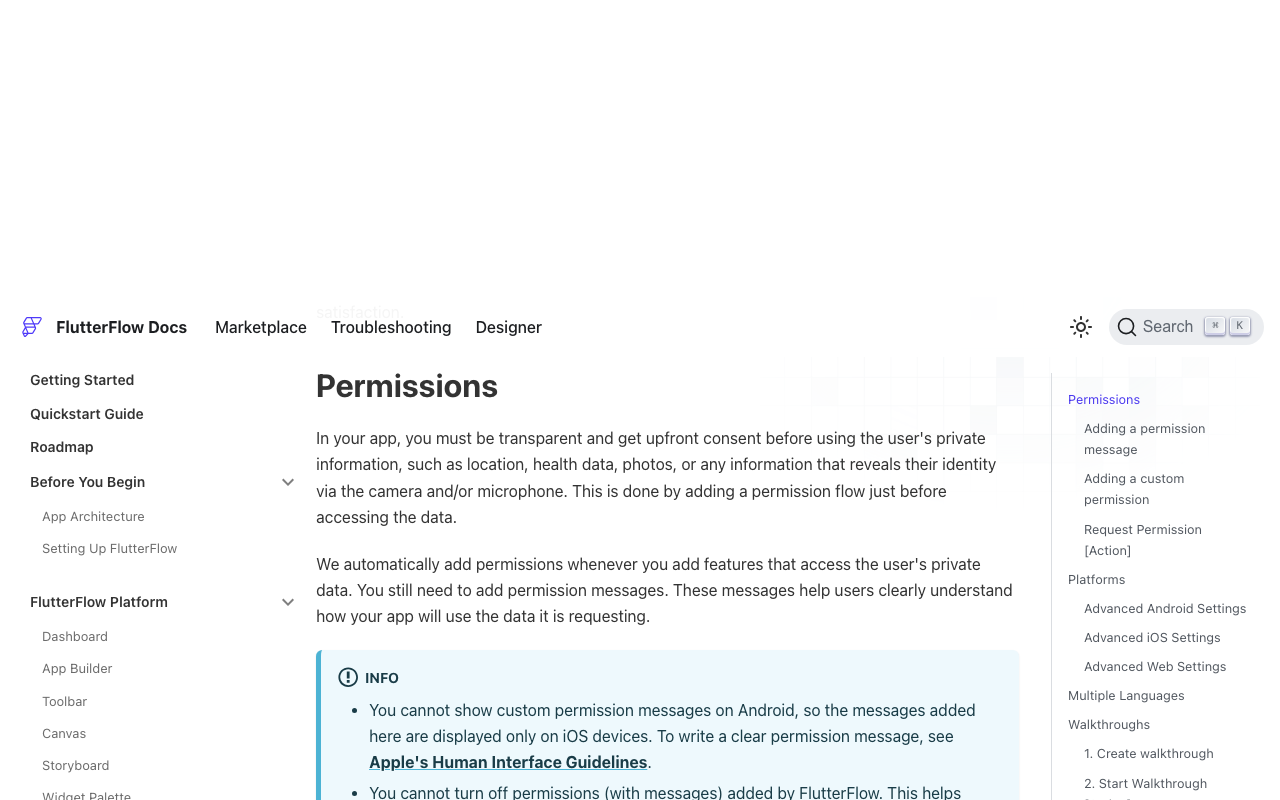
In FlutterFlow, go to Settings & Integrations > Project Setup > Permissions. Switch on Microphone and enter the message. That message becomes your NSMicrophoneUsageDescription, and FlutterFlow only shows it on iOS. Put the ensureMicPermission and onMicTapped logic into a custom action that uses permission_handler.
If you export the code and build iOS locally with CocoaPods, check ios/Podfile for the PERMISSION_MICROPHONE=1 line. If it's missing, you get exactly the silent permanentlyDenied described above.
Quick checklist
NSMicrophoneUsageDescriptionis inios/Runner/Info.plist.'PERMISSION_MICROPHONE=1'is in the Podfile'spost_installblock (CocoaPods), or the plist key is present and DerivedData was cleared (SPM).- You ran
flutter cleanandpod install, and reinstalled the app on the device. - The mic button handles granted, denied and permanently denied, with
openAppSettings()for the last one. - The status is checked again when the app resumes.
- Text chat stays available in the same conversation.
Try WidgetChat free
WidgetChat adds an AI support assistant to your Flutter or FlutterFlow app. It answers from your own content, streams replies in real time, and supports live voice chat. Users tap the mic and talk, the assistant replies out loud, they can interrupt it mid-sentence, and captions appear live. All of it runs inside the same widget and conversation as text, on iOS, Android and web. Provider API keys stay on the server, and you configure voice per project in the dashboard's Voice section.
Try WidgetChat free and give your users a mic button that works on iOS too.

Comments
Comments are coming soon. We'd love to hear your thoughts!