
Flutter Mic Permission on Android: Fix Denied and Silent Mic
Your voice feature works on your test phone. Then a user on a Pixel taps the mic and nothing happens: no dialog, and Permission.microphone.request() comes back permanentlyDenied straight away. Or the dialog shows, the call starts, and the moment they switch to another app, the assistant hears total silence.
These are three separate Android problems that look like one. This post goes through each one: the manifest, the permission_handler status flow, a proper "mic blocked" state, and the foreground service rule that keeps the mic alive on Android 14+. If you are fighting the iOS side, read the companion post on the iOS mic permission prompt not showing.
Why the RECORD_AUDIO dialog never appears
When Flutter's RECORD_AUDIO permission is not asking, it is almost always one of these:
- RECORD_AUDIO is missing from the merged manifest. Android will not show a dialog for a permission the app never declared. The request resolves immediately and
permission_handlerreports it as denied or permanently denied. - The user already said no twice. Since Android 11, a second "Don't allow" means the system stops showing the dialog for that permission. Every later
request()returns instantly without any UI. - The user dismissed the dialog by tapping outside it. That counts as a denial, but not a permanent one.
- You are requesting before an Activity exists, for example from a background isolate or during early startup. Request from a widget, after the first frame.
Check case 1 first. Open android/app/build/intermediates/merged_manifests/ after a build, or use Android Studio's "Merged Manifest" tab, and confirm RECORD_AUDIO is there. A library with tools:node="remove" can strip it.
The manifest entries for a voice call
For a voice assistant that keeps listening when the app is not on screen, you need more than RECORD_AUDIO. This is the full set for a Flutter app targeting Android 14 (API 34) or higher, using the flutter_foreground_task package for the service:
<manifest xmlns:android="http://schemas.android.com/apk/res/android">
    <uses-permission android:name="android.permission.RECORD_AUDIO" />
    <uses-permission android:name="android.permission.INTERNET" />
    <uses-permission android:name="android.permission.FOREGROUND_SERVICE" />
    <uses-permission android:name="android.permission.FOREGROUND_SERVICE_MICROPHONE" />
    <!-- Android 13+: needed to show the ongoing-call notification -->
    <uses-permission android:name="android.permission.POST_NOTIFICATIONS" />

    <application ...>
        <service
            android:name="com.pravera.flutter_foreground_task.service.ForegroundService"
            android:foregroundServiceType="microphone"
            android:exported="false" />
    </application>
</manifest>
If your voice chat only ever runs while the screen is in front of the user, RECORD_AUDIO and INTERNET are enough. The rest is for the backgrounding case further down.
FlutterFlow microphone permission on Android
In FlutterFlow, go to Settings & Integrations, then Project Setup, then Permissions, and turn on Microphone. That adds RECORD_AUDIO to the generated manifest. The message text you type there is only shown on iOS; Android always uses its own system dialog wording. For the foreground service entries, edit AndroidManifest.xml through FlutterFlow's Custom Code configuration files, then call the permission flow below from a custom action.
The permission_handler status flow on Android
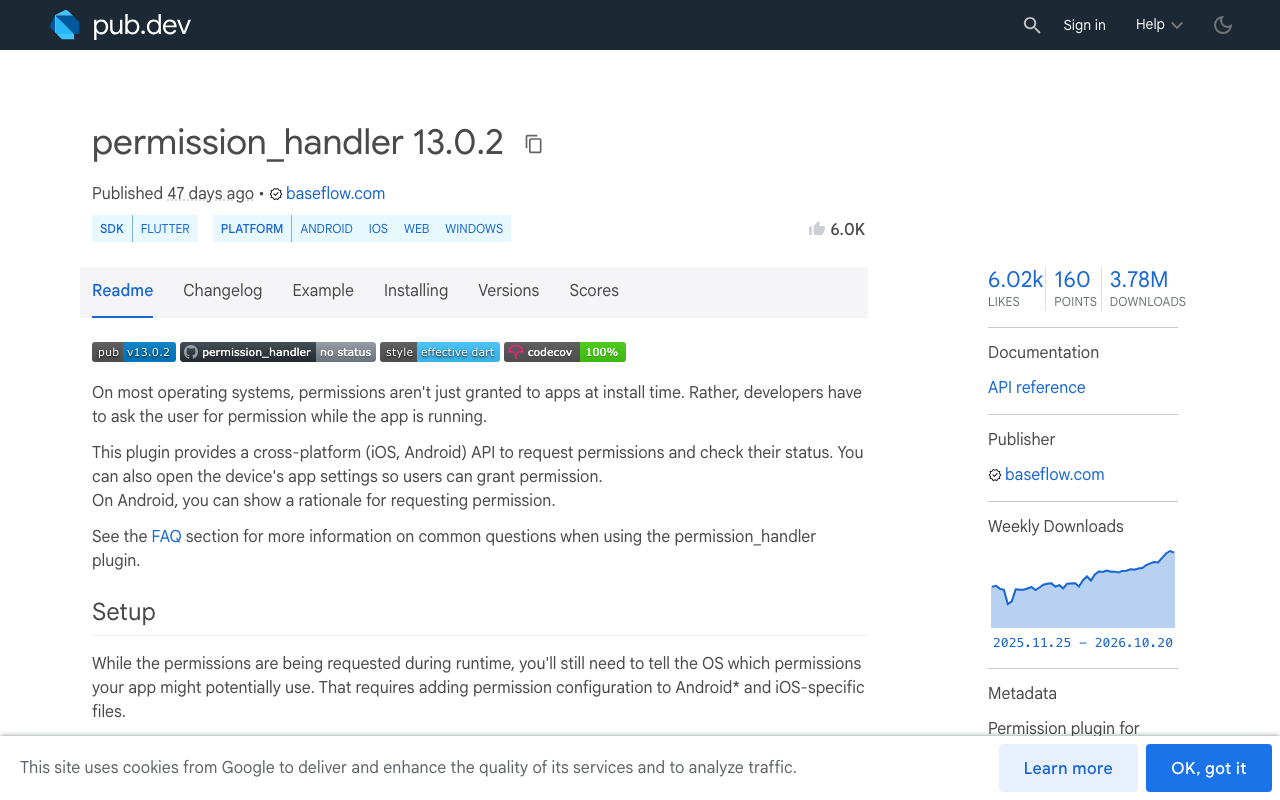
permission_handler (13.x at the time of writing) has six statuses, but on Android you will only see three of them when dealing with the mic:
granted: go ahead.denied: never asked, asked and refused once, or the dialog was dismissed. You can callrequest()again.permanentlyDenied: the system will not show the dialog any more. Only the Settings app can fix it.
restricted exists mostly for iOS (parental controls, device management). Handle it, but do not expect it often on Android.
There is one trap that catches a lot of people looking up "permission_handler microphone permanently denied android". Android does not tell apps the difference between "never asked" and "permanently denied" when you just check the state. Recent versions of permission_handler_android (14.1.0 and up) are explicit about this: Permission.microphone.status never returns permanentlyDenied on Android. Only request() can, because the plugin works it out from how shouldShowRequestPermissionRationale changes across the request. So never decide "blocked" from .status alone. Ask, and look at what request() returns.
import 'package:permission_handler/permission_handler.dart';

enum MicAccess { granted, denied, blocked, restricted }

Future<MicAccess> ensureMicrophone() async {
  if (await Permission.microphone.isGranted) return MicAccess.granted;

  final result = await Permission.microphone.request();

  if (result.isGranted) return MicAccess.granted;
  if (result.isPermanentlyDenied) return MicAccess.blocked;
  if (result.isRestricted) return MicAccess.restricted;
  return MicAccess.denied;
}
Call this right when the user taps the mic, not on app launch. A prompt that shows up in context ("you just tapped talk") gets accepted far more often, and every refusal you burn moves you closer to the permanent block.
Build a "mic blocked" state that opens settings
Once request() returns permanentlyDenied, calling it again does nothing. The only path back is openAppSettings(), which opens your app's page in the system Settings. Make that a real UI state instead of a silent failure:
class MicButton extends StatefulWidget {
  const MicButton({super.key, required this.onGranted});
  final VoidCallback onGranted;

  @override
  State<MicButton> createState() => _MicButtonState();
}

class _MicButtonState extends State<MicButton> with WidgetsBindingObserver {
  MicAccess? _access;

  @override
  void initState() {
    super.initState();
    WidgetsBinding.instance.addObserver(this);
  }

  @override
  void dispose() {
    WidgetsBinding.instance.removeObserver(this);
    super.dispose();
  }

  // Coming back from Settings: re-check so the button unlocks by itself.
  @override
  void didChangeAppLifecycleState(AppLifecycleState state) async {
    if (state == AppLifecycleState.resumed && _access == MicAccess.blocked) {
      if (await Permission.microphone.isGranted) {
        setState(() => _access = MicAccess.granted);
      }
    }
  }

  Future<void> _onTap() async {
    final access = await ensureMicrophone();
    setState(() => _access = access);
    if (access == MicAccess.granted) widget.onGranted();
  }

  @override
  Widget build(BuildContext context) {
    if (_access == MicAccess.blocked) {
      return TextButton.icon(
        icon: const Icon(Icons.mic_off),
        label: const Text('Microphone is off. Open settings'),
        onPressed: openAppSettings,
      );
    }
    return IconButton(icon: const Icon(Icons.mic), onPressed: _onTap);
  }
}
Note the resume check uses isGranted, which is reliable on Android. Only the "is it permanently denied" question needs request().
Android 14+: the mic goes silent in the background
Here is the part that looks like a bug in your audio code. Android has delivered silence to apps that record from the background since Android 9: the stream keeps running, but every buffer is zeros. Microphone access is a "while-in-use" permission. To keep hearing the user after they leave the app, you need a foreground service of type microphone.
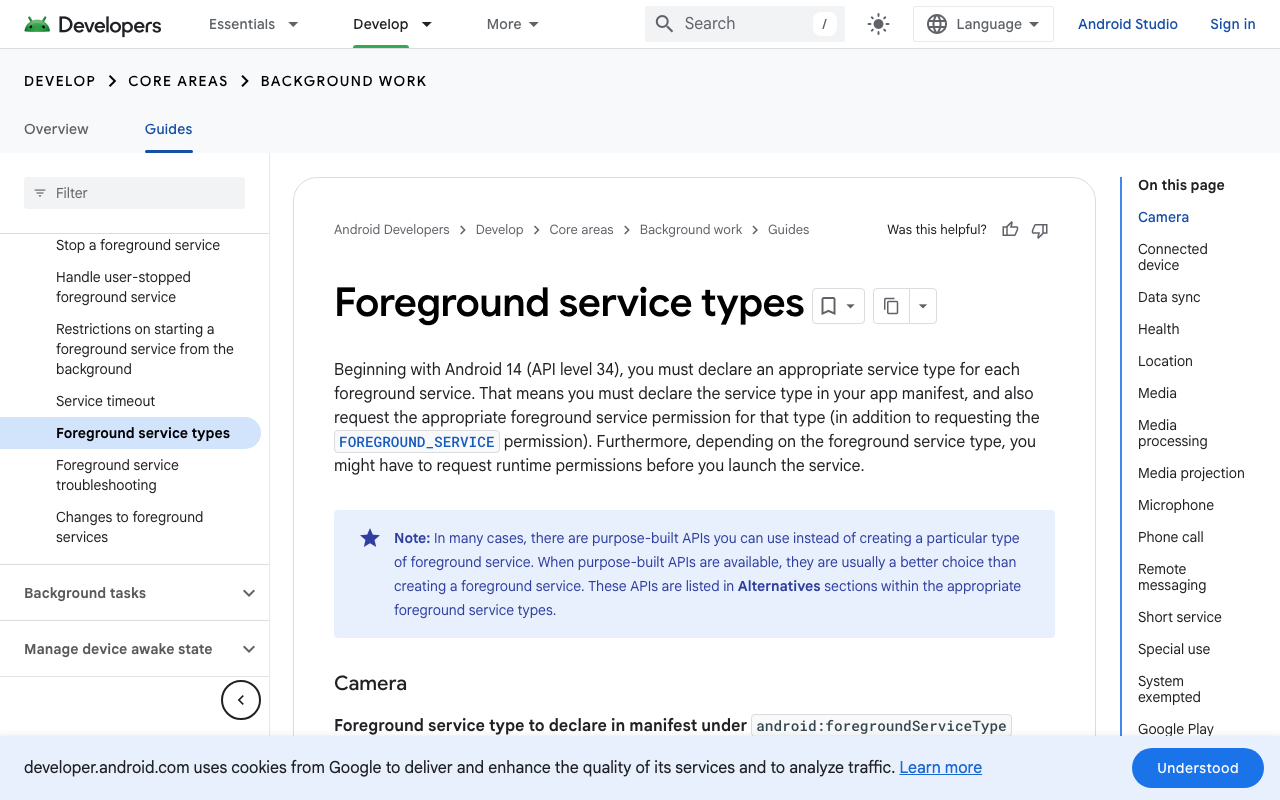
Android 14 tightened this. Apps targeting API 34+ must declare a type for every foreground service, add the matching FOREGROUND_SERVICE_MICROPHONE permission, and pass that type when starting the service. Miss any of these and the service fails to start, so the mic quietly stops working when the app goes to the background.
The second rule is about timing: you cannot start a microphone foreground service while your app is in the background. Start it when the call begins, while the user is looking at the screen, not in didChangeAppLifecycleState(paused). By then it is too late.
With flutter_foreground_task, initialise once and start the service as part of starting the call:
import 'package:flutter_foreground_task/flutter_foreground_task.dart';

void initCallService() {
  FlutterForegroundTask.init(
    androidNotificationOptions: AndroidNotificationOptions(
      channelId: 'voice_call',
      channelName: 'Voice assistant call',
    ),
    iosNotificationOptions: const IOSNotificationOptions(),
    foregroundTaskOptions: ForegroundTaskOptions(
      eventAction: ForegroundTaskEventAction.nothing(),
    ),
  );
}

Future<void> startVoiceCall() async {
  if (await ensureMicrophone() != MicAccess.granted) return;

  // Must run while the app is visible.
  await FlutterForegroundTask.startService(
    serviceId: 4201,
    serviceTypes: [ForegroundServiceTypes.microphone],
    notificationTitle: 'Talking to support',
    notificationText: 'Tap to return to the call',
  );

  // ...start the voice session here
}

Future<void> endVoiceCall() => FlutterForegroundTask.stopService();
Grant RECORD_AUDIO before you start the service. On Android 14 the system checks the runtime prerequisite at start time, and a microphone service started without it throws a SecurityException. On Android 13+ also request notification permission, or the ongoing-call notification will not be visible. Stop the service when the call ends; a mic indicator that stays on after hang-up is how apps earn one-star reviews.
Once the mic is granted, WidgetChat handles the call
All of the above is your app's job: declaring the permission, asking at the right time, and handling the blocked state. Everything after that is already built if you use WidgetChat.
WidgetChat's live voice chat runs inside the same widget you embed for text chat in your Flutter or FlutterFlow app. When the user taps the mic, they get a real-time voice call: the assistant listens and answers out loud in a natural voice, the user can interrupt it mid-sentence (barge-in), live captions run during the call, and it can show product cards on screen while it talks. It is the same conversation and the same dashboard as text chat, on iOS, Android and web. Your provider API keys stay on the server, never in the app bundle.
You configure it per project in the dashboard's Voice section: turn voice on or off, pick the voice, set a max session length, and choose whether captions are on by default. Voice usage comes from a monthly voice-minute pool on your plan.
So your checklist stays short: manifest entries, ensureMicrophone() on the mic tap, a blocked state with openAppSettings(), and the microphone foreground service if calls should survive backgrounding. Then let the widget run the call.
If the assistant starts answering its own voice on speakerphone, see fixing the voice AI echo loop. If a phone call cuts in halfway through a session, see resuming voice AI after a phone call interruption.
Try WidgetChat free
Add an AI support assistant your users can type to or talk to, in the Flutter or FlutterFlow app you already ship. Try WidgetChat free and turn on voice in the dashboard.

Comments
Comments are coming soon. We'd love to hear your thoughts!